Who is this setup for?
The useful starting point is the part of your current laptop setup that limits where you can place the screen, keyboard or mouse.
Laptop-only home workers
If you work at a desk on a laptop for long stretches, consider whether you can position its screen and built-in controls independently. The Health and Safety Executive (HSE) describes a separate keyboard and mouse alongside an elevated laptop screen, or a separate display, as considerations for prolonged laptop use.
Shared-desk or limited-space workers
If the desk has another use, allow room for the keyboard, mouse and cables as well as the screen. Check a riser’s stated laptop fit and whether the complete arrangement can be moved or put away; Kensington lists model-specific fit limits for its SmartFit Laptop Riser.
Single-connection setup seekers
If you repeatedly reconnect a display and peripherals, a dock or adapter may reduce that routine. The USB Implementers Forum distinguishes between USB-C capabilities, so check the exact laptop, dock and cable rather than relying on the connector’s shape.
What matters when choosing?
Choose how the screen and input devices will sit on your desk before deciding whether a dock would make connecting them easier. A monitor and a raised laptop offer different ways to position a screen; separate input devices remain an important consideration when the laptop itself is elevated.
| Concern |
What to check |
Who this matters to |
| Screen position |
For a monitor, check its inputs, adjustment and desk footprint against the laptop’s display output. For a riser, check its adjustment and laptop fit. |
If I work at one desk for long periods, I want to place the screen without being tied to the laptop keyboard’s position. Around 31% of consumers put screen placement first. |
| Desk space |
Measure the full setup, including keyboard, mouse, cables and any monitor stand. Check a riser’s stated size and weight limits. |
When I share a desk or clear it after work, the whole arrangement needs to fit and be practical to reset; roughly 25% of consumers prioritise that flexibility. |
| Separate input |
Check keyboard layout and connection type, mouse size and grip, and room to position both devices. The HSE pairs a raised laptop screen with a separate keyboard and mouse. |
If the built-in controls are awkward to use where I need the screen, I want typing and pointing devices I can place separately. About 25% of consumers make separate input their primary concern. |
| Connections |
Compare the exact laptop’s display-output and charging specifications with the dock or adapter, intended display and cable. |
When I reconnect equipment frequently, I want to reduce the number of connections without choosing an incompatible dock; around 19% of consumers put connection consolidation first. |
Brands to consider
These brands illustrate different accessory categories, not a shortlist of interchangeable products. Check the specifications and compatibility of the particular model you choose.
Dell
Relevant to a fixed-desk external-monitor setup, including monitors with USB-C hub features.
- Dell Technologies specifies a 23.8-inch Full HD IPS display, stand adjustment, up to 90W USB-C power delivery and 1GbE Ethernet for the P2425HE.
- Those features describe the P2425HE, not every Dell monitor. Check that the laptop supports the intended display connection and charging arrangement.
Kensington
Relevant to laptop risers and docks where desk fit and connection requirements both matter.
- Kensington specifies four height settings and stated laptop fit limits for its SmartFit Laptop Riser; it also lists an under-platform mounting option for a compatible Kensington universal dock.
- Kensington’s USB-C, USB4 and Thunderbolt docks differ in display and power features. Check the exact riser, dock, laptop and cable combination.
Logitech
Relevant to separate keyboard and mouse choices, including alternative keyboard layouts.
- Logitech describes the ERGO K860 as a split keyboard with a curved keyframe and multiple palm-lift angles.
- Choose a keyboard layout and connection method that suit your devices and typing preferences; Logitech’s posture claims do not establish how the design will suit every user.
Joybuy products for different setups
These choices address separate screens, typing and pointing devices, and a display-and-network adapter for compatible laptops. Decide whether you need to reposition the screen, separate the controls or simplify connections before comparing individual models.
 No image available
ASUS ProArt PA248CRV IPS WUXGA monitor
Consider this separate screen for a desk where you have room to position a monitor alongside the laptop. The product name specifies an IPS display and WUXGA resolution; check the monitor’s inputs and adjustment options against your laptop and desk. If you intend to use USB-C for video or charging, confirm both functions on the exact laptop.
View on Joybuy
 No image available
Philips 3000 Series SPT6318B/05 wireless keyboard and mouse, UK English
This set provides separate typing and pointing devices if you want to move the laptop screen without relying on its built-in controls. The product name identifies a wireless set with a UK English keyboard; check its connection requirements against your laptop and how you intend to arrange the desk.
View on Joybuy
 No image available
ASUS ZenScreen MB166CR FHD monitor
This separate screen is worth considering when the display needs to move or be put away between work sessions. The product name specifies FHD resolution; before choosing it, confirm how it will be supported on the desk and whether your laptop provides the required display connection. A second screen does not replace separate input devices if you raise the laptop screen.
View on Joybuy
 No image available
V7 V7UC-U3CRJ45HDVG-BLK USB-C adapter
Consider this adapter if you need display and wired-network connections from a compatible laptop. Its product name specifies 4K HDMI, VGA, Gigabit Ethernet, dual USB 3.0 ports and 100W Power Delivery. Check the laptop’s video-output capability and the intended display mode; the stated power figure does not establish that it meets your laptop’s charging requirement.
View on Joybuy
 No image available
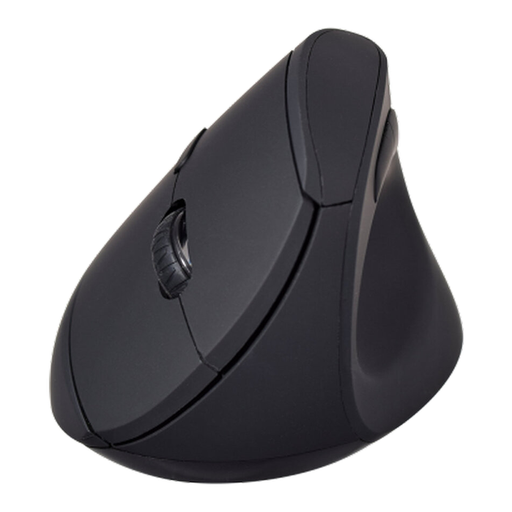
V7 MW500BT Bluetooth vertical mouse
This is a separate pointing device for a laptop-based desk setup, but you would still need a separate keyboard if you plan to raise the laptop screen. The product name specifies Bluetooth and 2.4GHz connection options, six buttons and an adjustable sensor up to 1600 DPI. Check the mouse’s size and shape for your grip rather than assuming a vertical design will suit everyone.
View on Joybuy
Frequently asked questions
When do I need more than the laptop alone for home working?
For prolonged laptop work, consider whether the screen and built-in controls can sit in workable positions at the same time. HSE guidance identifies a separate keyboard and mouse so the laptop screen can be raised, with a separate display as another consideration; it does not mean every laptop owner needs every accessory.
Can I use a riser without buying a separate keyboard and mouse?
For the prolonged laptop setup described by the HSE, plan for separate keyboard and mouse input when raising the laptop screen. Otherwise, raising the screen also raises the built-in keyboard and trackpad.
Will any USB-C dock run my monitor and charge my laptop?
No: a USB-C connector alone does not establish video-output or charging support. The USB Implementers Forum distinguishes these capabilities; compare your exact laptop’s specifications with the dock, cable, charger and intended monitor arrangement.
Does UK guidance say every home worker must buy a monitor or dock?
No particular monitor, riser or dock is prescribed for every home worker. The HSE says employers must assess workstations for workers who use display-screen equipment daily, continuously for an hour or more, where the applicable requirements are met; accessory needs should be considered in the individual setup rather than assumed from a product label.
What should I recheck after changing my desk setup?
Recheck that the screen, keyboard and mouse still have workable positions and that the cables and riser remain secure after a change. Where your employer’s display-screen equipment process applies, raise changes to the workstation or discomfort through that process.


