For long sessions creating custom game maps, start by comparing 27-inch 4K IPS monitors with an adjustable stand and connections that suit your PC. If you frequently play-test fast action, a higher refresh rate is worth considering only alongside the frame rates your PC can deliver; colour-sensitive asset work calls for checks of the exact model's colour modes, while an OLED screen also calls for attention to static editor interfaces and care settings.
Who is this for?
Map editors who need a detailed workspace
If you build layouts while keeping tools, assets and references in view, compare the workspace offered by a 27-inch 4K display. Stand adjustment and your viewing distance matter during longer editing sessions.
Creators who frequently play-test fast action
If your test runs involve quick camera movement or action, refresh rate deserves attention alongside the frame rates your PC produces in those scenes. A high monitor refresh rate alone cannot make a game render more frames.
Colour-conscious asset and UI creators
If you also make textures, interface elements, screenshots or video, check the exact monitor's colour modes and documented coverage against the standard you use. A gaming label or wide-gamut figure is not enough to establish suitability for that work.
What matters when choosing?
Decide how much of your time goes to editing versus fast play-testing, then check colour requirements and whether the screen will fit your desk setup.
| Concern |
What to check |
Who this matters to |
| Editor detail |
Compare native resolution and screen size; check whether display scaling keeps editor text comfortable to read. |
If I keep tool panels open while inspecting terrain and assets, I want enough visible detail without making the interface hard to use. Around 29% of consumers put editor detail first. |
| Play-test motion |
Compare refresh rates with frame rates in your test scenes, and check the rate supported by your chosen port and cable. |
When I test rapid camera movement, I want to see how the map behaves in motion. For around 29% of consumers, responsive play-testing is the primary concern. |
| Asset and UI colour |
Match the model's colour modes and documented coverage to your sRGB, Rec.709 or DCI-P3 workflow. |
If I review textures or interface colours as well as build maps, I need a mode that matches the content I am checking. Colour-focused work comes first for around 21% of consumers. |
| Desk comfort and connections |
Check stand adjustment and desk depth; for a laptop, confirm video output and any required USB-C charging wattage. |
During long editing sessions, I need a screen position that works at my desk and connections that suit my computer. Around 21% of consumers prioritise that workstation setup. |
Buying pitfalls
-
Choosing 240Hz without checking play-test frame rates
A 240Hz monitor does not mean your PC will render a game at 240 frames per second. A PC producing 100 frames per second cannot make full use of a 240Hz display.
Check frame-rate results for your GPU, game and settings at the resolution you intend to use, then confirm the connection supports your target refresh rate.
-
Treating wide colour coverage as accuracy in every mode
A DCI-P3 coverage figure does not establish that a monitor's sRGB or Rec.709 mode suits your asset workflow. Colour specifications and calibration claims apply to particular models and conditions.
Identify the standard used for your textures, UI or video, then check the exact model's modes and calibration documentation.
-
Overlooking screen position while comparing refresh rates
Custom map work can involve long periods at the editor. The Health and Safety Executive advises placing the top of the screen at eye level and the display about an arm's length away.
Measure your desk and check the stand's adjustment range, or confirm VESA mounting if you plan to use an arm.
A stand that cannot reach a workable position may mean using a riser or compatible monitor arm.
-
Confusing similarly named OLED monitors
The ASUS ROG Strix XG27AQDMGR listed by Joybuy UK is a QHD WOLED model, not the 4K QD-OLED ROG Swift OLED PG27UCDM specified by ASUS. Their model names and resolutions distinguish different products.
Match the complete model identifier, resolution and panel description before treating a listing as the monitor you researched.
Relevant brands to compare
Dell UltraSharp
The U2725QE is a workstation-oriented option to examine if you want 4K editor detail, hub connectivity and a refresh rate above 60Hz.
- Dell UK specifies a 27-inch 4K IPS Black display with 120Hz refresh and a height-adjustable stand for the U2725QE.
- For a laptop setup, check that its video output and charging needs match the monitor's connections and Dell's stated power-delivery limit of up to 140W.
BenQ DesignVue / PD
The PD2705U is worth comparing when map creation also involves textures, UI or Rec.709-oriented work.
- BenQ specifies a 27-inch 4K IPS display, 99% sRGB and 99% Rec.709 coverage, a calibration report and height and pivot adjustment for the PD2705U.
- BenQ lists the PD2705U at 60Hz; weigh that against how often you play-test fast action.
ASUS ROG
The ROG Swift OLED PG27UCDM combines 4K detail with a stated 240Hz refresh rate for creators who also prioritise fast play-testing.
- ASUS specifies a 26.5-inch 4K QD-OLED panel, 240Hz refresh and 99% DCI-P3 coverage for this model.
- Check your achievable game frame rates and how you will use care settings around persistent editor controls. ASUS describes its OLED care features as reducing burn-in risk, not removing it.
Acer Predator
The XB273K GP is a 4K IPS gaming model to compare when frequent, fast play-testing matters alongside editing.
- Acer specifies a 27-inch 4K IPS panel, 144Hz refresh, height adjustment and pivot for the XB273K GP.
- If your work depends on a particular colour standard, check the model's relevant modes and documentation rather than relying on its gaming specification.
Joybuy monitor choices
These monitors offer different ways to combine a 4K map-editing workspace with play-testing, from high-refresh gaming displays to a more editing-focused 27-inch option. Compare each model's refresh modes, desk fit and connections against the work you actually do.
 No image available
LG UltraGear G8 27G850A 27-inch 4K Nano IPS
Consider this model if you want a 4K editing display that also offers high-refresh play-test modes.
The product title lists 240Hz and 480Hz Dual Mode, DisplayPort 2.1 and HDMI 2.1. Check the resolution available at each refresh setting, your PC's output and the colour mode needed for asset work.
View on Joybuy
 No image available
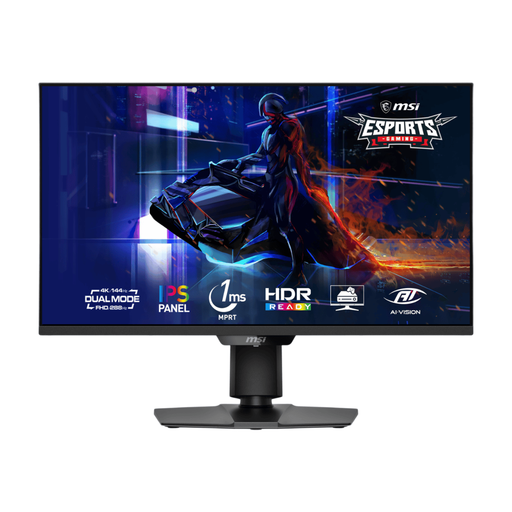
MSI MAG 275UPD E14 27-inch Dual Mode monitor
This model is an option if you edit at UHD resolution but want a separate faster mode for play-testing.
Its title lists UHD at 144Hz and FHD at 288Hz: the 288Hz setting is not a UHD setting. Check that your PC and chosen connection support the mode you intend to use.
View on Joybuy
 No image available
Dahua 32-inch curved 4K OLED gaming monitor
Compare this larger curved display if you want room for map editing alongside high-refresh play-tests, and check that its size and shape work at your desk.
The title states 3840×2160 resolution, 165Hz refresh and 65W Type-C. Confirm that your PC can deliver the resolution and refresh rate you want, and that the connection meets any laptop charging needs.
View on Joybuy
 No image available
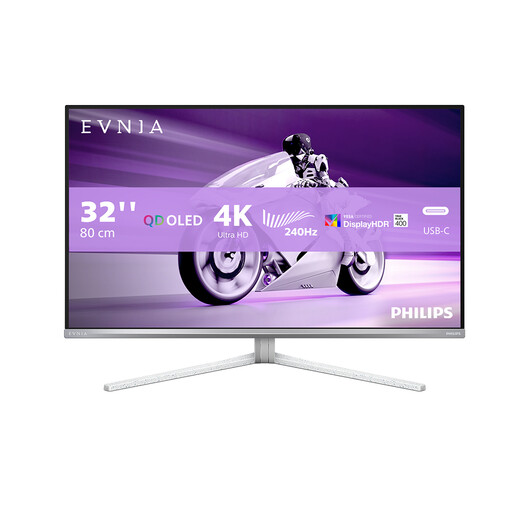
PHILIPS Evnia 32M2N8900 32-inch UHD OLED
This larger 4K OLED option is relevant if fast play-testing is a substantial part of your map-making routine and the screen fits your viewing position.
The product title states a 240Hz refresh rate. Before choosing it for colour-sensitive assets or a laptop workstation, check the modes and connections needed for those tasks.
View on Joybuy
 No image available
iiyama ProLite XUB2792UHSU-B6 27-inch 4K monitor
Compare this 27-inch 4K model if detailed editor work takes priority over choosing a monitor chiefly for fast play-testing.
Check its refresh rate against the games you test. If you plan to connect a laptop by USB-C, confirm the required video-output and charging support for your setup.
View on Joybuy
Frequently asked questions
Do I need 4K to create custom game maps?
No, but 4K is worth comparing if you want more detail for editor panels and asset inspection on a given screen size. If fast play-testing matters more, check what frame rates your PC can sustain at 4K before making resolution your priority.
Is 144Hz or 240Hz worthwhile if I mainly edit maps?
Higher refresh is most relevant when you regularly test fast motion and your PC produces enough frames to use it. A 240Hz display is not fully used when the PC produces only 100 frames per second; also check the rate available through your intended connection.
What should I check when connecting a map-editing laptop?
Confirm that the laptop outputs video through the port you intend to use, then check whether the monitor's power delivery meets its charging needs. BenQ states 65W USB-C power delivery for the PD2705U, while Dell states up to 140W for the U2725QE; neither figure alone establishes compatibility with every laptop.
How should I position a monitor for long editing sessions?
Aim for a position in which the top of the screen is at eye level and the display is about an arm's length away, in line with Health and Safety Executive guidance. Check the supplied stand's height range or VESA mounting options against your desk before buying.


