A 27-inch QHD IPS monitor is a starting point for keeping house-move documents beside a laptop screen, provided the computer can run an extended display through the connection you plan to use. Consider a USB-C hub monitor if you regularly connect a laptop at a fixed desk and need compatible charging; consider 4K if examining detailed floorplans and documents matters more, while checking display support, scaling and screen position.
Who this setup suits
Laptop-based move planners
Keep a laptop open for messages or a checklist while using an external monitor for listings, maps or documents. Check that the laptop can extend its desktop through the chosen connection; Microsoft Support notes that the display adapter can limit how many external monitors a computer supports.
Fixed-desk organisers
If you return to paperwork and planning tasks at the same desk, consider how easily you can position the screen and reconnect your laptop. A height-adjustable stand and suitable USB-C charging may matter more to this setup than a higher refresh rate.
Detail-first document reviewers
If you spend time examining floorplans, maps or scanned paperwork, a 27-inch 4K monitor is worth considering for its higher native resolution. Check that your computer supports the intended display arrangement and that text remains comfortable to read at your chosen scaling.
What to check before buying
Choose the screen resolution for the material you need to see, then check the laptop connection and how the monitor will sit on your desk. USB-C charging is a separate model-specific decision, not a feature to assume from the connector alone.
| Concern | What to check | Who this matters to |
|---|
| Room for planning tasks |
Compare native QHD resolution of 2560 × 1440 with 4K resolution of 3840 × 2160; check how your documents look at a readable scaling setting. |
If I keep listings, maps and paperwork open together, I want enough detail without making text awkward to read. Around 34% of consumers would put workspace and document visibility first. |
| Laptop connection |
Match the laptop’s video output to the monitor input and check support for an extended display. For USB-C charging, compare the monitor’s power-delivery rating with the laptop’s requirements. |
When I reconnect my laptop often, I want the display to work without a tangle of cables or an unexpected charging shortfall. Roughly 33% of consumers would prioritise a straightforward laptop connection. |
| Screen position |
Check stand adjustment and desk depth. The Health and Safety Executive advises placing the top of the screen at eye level and the screen about an arm’s length away. |
For repeated paperwork sessions, I need a screen I can place comfortably at my desk rather than one fixed in an unsuitable position. Around 25% of consumers would make positioning their primary concern. |
| Simple second screen |
Confirm a compatible video input and cable, including whether the cable you intend to use comes with the monitor. |
If my laptop already has a suitable video output, I may only need another display beside it, not a docking-style setup. About 8% of consumers would put that simpler arrangement first. |
Common buying mistakes
-
Assuming every USB-C monitor can charge your laptop sufficiently
USB-C power delivery varies by model: LG UK lists up to 15W for the 27U631A-B, while Dell UK lists 90W for the P2725DE. Neither rating establishes what your laptop needs.
Compare the exact monitor’s power-delivery rating with your laptop’s charging requirement, and check that the laptop port and cable support the intended video connection.
You may still need a separate laptop charger, suitable cable or adapter.
-
Buying before checking how many displays the computer can extend
Microsoft Support notes that a display adapter may limit the number of external monitors a computer can run. A splitter duplicates a signal rather than creating two independent extended displays.
For a laptop plus one monitor, confirm the available video output. If you plan to add two external monitors, check that both the computer and any dock support that arrangement.
A compatible dock or different connection method may be necessary for a more complex setup.
-
Choosing screen specifications without checking the desk
Resolution alone does not tell you whether a monitor can be placed where you need it. The Health and Safety Executive advises positioning the top of the screen at eye level, about an arm’s length away.
Measure the available desk depth and check whether the stand has the adjustment range your position requires.
If the supplied stand cannot achieve that position, a suitable riser or monitor arm may be needed.
Brands and models to consider
Dell
For a fixed laptop desk, Dell UK lists the Pro 27 Plus QHD USB-C Hub Monitor P2725DE with 90W power delivery, RJ45 Ethernet and height, swivel and pivot adjustment.
- The documented hub connections and stand adjustments are relevant if you reconnect a laptop regularly.
- Check your laptop’s USB-C video and charging requirements before planning a one-cable setup; these features describe the P2725DE, not every Dell monitor.
LG
LG UK documents two different 27-inch routes: the QHD IPS 27U631A-B with USB-C power delivery up to 15W, and the 4K IPS 27U730A-B with power delivery up to 90W.
- These model specifications let you compare QHD and 4K alongside their different charging ratings.
- Do not treat USB-C as a uniform charging feature: LG UK states that the 27U631A-B’s USB-C cable is not included.
Philips
Philips UK lists the 27E1N1600AE as a 27-inch QHD monitor with USB-C 3.2 power delivery. Expert Reviews named this model its overall favourite in a March 2026 general monitor roundup, not a house-move-specific assessment.
- Its documented QHD resolution and USB-C connection make it relevant to a laptop-and-monitor arrangement.
- Check your laptop’s video output and charging requirement rather than assuming the USB-C connection meets both.
Joybuy monitor choices
These monitors offer QHD or 4K options for placing house-move material beside a laptop screen. Some have USB-C in their product names; others list HDMI or DisplayPort, so choose by the connection and charging arrangement your computer needs.
 No image available
BenQ MA270UP Nano Glossy 27-inch 4K USB-C Mac monitor
Consider this higher-resolution option if you inspect detailed floorplans and documents at a desk.
The product name specifies an IPS panel, USB-C and a height-adjustable stand. Check video compatibility and charging requirements for your particular computer, especially if you are not using a Mac.
View on Joybuy
 No image available
MSI MD272UPSW 27-inch 4K Smart monitor with Google TV
This is a 4K option for reviewing detailed planning material alongside a laptop screen.
The product name specifies an IPS panel and USB-C 65W. Check whether your laptop supports video over the intended connection and whether 65W meets its charging requirement.
View on Joybuy
 No image available
LG 27UP650K white 27-inch 4K IPS monitor
Consider this 4K display if you want a separate screen for maps or documents and plan to use a conventional video connection.
The product name lists HDMI and DisplayPort, as well as a 60Hz refresh rate. Check that your laptop has a compatible output and plan its charging separately.
View on Joybuy
 No image available
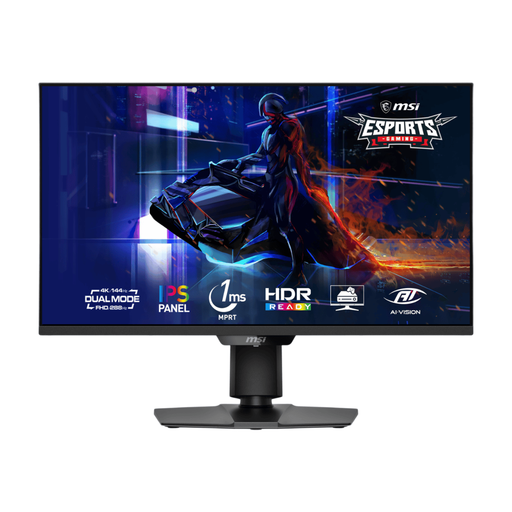
MSI MAG 275UPD E14 27-inch 4K gaming monitor
Its 4K mode offers a higher-resolution route for viewing detailed move-planning material on a second screen.
The product name distinguishes UHD 144Hz and FHD 288Hz modes. Check that your computer can drive the intended extended display and that its video connection suits the monitor.
View on Joybuy
 No image available
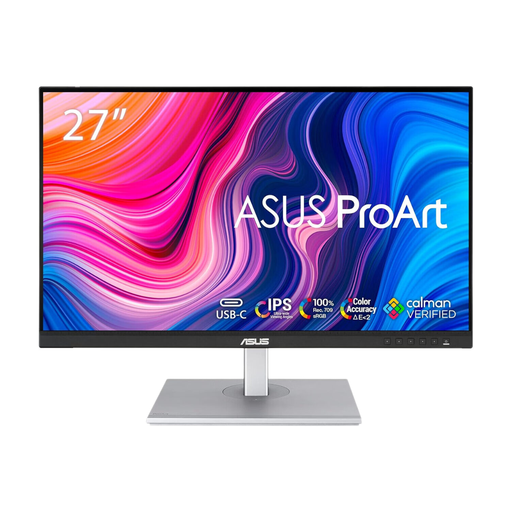
ASUS ProArt PA278CFRV QHD IPS 100Hz monitor
This QHD option suits a second workspace for listings, email and checklists without choosing a 4K panel.
Its product name specifies IPS and 100Hz. Check your laptop’s video output; if USB-C matters to your setup, confirm the connection and power-delivery capability of the exact version before buying.
View on Joybuy
Frequently asked questions
Will any USB-C monitor charge my laptop while showing its picture?
No: video support and charging capability both need checking for the exact monitor and laptop. LG UK lists up to 15W power delivery for the 27U631A-B, while Dell UK lists 90W for the P2725DE; compare the chosen monitor’s rating with your laptop’s requirements and check the cable too.
Why does my external monitor duplicate my laptop screen?
The computer may be set to duplicate rather than extend its display; select the extended-display setting if you want separate workspaces. If the monitor is not detected, Microsoft Support advises checking the connection and the display adapter’s ability to support the intended number of screens. A splitter will not create independent extended displays.
How should I position a monitor for longer planning sessions?
Set it where you can view it without relying on an awkward desk position. The Health and Safety Executive advises putting the top of the screen at eye level and the screen about an arm’s length away; check the desk depth and whether the stand can reach the position you need.


