One-cable laptop editors
Consumers who want one compatible USB-C connection to handle the laptop display, charging and peripheral connections, rather than using separate desk cables for each task.


For laptop-based transcript editing, start by considering a QHD USB-C hub monitor that can carry video, data and charging through one cable, provided the laptop supports those functions and the monitor supplies enough charging power. Consider 4K if detailed text and several open windows matter more, or Thunderbolt docking if compatible high-speed devices or a second display justify it. Stand adjustment still matters during long editing sessions.
Consumers who want one compatible USB-C connection to handle the laptop display, charging and peripheral connections, rather than using separate desk cables for each task.
Consumers who spend extended periods reading and correcting transcripts and need to consider text size, monitor adjustment and the rest of the workstation together. The Health and Safety Executive advises assessing the whole workstation for workers covered by its display-screen-equipment guidance.
Consumers who keep transcripts alongside notes, audio controls or browser research, and may also need connections for a second display. The intended window layout and the laptop’s display support both affect which monitor features are useful.
Choose when: Reading and correcting transcripts on a laptop is the main task, and one cable for display, charging and peripherals would simplify the desk.
Accept: Charging output varies by model, so the laptop’s requirements determine whether its separate charger can stay unplugged.
Choose when: You regularly want a transcript, notes and audio controls visible together, or need greater display detail.
Accept: Text may need scaling to remain comfortable, and USB-C charging still depends on the laptop and monitor.
Choose when: A compatible computer must also connect high-speed peripherals or support the intended multi-display arrangement.
Accept: Thunderbolt-specific connections add little to a basic one-monitor transcript desk if the laptop or workflow cannot use them.
| Concern | What to check | Who this matters to |
|---|---|---|
| Fewer plugs and cables | Check the monitor’s USB-C charging output and hub connections against the laptop’s Power Delivery and DisplayPort Alt Mode support. | I want the laptop to use the monitor for display and charging without another power adapter occupying a socket. Around 40% of consumers put reducing plugs and cables first. |
| Readable text and positioning | Compare text size at a comfortable scaling setting, then check stand adjustment and the complete desk arrangement. | Long stretches of correcting text make screen position and readable type my main concern; for around 30% of consumers, that is the primary need. |
| Several panes or displays | Check the workspace you need, plus the laptop’s supported external-display configuration before choosing display-chain features. | I need the transcript beside notes or audio controls, and may use another screen. Keeping that workspace connected comes first for around 20% of consumers. |
| Detail beyond transcript work | Consider 4K and any colour-focused features only if detailed visual work is part of the workload; check comfortable text scaling. | If I also work with detailed images or video, display detail matters beyond the transcript itself. It is the leading need for around 10% of consumers. |
A USB-C connector does not by itself establish that the laptop can send video or accept enough charging power from the monitor. Philips specifies separate requirements for DisplayPort Alt Mode and USB-C Power Delivery.
Check both functions in the laptop documentation and compare its charging requirement with the monitor’s stated output.
A sharp panel alone does not settle how comfortably the screen fits a long editing session. The Health and Safety Executive advises looking at equipment, furniture and working conditions as part of the workstation.
Check useful stand adjustments, then assess the installed monitor alongside desk depth, seating, lighting and input-device position.
A monitor’s DisplayPort-out or Thunderbolt features do not establish that a particular laptop supports the intended second-display arrangement.
Confirm the laptop’s port standard and supported external displays before choosing those connections.
BenQ’s GW2790QT is a reference point for a text-focused, one-cable desk. It is a different model from the BenQ monitor in the Joybuy product choices below.
Dell’s P2725DE illustrates a QHD USB-C hub monitor for a desk that also needs wired network connectivity.
Philips offers examples of both 4K USB-C docking and Thunderbolt-based connections. Its 27B1U3900/00 is distinct from the Philips Evnia model listed below.
These monitors offer different screen sizes and connection options for transcript work, from a movable display to larger 4K screens. If freeing a plug socket is the priority, confirm the chosen monitor’s USB-C video and charging functions against your laptop before relying on a one-cable setup.
 No image available
Consider this QHD model for transcript-focused work if its USB-C connection meets your laptop’s video and charging needs.
Check the exact regional variant for USB hub connections before planning to attach peripherals through the monitor.
 No image available
Its stated 32-inch 4K screen makes this a model to consider when a transcript and reference windows need room on one display.
The product name specifies a height-adjustable stand. Check USB-C video support and the laptop’s charging requirement, particularly if using a computer other than the Mac devices this model is presented for.
 No image available
Consider this movable display for a workspace where monitor placement needs to change; its Full HD resolution is a different choice from the QHD and 4K models here.
Before counting on one-cable use, check the laptop’s USB-C video support and charging requirement.
 No image available
The stated 31.5-inch 4K screen is relevant if you want a transcript and other work panes on one display.
Check the monitor’s USB-C charging output and video requirements against your laptop before treating it as a replacement for the laptop charger.
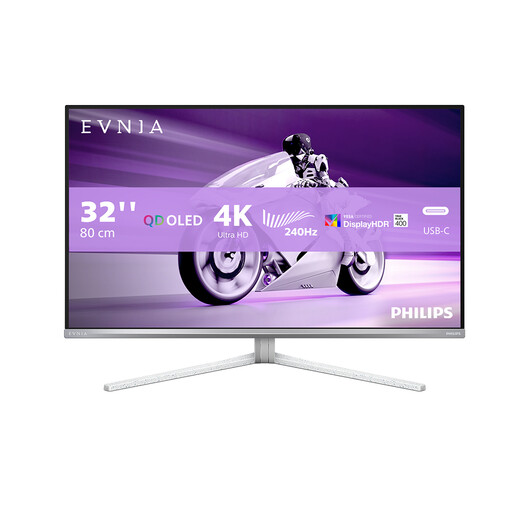 No image available
Consider this large UHD display if the desk also serves visual work beyond transcript editing; its gaming-focused features need not drive a text-work purchase.
The monitor still needs its own wall outlet. Check laptop USB-C video and charging compatibility, along with suitable stand positioning, before planning the desk layout.
It can for a compatible laptop if the monitor’s Power Delivery output meets that laptop’s charging requirement. To carry the picture over the same connection, also check that the laptop supports DisplayPort Alt Mode; a USB-C-shaped port alone does not establish either function.
A QHD USB-C hub monitor is a practical starting point for text editing when one-cable connections and monitor adjustment are priorities. Consider 4K if you want greater display detail or regularly arrange several windows together, and check that text remains comfortable at your preferred scaling setting.
Yes, for workers to whom the UK display-screen-equipment rules apply. The Health and Safety Executive says these rules cover workers using display screen equipment daily for continuous periods of an hour or more, and advises assessing the equipment, furniture and working conditions together rather than choosing a monitor in isolation.
Confirm the exact model variant, included cables, warranty, dead-pixel terms and delivery arrangements on the product listing. Read the retailer’s change-of-mind return terms separately from the information it provides about faulty, damaged or misdescribed goods.