Reference-heavy quiz builders
Keep a quiz editor beside word lists, definitions or a spreadsheet instead of switching between windows. Microsoft Support explains how Windows can arrange connected displays as separate desktop areas.


If you need a quiz editor on one physical screen and vocabulary references on another, choose two monitors that your computer can run as extended displays. A QHD pair gives each screen its own workspace, but check the computer’s display limits, connections, desk space and stand adjustment before choosing monitors; a single tall display suits stacked windows rather than two separately positioned screens.
Keep a quiz editor beside word lists, definitions or a spreadsheet instead of switching between windows. Microsoft Support explains how Windows can arrange connected displays as separate desktop areas.
Use a laptop at a two-monitor desk and consider a hub monitor to simplify connections. Check the laptop’s external-display capability before relying on a USB-C connection or a monitor-to-monitor chain.
Spend extended periods reading and editing text, making screen placement, stand adjustment and control of reflections important alongside resolution. The Health and Safety Executive advises attention to desk arrangement and lighting for display-screen work.
Choose when: You want the quiz editor and reference material on separately positioned screens.
Allow for: Enough desk width and a computer connection arrangement that supports two extended displays.
Choose when: Desk width is limited and stacked windows on one screen meet your needs.
Accept that: It remains one physical display, not two independently positioned monitors. Check availability of the particular model you are considering; LG marks its cited DualUp 28MQ780-B as discontinued.
For two-screen quiz preparation, establish that the computer can extend its desktop across both displays, then choose the workspace and positioning that suit your desk. A USB-C hub can simplify a compatible laptop connection, but does not establish that the laptop can drive two external screens.
| Concern | What to check | Who this matters to |
|---|---|---|
| Separate, readable work areas | Compare each screen’s size and resolution; confirm the computer can use Extend rather than Duplicate. BenQ and Samsung list 2560 × 1440 resolution for the cited 27-inch QHD models. | When I move between quiz questions and source vocabulary, I want both visible without rearranging windows. Around 45% of consumers put separate work areas first. |
| Laptop connections | Check the exact computer’s external-display limits, video-capable ports and the cables or dock required for the intended pair. | If I build quizzes on a laptop, both screens need to work at my chosen settings before fewer desk cables matter. Roughly 33% of consumers prioritise connection compatibility. |
| Placement and glare | Check stand adjustment and available desk depth; position screens and lighting to limit reflections, as the Health and Safety Executive advises for display-screen work. | For long text-editing sessions, I need to position both screens without awkward angles or distracting reflections. About 22% of consumers place workstation arrangement first. |
A USB-C port or monitor hub does not, by itself, establish support for two external displays at your chosen settings. Microsoft Support notes that supported resolution and refresh rate can depend on the particular computer and display arrangement.
Check your computer model’s external-display specification, video-capable ports and cable or dock requirements. If you use Windows and want separate work areas, select Extend after connecting the displays.
The connection arrangement may require a dock, adapter or different cables.
A tall panel can show stacked windows, but it does not provide two separately positioned physical displays.
Choose it if one vertical workspace solves your layout problem; choose a pair if the editor and reference screen need independent placement.
Panel features do not settle where two screens sit or how light reflects from them. Health and Safety Executive guidance includes arranging screens and lighting to avoid glare.
Plan space for both displays, align them using adjustable stands or compatible arms where needed, and check reflections from windows and lights.
Using monitor arms may also require a suitable mounting arrangement and desk edge.
Relevant to a laptop-led two-monitor desk where connectivity on the primary display matters.
Relevant to text-heavy desk work and a compatible laptop connection.
Relevant when a QHD desk monitor may also need to switch between computers.
Relevant when adjustable positioning and a selection of wired inputs matter more than one-cable laptop charging.
These conventional monitors can each serve as one screen for quiz editing or vocabulary references. Choose a pair only after checking your computer’s external-display support and how the monitors will fit and connect at your desk.
 No image available
Consider this as one QHD screen for a quiz editor or reference material. The product title specifies an IPS panel and 100Hz refresh rate.
Check the exact regional variant’s USB-C functions if video or laptop charging matters to your connection plan.
 No image available
This 27-inch QHD monitor could provide one of the two physical work areas. Its product title specifies an OLED panel and 240Hz refresh rate; confirm that its connections and stand suit the planned pair.
If you want video or laptop charging over USB-C, check those functions on the exact listing before choosing a cable arrangement.
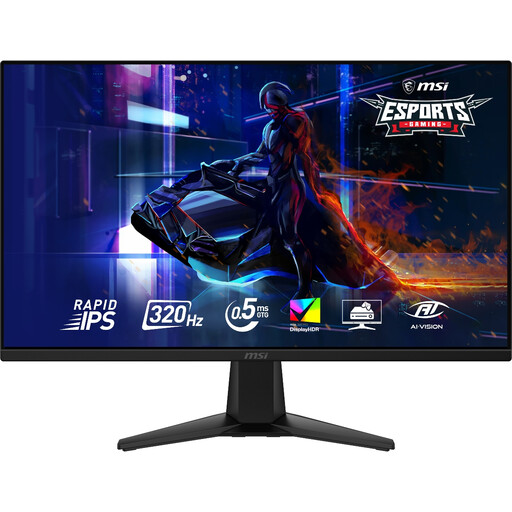 No image available
Its 27-inch 2560 × 1440 display can occupy one side of the quiz-and-reference workspace. The title also specifies a Rapid IPS panel and 320Hz refresh rate.
For side-by-side alignment, check whether the stand’s adjustment range meets your needs; tilt adjustment alone may not place both screens at the height you want.
 No image available
This 2560 × 1440 monitor could hold either quiz-writing or reference windows. Its title specifies a QD-OLED panel and 240Hz refresh rate.
Confirm the panel size before planning a matched layout: the title says 27 inches, while the detailed specifications say 26.5 inches. Check the computer’s support for a second extended display too.
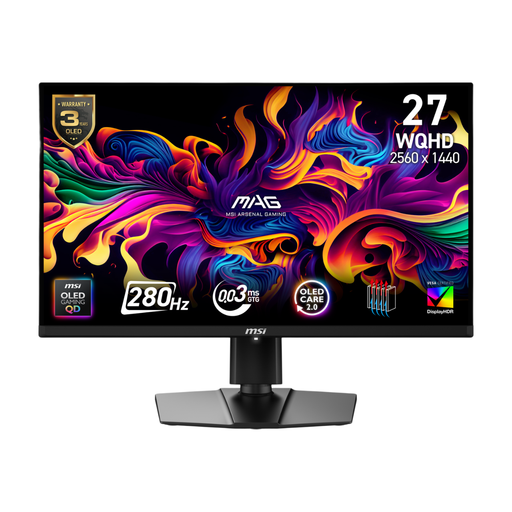 No image available
Consider this QHD monitor for one of the two independently arranged screens. Its title specifies a QD-OLED panel and 280Hz refresh rate.
Check its dimensions before pairing it with another display: the title says 27 inches, while the detailed specifications say 26.5 inches. If USB-C is part of your setup, confirm the video and charging functions you require.
No; support depends on the exact laptop and connection arrangement. Check its permitted number of external displays and their resolution and refresh-rate limits. Once compatible screens are connected, Microsoft Support explains how Windows can use Extend to put the quiz editor and references on separate desktop areas.
Not necessarily. A compatible USB-C connection can carry video, data or charging, but a second display also needs support from the computer and the chosen connection arrangement. Dell lists DisplayPort output with MST on its P2725DE; check your computer’s compatibility before planning a monitor-to-monitor chain.
No. A matching pair can simplify alignment and text sizing, but mixed models can also provide two work areas. Compare their physical dimensions, resolution, stand adjustment and available connections before buying.
Screen placement and lighting matter alongside resolution. Arrange the displays within your desk space, check whether their stands allow the positioning you need, and reduce reflections; the Health and Safety Executive includes desk arrangement and glare control in its display-screen guidance.