Frequent mono-newsletter coordinator
You produce recurring, text-led newsletters and want to limit interruptions for paper and toner. Check automatic duplex, tray capacity and the model’s published workload guidance against a typical run.


For a club newsletter made mainly of black text, start with a mono laser printer; a print-only model suits a studio that already handles scanning elsewhere. Choose colour when it is needed in the finished pages, or a multifunction model when members regularly scan or copy paper originals. For repeat runs, check two-sided printing, paper capacity, shared connections and toner options on the exact model.
You produce recurring, text-led newsletters and want to limit interruptions for paper and toner. Check automatic duplex, tray capacity and the model’s published workload guidance against a typical run.
Logos, artwork, photographs or event highlights need to appear in colour on the printed page. Check whether colour is needed throughout the newsletter or only on selected pages, and plan for supplies in all required toner colours.
You regularly copy or scan contributor material, sign-up sheets or archive pages. A multifunction printer may bring that work to the same station; an automatic document feeder is worth checking if originals often have several pages.
Decide whether the finished newsletter needs colour and whether paper originals must be scanned or copied, then assess how members will share the printer and manage repeat runs.
| Concern | What to check | Who this matters to |
|---|---|---|
| Uninterrupted mono runs | Automatic duplex and tray capacity for the usual run; published workload guidance and compatible toner options. | When I print a text-led issue repeatedly, I need to finish the run without frequent paper or toner changes. Around 36% of consumers put mono-run continuity first. |
| Shared access and document control | Connections supported by the exact model, member-device compatibility and any controls needed for confidential jobs or external interfaces. | Members need a practical way to send their pages to one printer, but I also need to control access to documents and connected devices. For around 29% of consumers, shared access and document control are the main concern. |
| Colour presentation | Whether colour is needed on every page or only selected pages; duplex capability and supplies for each toner colour. | Our printed logos, artwork or photographs need colour to serve their purpose. Colour presentation comes first for roughly 21% of consumers. |
| Scanning and copying | Print-only or multifunction capability, plus an automatic document feeder if members handle multi-page originals. | Contributor pages and forms arrive on paper, and I need to copy or digitise them at the printer. Around 14% of consumers prioritise that paper-original workflow. |
Colour is useful when the publication needs it, but a multifunction device also brings functions and supplies a text-led newsletter may not use.
Decide whether colour is needed throughout, only on selected pages or not at all. If scanning and copying are rare, compare a mono print-only model as well.
A colour printer also means managing black, cyan, magenta and yellow toner supplies.
A manufacturer’s workload figure helps with initial selection; it does not tell you exactly how a particular newsletter, paper stock or shared-use pattern will run.
Compare the published figure with your expected monthly pages, leave room for extra runs and check the toner and maintenance arrangements for the exact model.
Members need room to load paper, reach the controls, clear jams and replace toner. A printer’s dimensions alone do not account for those tasks.
Measure the proposed surface and surrounding clearance, including access to trays and service areas, before choosing a location.
A larger multifunction machine may require a different surface or changes to the studio layout.
Convenient network and external-device connections also need managing when many members can use the printer. The National Cyber Security Centre advises organisations to consider the risks of peripheral interfaces and restrict access that is not needed.
Agree which wired, wireless and USB methods the studio will use, then check whether the printer offers suitable controls for members and confidential jobs.
Brother’s UK laser range includes compact mono print-only machines relevant to recurring text-led newsletters.
HP’s UK LaserJet Pro listings include mono, colour and multifunction models, so the required functions need checking model by model.
Canon’s UK i-SENSYS colour models provide reference points for studios considering colour pages and, in some models, scanning and copying.
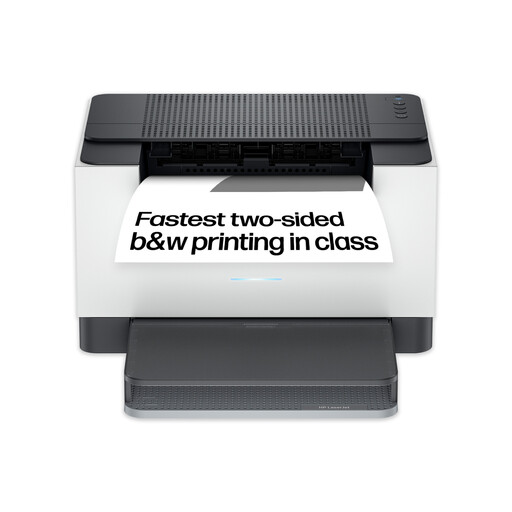
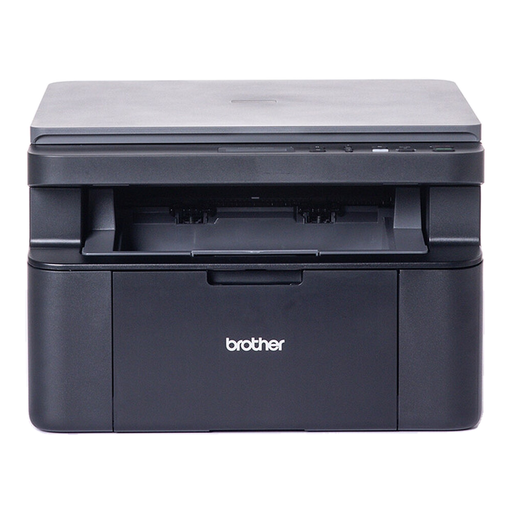
These mono laser printers relate to text-led newsletter runs. One is oriented towards wireless printing; the other may suit a studio that also handles paper originals, provided its scan-and-copy arrangement meets the club’s needs.
 No image available
For text-led newsletters that members need to print over a wireless connection.
Two-sided printing and a 150-sheet input tray are listed. Plan for refills on longer runs, and check the model’s workload guidance and toner options against your expected volume.
 No image available
For monochrome newsletters in a studio that also wants to handle paper originals; check the scan-and-copy arrangement for the work members do.
Two-sided printing requires manual intervention. Allow for tray refills on larger runs and check compatible toner options before planning recurring issues.
Choose mono if the finished pages are mainly black text and line art; choose colour if printed logos, artwork or photographs need it. For a colour model, check duplex printing, paper capacity and supplies for each toner colour against the planned run.
A multifunction model makes sense when the studio regularly scans or copies paper originals, not simply because members print newsletters. Canon UK Store lists print, copy, scan and a 50-sheet automatic document feeder for the i-SENSYS MF752Cdw II; check whether those functions and the space it needs match your workflow.
Choose the connections your members’ devices require, then set rules for who can use them and how confidential jobs are handled. The National Cyber Security Centre advises restricting peripheral access that is not needed, which is relevant when considering shared wireless or USB use.
Keep the printer enclosure intact and arrange appropriate servicing rather than opening the laser system for repairs. The Health and Safety Executive says lasers in office equipment pose no risk provided their casings remain undamaged, and that work involving access to the laser system should be done by trained, authorised people.
Arrange an appropriate electrical-waste route rather than putting the printer in ordinary waste. GOV.UK identifies the Waste Electrical and Electronic Equipment Regulations 2013, as amended, as the basis of UK rules encouraging recovery, reuse and recycling; check the studio’s business-waste arrangements or an applicable retailer take-back option when disposal is due.