For bird-survey work centred on spreadsheets and reports, start with a conventional mouse if familiar pointer control, scrolling and configurable buttons matter most. Consider a stationary trackball for a compact desk, or a specialist command mouse if repeated map navigation and shortcuts are central to your work; whichever you choose, check hand fit, software compatibility and the wider desk setup.
Who each mouse type may suit
Spreadsheet and report analysts
If you spend most sessions filtering records, reviewing charts and writing findings, familiar pointer control and scrolling are likely to matter more than specialist map controls. Logitech documents scrolling and optional button customisation on the MX Master 3S.
Compact-desk trackball users
A stationary device may appeal if you have little room to move a mouse or prefer controlling the pointer with a ball. Kensington’s Expert Mouse Wireless Trackball provides a scroll ring and an ambidextrous layout, but hand fit still needs checking.
Map and shortcut-heavy analysts
If your analysis repeatedly involves panning, zooming or issuing commands, dedicated controls may be useful. 3Dconnexion offers these controls on CadMouse models, though their value depends on your particular applications.
What to check before choosing
Conventional mouse
Choose it when: Most of your time goes into spreadsheets, reports and browser tools, and you want familiar pointer movement.
Bear in mind: Optional shortcuts depend on compatible configuration software, and a sculpted shape will not fit every hand or handedness preference.
Stationary trackball
Choose it when: Desk space is tight or you would rather move a ball than the whole device.
Bear in mind: Hand fit and connection-specific software support matter; Kensington describes its Expert Mouse Wireless Trackball as intended for average to larger hands.
Specialist command mouse
Choose it when: Repeated map navigation or programmable commands are a substantial part of your workflow.
Bear in mind: 3Dconnexion positions CadMouse for design and engineering; check whether its controls work as you need in your bird-survey software.
| Concern |
What to check |
Who this matters to |
| Table and report navigation |
Scroll-wheel behaviour for long records; whether useful button actions work in your applications. |
Moving between long survey tables, charts and reports makes repeated navigation a priority. Around 36% of consumers put this workflow need first. |
| Fit at a compact desk |
Whether the device fits near your elbow; hand fit and preferred control style. |
At a shallow desk, I want usable pointer control without moving a device across the available space. Roughly 29% of consumers prioritise this desk-space and fit concern. |
| Map and command controls |
Access to middle-click, pan or zoom actions; driver support for your exact software. |
When map work involves repeated commands, I want those actions within easy reach. About 21% of consumers make command access their primary concern. |
| Quiet operation |
What a model’s click-noise claim covers, including whether it says anything about scrolling. |
Working near others or taking calls makes distracting clicks a more pressing issue. Around 14% of consumers put quieter operation first. |
Mistakes to avoid
-
Choosing by the DPI figure alone
Adjustable sensor sensitivity does not establish that a mouse will make spreadsheet selection or map work more accurate. Comfortable pointer speed and accessible controls depend on your setup and tasks.
Check whether you can set a usable speed for your display and try the controls you expect to use in your analysis applications.
-
Overlooking trackball fit and software conditions
Kensington describes the Expert Mouse Wireless Trackball as intended for average to larger hands. Its stated Mac TrackballWorks condition is tied to the 2.4 GHz receiver.
Check hand fit, handedness, operating system and your intended connection before relying on custom buttons.
-
Expecting a mouse to fix the whole workstation
The Health and Safety Executive advises attention to the full display-screen setup and posture. A different pointing device does not remove a need to reach, twist or raise your shoulders at the desk.
Keep the mouse in line with your elbow and the screen and keyboard central. If this is employment-related home working, use the applicable workstation assessment process.
-
Assuming similarly named models are identical
A listing labelled MX Master 3S can refer to a particular variant, such as the MX Master 3S for Business, rather than every MX Master 3S package.
Compare the complete model designation, connection options, included receiver and warranty terms for the item you intend to buy.
Relevant brands to consider
Logitech
Its MX Master 3S is a conventional productivity-mouse example for readers interested in scrolling and configurable controls.
- Logitech lists an 8,000 DPI sensor, quiet clicks and MagSpeed scrolling for the MX Master 3S; Logi Options+ provides tracking-speed and button customisation on supported Windows and macOS setups.
- Logitech’s glass-tracking claim specifies glass at least 4 mm thick. Check software compatibility if customisation is central to your choice.
Kensington
Its Expert Mouse Wireless Trackball is a stationary option with a scroll ring and ambidextrous layout.
- Kensington lists four customisable buttons and Bluetooth LE or USB-receiver connection for this model.
- Kensington describes the model as intended for average to larger hands; check its Mac software condition against the connection you plan to use.
3Dconnexion
CadMouse models are worth considering when repeated navigation and commands, rather than routine spreadsheet work alone, drive the choice.
- 3Dconnexion lists a dedicated middle button, QuickZoom and programmable controls; the CadMouse Pro Wireless lists five programmable buttons.
- The manufacturer focuses on design and engineering workflows. Check whether your mapping or analytical software can use the controls you want.
Joybuy mouse choices for desk-based analysis
These mice are choices for conventional desk-based pointer use while reviewing bird-survey tables, documents and related work. Compare their stated controls and connection options with your own software and workspace needs.
 No image available
Logitech MX Master 3S Black Mouse
Consider this conventional mouse if scrolling and configurable controls are priorities for reviewing tables and reports.
Check the full Business variant designation, included receiver and warranty before ordering, and confirm that the button actions you want work with your operating system and applications.
View on Joybuy
 No image available
AJAZZ AJ200 AI MC Mouse with Charging Dock
Consider its stated connection choices if you switch between desk setups, but check whether its controls suit your analysis applications.
The product name specifies a PAW3311 sensor, 24000 DPI, 63 g weight and Bluetooth, 2.4G and USB-C modes. Check scroll-wheel behaviour if you regularly move through long tables.
View on Joybuy
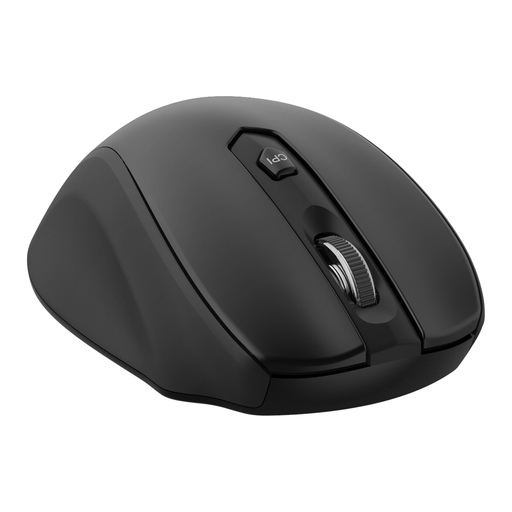 No image available
ET 2.4G Wireless Mouse, Black, Single
This is an option to assess for routine pointer use and page navigation at a home desk.
The product name lists a USB receiver, five adjustable DPI levels and six buttons. Its side buttons are described as unavailable on Mac; check whether that affects your workflow and whether its scrolling suits long records.
View on Joybuy
 No image available
V7 MW500BT Bluetooth Vertical Mouse
Consider the vertical shape if you want a different hand position for desk work, while assessing the fit for yourself rather than assuming a comfort outcome.
The product name lists Bluetooth and 2.4GHz connection, six buttons and an adjustable sensor rated at 1600 DPI. Check scrolling and application-specific button support if either is important to your work.
View on Joybuy
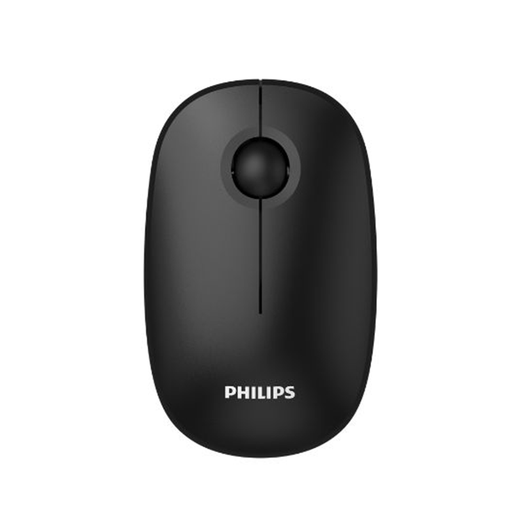 No image available
Philips 3000 Series SPK7378B/00 Wireless Mouse, EU Version, Black
Consider this model if quieter clicks matter during shared home-office work, while checking that its basic controls meet your navigation needs.
The product name lists a 2.4GHz USB receiver, silent clicks and 1600 DPI. Check scroll-wheel behaviour and button options if you rely on long-table navigation or shortcuts.
View on Joybuy
Questions about setup and controls
Will programmable buttons work without configuration software?
Do not assume the extra button actions you want will work without the model’s configuration software. Logitech uses Logi Options+ for MX Master customisation, while Kensington lists TrackballWorks for Expert Mouse button and cursor settings; check the exact device, operating system, connection and application before relying on shortcuts.
What should I check before choosing a trackball for survey work?
Check hand fit, desk position and the connection you intend to use. Kensington describes its Expert Mouse Wireless Trackball as ambidextrous and intended for average to larger hands; its stated Mac TrackballWorks condition applies to use with the 2.4 GHz receiver.


