Shared-office timetable organisers
If you edit schedules beside colleagues, quiet clicks, familiar controls and a connection that works with your desk computer are practical starting points.


For routine timetable editing near colleagues, start with a quiet wireless mouse that fits your hand and connects to the computer you use. Consider additional scrolling or device-switching controls if you regularly work through long sheets; consider a vertical shape only if its grip suits you. For prolonged desk work, assess the workstation as well as the mouse.
If you edit schedules beside colleagues, quiet clicks, familiar controls and a connection that works with your desk computer are practical starting points.
If you move through lengthy or wide timetables, assess scrolling controls and whether you would use shortcuts or switch between computers.
For longer planning sessions, check hand fit and grip alongside your desk setup. The Health and Safety Executive treats the mouse as part of the wider display screen equipment workstation.
Choose the connection and shape that work at your desk before deciding whether extra navigation controls would earn their place in your timetable workflow.
Consider it when: You make routine edits near colleagues and prefer a familiar grip.
Trade-off: Check the particular model if fast or sideways scrolling is important to your work.
Consider it when: Long sheets, recurring shortcuts or switching between computers are regular parts of preparing the timetable.
Trade-off: Button customisation may depend on software your office computer does not permit.
Consider it when: You prefer an upright grip and can check that the shape suits your hand.
Trade-off: The grip can take getting used to; an ergonomic label does not establish individual comfort.
| Concern | What to check | Who this matters to |
|---|---|---|
| Quiet operation | Look for an explicit quiet-click claim; check wheel noise too if frequent scrolling could disturb colleagues. | I work close to colleagues and want routine edits to draw less attention. Around 29% of consumers would put quiet operation first. |
| Timetable navigation | Check fast or precise scrolling, and sideways scrolling if your sheets are wide; confirm any shortcut software is permitted. | Moving through long or wide schedules takes up much of my planning time. For around 29% of consumers, navigation is the primary concern. |
| Connection flexibility | Confirm Bluetooth support or an available USB port, workplace device policy and the need to switch computers. | If I change desks or use a personal laptop as well as an office computer, I need a workable connection at each. Connection flexibility comes first for around 21% of consumers. |
| Comfort over longer sessions | Check hand-size and handedness guidance, grip shape and whether the mouse can sit close to you. | During longer planning sessions, I want a grip that fits without overlooking the rest of my workstation. Around 21% of consumers would prioritise comfort. |
Logitech positions Lift for small-to-medium hands, while Kensington positions Pro Fit Ergo Vertical for average-to-larger hands. Neither description establishes how a particular grip will feel to you.
Check the maker’s size and handedness guidance. If you cannot try the mouse, review the seller’s applicable return policy before ordering.
Advanced scrolling and configurable buttons address frequent navigation tasks, but they need not drive a choice for occasional timetable edits.
List the actions you repeat regularly. If extra controls do not address them, focus on fit, click noise and connection compatibility.
The Health and Safety Executive identifies workstation setup and use as part of managing display screen equipment risks; changing the mouse does not address the whole desk arrangement.
Keep the mouse within comfortable reach, vary your activity and use your workplace’s display screen equipment assessment process where applicable.
A model name alone may not distinguish a business variant from another edition or establish which accessories come with it.
Compare the full variant name, connection method, included receiver and operating-system requirements on the product page before choosing.
Its cited ranges cover conventional, productivity and vertical shapes.
Its cited office mice emphasise device switching and scrolling controls.
Its cited models include a receiver-based quiet mouse and a vertical design.
These mice cover quiet conventional use, timetable navigation and a vertical-grip option. Compare each one with the computer and desk where you prepare schedules; a product’s place here does not establish that its shape or controls suit everyone.
 No image available
Consider this productivity-mouse option if long timetables make scrolling controls and switching computers important. Check whether button-customisation software is permitted at work, and confirm the exact variant and included accessories.
 No image available
A conventional-mouse option to consider when shared-office noise and connection choice matter. Its title specifies adjustable DPI and one AA battery; check the wheel controls if you often navigate long sheets, and confirm compatibility with the office computer.
 No image available
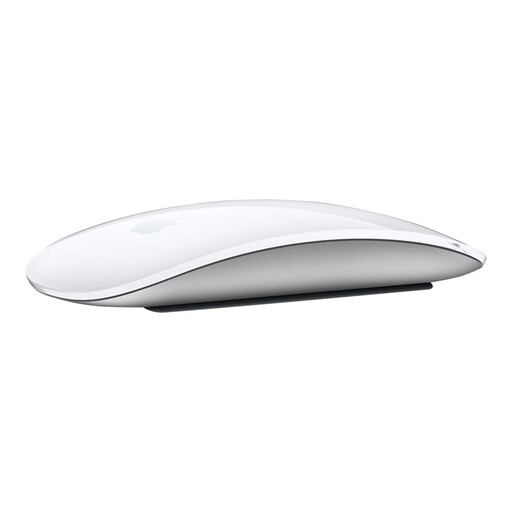
Consider its Multi-Touch surface if gesture-based navigation suits your timetable work. Confirm that the shared-office computer meets its system requirements, and check click noise and hand fit if those are priorities.
 No image available
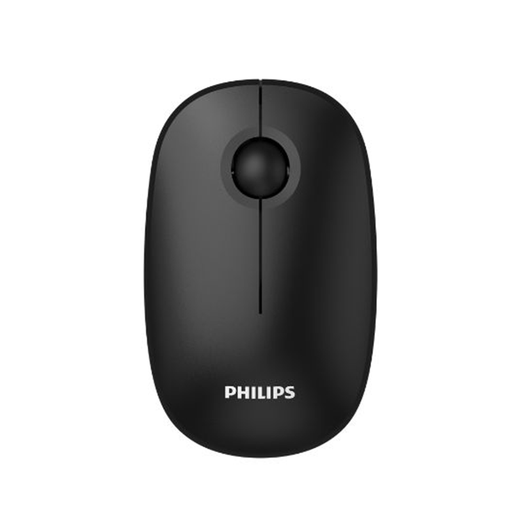
A conventional option for a desk where a USB receiver is permitted and a port is available. The title specifies 2.4 GHz wireless connection, silent clicks and 1600 DPI; check wheel behaviour if navigating lengthy timetables is a priority.
 No image available
Consider this vertical-shape option if its grip and detachable wrist rest suit your hand and desk setup. Check click noise for use near colleagues, and whether any button-customisation software is permitted on your computer.
Yes, if your work falls within the applicable display screen equipment arrangements, assess the mouse as part of the whole workstation rather than in isolation. The Health and Safety Executive says employers must assess and reduce display screen equipment workstation risks; ask your workplace how its assessment process applies when you change desks.
A vertical mouse is worth considering only if its size and grip suit you; it is not a remedy for discomfort on its own. Check the full desk arrangement and use the workplace assessment process where applicable, as advised by the Health and Safety Executive.
Choose the connection your computer and workplace policy permit. Bluetooth avoids occupying a USB port when supported; a receiver is an option when you have a suitable port and its use is allowed. Check the specific mouse’s compatibility before ordering.
Check that it connects to the new computer, that pointer settings suit your work and that you can position it comfortably. Keep its contact surfaces clean, and check the manufacturer’s pairing instructions rather than assuming a receiver will work with another mouse.