Choose a mouse that suits how long you spend editing the club timetable, how often you navigate large schedules and whether you switch computers. Consider a vertical shape if an upright hand position is your priority; for frequent scrolling and repeated commands, consider a conventional mouse with suitable controls. In either case, check hand fit, handedness and connection compatibility before buying.
Who needs a timetable mouse?
Frequent timetable editor
If you regularly revise rotas, fixtures or room bookings, scrolling through long schedules and repeating the same commands can shape which controls are useful. Logitech and HP describe scrolling and button features in their productivity mice, but their usefulness depends on your timetable software and working habits.
Comfort-first club administrator
If timetable sessions keep you at a desk for extended periods, consider hand fit and mouse placement together. The Health and Safety Executive advises keeping the mouse within easy reach and using it with a straight wrist; Logitech and Kensington also give different hand-size guidance for their vertical models.
Shared-device coordinator
If you update schedules on a club computer as well as a laptop at home, connection options may matter more than extra buttons. HP describes a mouse that connects to two devices by Bluetooth or USB-A receiver; check the computers you actually use before choosing a similar setup.
What should you check before buying?
Start with hand fit and the computers you use, then decide whether long schedules justify additional scrolling or shortcut controls. The Health and Safety Executive’s advice on mouse placement applies regardless of the shape you choose.
| Concern |
What to check |
Who this matters to |
| Comfort during repeated use |
Check hand-size and handedness guidance, and whether the mouse can sit close enough to avoid reaching. |
If I spend long sessions adjusting fixtures and bookings, hand fit matters more to me than extra controls. Around 29% of consumers put comfort during repeated use first. |
| Navigation through long schedules |
Check the scroll controls and whether your timetable software supports the shortcuts you want to assign. |
Moving repeatedly through a large spreadsheet makes scrolling and familiar commands my main concern; roughly 29% of consumers prioritise schedule navigation. |
| Use across computers |
Confirm each computer’s Bluetooth support and ports, plus the mouse’s supported connection methods. |
When I move between a home laptop and club equipment, I want a connection that works with both. Around 21% of consumers place cross-device use first. |
| Quiet, straightforward use |
Check the stated click design, connection method and battery type rather than assuming all wireless mice work alike. |
For occasional changes in a shared room, I would rather have uncomplicated controls and less intrusive clicking. Approximately 21% of consumers make quiet, straightforward use their primary concern. |
Mistakes to avoid
-
Choosing a vertical mouse without checking fit
A vertical shape does not fit every hand. Logitech positions Lift for small to medium hands and offers a left-handed version, while Kensington positions its Pro Fit Ergo Vertical for average to larger hands.
Check the exact model’s size and handedness guidance. If you cannot try it first, review the applicable retailer return terms before ordering.
-
Expecting a new mouse to fix the whole desk setup
Mouse shape is only part of comfortable workstation use. The Health and Safety Executive advises keeping the mouse within easy reach and using it with a straight wrist.
Review where the mouse sits and how your forearm is supported, rather than relying on an ergonomic product claim alone.
-
Assuming wireless means compatible
Wireless models can use Bluetooth, a USB receiver or both. For example, HP states that its 430 mouse connects by Bluetooth or a USB-A nano dongle, while Kensington describes a receiver for its Pro Fit Ergo Vertical model.
Check Bluetooth availability and ports on the club and home computers you intend to use.
A computer with only USB-C ports needs a suitable adapter to use a USB-A receiver.
-
Choosing advanced controls you will not use
Fast scrolling and programmable buttons address repeated navigation, but they add little to occasional, short timetable edits if you will not use those functions.
Identify the actions you repeat in your spreadsheet or calendar, then check whether the mouse and its software can assign the commands you need.
Brands to consider
Logitech
Its Lift vertical mouse and MX Master 3S conventional productivity mouse address different priorities in timetable work.
- Logitech specifies a 57° upright form for Lift, with a left-handed option, and describes MagSpeed scrolling and an 8,000 DPI sensor for MX Master 3S.
- Lift is positioned for small to medium hands. The models’ different shapes and controls are reasons to check fit and workflow, not evidence that either suits everyone.
HP
The HP 430 Multi-Device Wireless Mouse is a conventional option for people who use more than one computer.
- HP states that the 430 connects to up to two devices using Bluetooth or a USB-A nano dongle and has four programmable buttons.
- Its conventional shape is not the same upright-grip approach as a vertical mouse; confirm that its connections and button customisation suit your computers.
Kensington
Its Pro Fit Ergo Vertical Wireless Mouse offers another vertical shape to compare for desk-based timetable work.
- Kensington specifies a 46.7° slope and a USB receiver for the Pro Fit Ergo Vertical model.
- Kensington positions this model for average to larger hands. Its comfort claims should not replace a check of hand fit and workstation arrangement.
Joybuy mice for timetable work
These mice offer vertical-grip and conventional wireless options for timetable editing. Compare the connection and control details with your computers and the way you update schedules; the titles alone cannot establish how a shape will fit your hand.
 No image available
HP 920 Ergonomic Wireless Mouse, Black, with Detachable Wrist Rest
Consider this model if a vertical shape is your starting point for longer timetable-editing sessions. A detachable wrist rest is specified; check hand fit, connection compatibility and whether its controls meet your needs before buying.
View on Joybuy
 No image available
HOFOTEK M311 2.4G+BT Silent Office Mouse, White-Grey
For shared-room timetable updates, this model’s stated silent-click design may be relevant. Its title specifies 2.4G+BT connectivity, adjustable DPI and one AA battery; check which connection method works with each computer you use.
View on Joybuy
 No image available
V7 MW500BT Bluetooth Vertical Ergonomic Mouse
Consider its vertical form if you prefer a more upright grip while editing schedules. The title specifies Bluetooth and 2.4GHz modes, six buttons and an adjustable sensor reaching 1600 DPI; confirm hand fit and compatibility with the intended computer.
View on Joybuy
 No image available
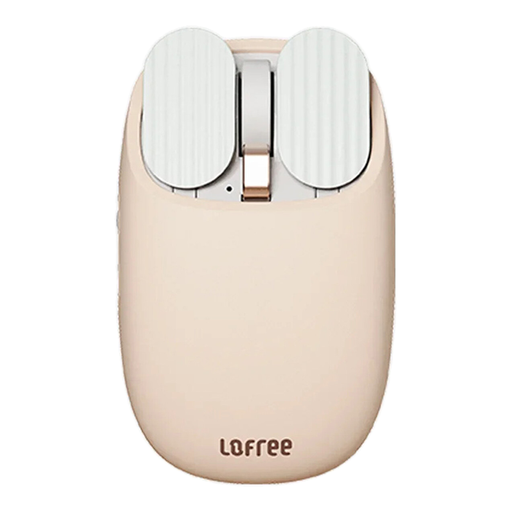
lofree Wavy Chips EP115 Bluetooth Mouse, Milk Tea
If you move timetable work between computers, compare its two stated wireless modes with the connections available on each device. The title specifies Bluetooth and 2.4G, five adjustable DPI levels and an 800mAh battery; check the shape and any software compatibility you require.
View on Joybuy
 No image available
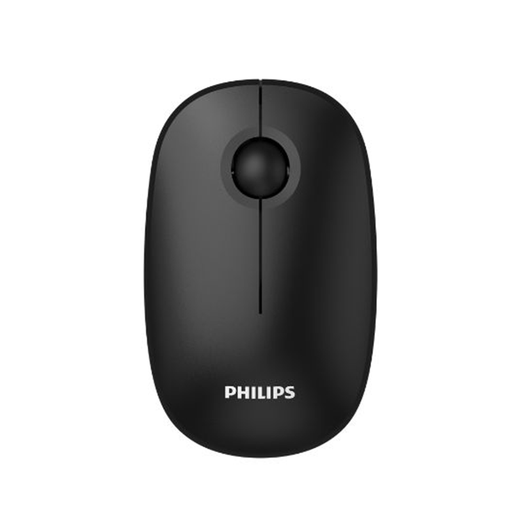
Philips 3000 Series SPK7378B/00 Wireless Mouse, EU Version, Black
For occasional timetable changes on a computer with a suitable USB port, this is a straightforward receiver-based option to consider. The title specifies a 2.4GHz connection, USB receiver and 1600 DPI optical sensor, and describes the clicks as quiet; check hand fit and port compatibility.
View on Joybuy
Common questions
Should I consider a vertical mouse if my wrist feels uncomfortable while updating timetables?
A vertical mouse is worth comparing if you prefer a more upright hand position, but its shape alone does not resolve workstation problems. The Health and Safety Executive advises keeping the mouse within easy reach and using it with a straight wrist; check the model’s hand-size and handedness guidance as well.
Is Bluetooth or a USB receiver more useful for club timetable work?
Choose the connection that works with the computers where you prepare the timetable. Bluetooth can leave a USB port free on a compatible computer, while a USB-A receiver requires a suitable port or adapter; check both the club equipment and any computer you use at home.
Are programmable buttons worth having for timetable updates?
Programmable buttons are useful when you repeat commands that your operating system or timetable software lets you assign to them. If updates are occasional or several people share the mouse, prioritise comfortable basic controls and a compatible connection before adding shortcuts.


