Frequent route planners at flexible desks
If you repeatedly pan, zoom and edit maps, predictable cursor movement and scrolling matter when your desk or work surface changes.


For cycle-route mapping at a shared desk, choose a slim, quiet mouse if you regularly clear the workspace; favour adjustable tracking and scrolling if you spend longer panning and editing maps; or consider a vertical mouse if hand fit during extended sessions matters most. Check connections against every computer you use, and treat the mouse as one part of the workstation rather than a complete comfort solution.
If you repeatedly pan, zoom and edit maps, predictable cursor movement and scrolling matter when your desk or work surface changes.
If colleagues work nearby and you put your mouse away after each session, click noise, storage and switching between your devices shape the choice.
If you spend extended periods at the computer, check hand fit and button reach alongside the desk, chair and screen setup. The Health and Safety Executive advises considering the whole display screen equipment workstation, not just one accessory.
Start with the task that takes most of your time: detailed map edits, clearing a quiet desk, changing computers or working for longer stretches. A feature that helps with one of these needs does not settle the others.
Consider it when: You need to store the mouse after use and keep clicks less intrusive near colleagues; Logitech describes these features for its Pebble Mouse 2 M350s.
Check the trade-off: A low-profile shape may not suit your hand through a long editing session.
Consider it when: Frequent panning, zooming and fine edits make tracking and scroll-wheel control a priority; Logitech describes adjustable tracking and two scroll modes for MX Anywhere 3S.
Check the trade-off: Confirm your connection method before buying MX Anywhere 3S: Logitech states that its compatible Logi Bolt receiver is not included.
Consider it when: Grip and hand fit during longer sessions matter more than a slim shape; Logitech positions Lift for small to medium hands and offers a left-handed version.
Check the trade-off: A vertical grip needs to suit your hand and does not replace a review of the full workstation.
| Concern | What to check | Who this matters to |
|---|---|---|
| Map control | Look for cursor-speed settings and a scroll wheel you can control during close edits; check any surface-tracking claim against the desk you use. | When I place waypoints and inspect a route closely, I want cursor movement and scrolling I can control. Around 31% of consumers would put map control first. |
| Quiet use and storage | Check the named model’s click design and whether its shape is practical to store without compromising your grip. | At a desk beside colleagues, I want to put my mouse away easily without making every click intrusive. About 23% of consumers would prioritise quiet use and easy storage. |
| Device connections | Confirm operating-system compatibility, Bluetooth support, available USB ports and how switching between paired devices works. | If I move between a laptop and another computer, I need a connection method that works with both. Roughly 23% of consumers would make device flexibility their primary concern. |
| Long-session fit | Check handedness, hand-size guidance, grip and button reach; consider the whole workstation for regular display screen equipment work. | During a long mapping session, I need a mouse that fits my hand rather than one chosen for compactness alone. Around 23% of consumers would put longer-session fit first. |
The Health and Safety Executive says an assessment of display screen equipment work should consider the equipment, furniture, work conditions, task and individual needs. A different mouse cannot address every part of that setup.
If route mapping is regular or you experience discomfort, review the whole workstation rather than relying on the mouse alone.
Operating-system support, pairing arrangements and receiver options vary between models. A USB-A receiver is useful only where there is an available compatible port.
List the computers you actually use, then check each one’s Bluetooth and USB options and the mouse’s switching method.
A compact shape is easier to put away, but its size alone cannot establish comfort through a long session. Logitech, for example, specifies its Lift vertical mouse for small to medium hands.
Match storage needs to your usual session length, and check grip and button reach before choosing a shape.
Support for a particular surface is a model-specific claim, not a feature of every mouse in a category.
Identify the surface you use most often and check the exact model’s stated surface support, or consider an appropriate mouse mat.
Its range includes different approaches to this desk-sharing decision: the slim Pebble Mouse 2 M350s, the compact MX Anywhere 3S and the vertical Lift.
Its cited office mice offer different ways to address cursor settings, connections and noise at a shared desk.
Surface Arc Mouse is a slim Bluetooth option to consider when a mouse needs to travel or be put away after use.
These mice offer different starting points for map-control, connection and shared-desk needs. Compare each model’s shape and controls with your usual mapping session rather than treating the list as a single type of mouse.
 Image unavailable
Consider this model if frequent map edits make cursor and scroll control important. Check that its connection method works with your computers, and assess grip and button reach for longer sessions.
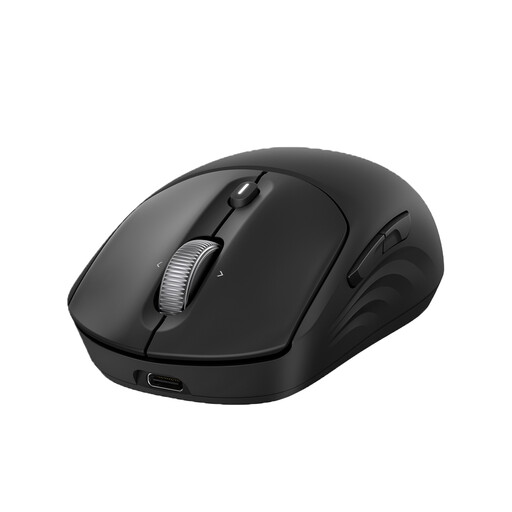 Image unavailable
Consider this rechargeable model if scrolling through maps and connecting more than one computer are priorities. Check the controls and connection options against your setup; confirm its charging time before relying on a quick-charge claim.
 Image unavailable
For a shared desk where quiet clicks and storage matter, this model’s stated silent design and 2.4G+BT options are worth checking. Its name also specifies adjustable DPI and a 1xAA battery; confirm how switching works with your devices and whether the shape suits your hand.
 Image unavailable
Consider this model if side scrolling would help you navigate route maps. Before choosing it for cross-computer control, check the required driver and shared-network setup; confirm its shape and hand fit before treating it as a vertical option.
 Image unavailable
For longer mapping sessions, consider whether the detachable wrist rest and mouse shape suit your desk and grip. Check hand fit and connection compatibility, and assess the full workstation rather than relying on the mouse alone.
No particular DPI figure is required for route mapping; the useful check is whether you can control cursor speed on your screen and in your mapping software. Kensington lists selectable 1200, 2400 and 4000 DPI settings for SureTrack and describes its lower setting as suitable for precision editing, but that model-specific advice is not a universal minimum.
Bluetooth may be enough if each computer you use supports the mouse and its pairing process suits you. If one computer needs a receiver instead, check both the mouse’s receiver option and the computer’s available USB port before buying.
Adjust the mouse position as part of the full workstation setup each time you change desks. The Health and Safety Executive advises workers who change desks regularly to carry out a basic risk assessment and says workstation assessments should consider the equipment, furniture, work conditions, task and individual requirements.
Check the exact model’s battery or charging arrangement, what accessories are included and the seller’s applicable returns terms before ordering. Do not assume that a receiver, cable or battery arrangement shown for one mouse also applies to another.