Small-desk route planners
Students working beside a laptop on a limited desk may prefer a compact mouse and a connection that leaves a scarce USB port free.


For cycle-route mapping at a student-room desk, choose a mouse that fits your hand, available space and laptop connection before paying extra for navigation controls. A compact quiet model suits a shared, crowded desk; a hand-size-specific shape deserves closer attention for longer sessions, while faster scrolling or extra controls are most useful if your route work calls for them.
Students working beside a laptop on a limited desk may prefer a compact mouse and a connection that leaves a scarce USB port free.
People who regularly place route points, inspect map details and move through saved-route lists have reason to pay particular attention to pointer and scrolling controls.
Students planning routes for extended periods around other people need to consider both click noise and how the mouse fits into their workstation.
Start with the desk, laptop connection and hand fit, then decide whether your map work warrants particular scrolling controls or quieter clicks.
| Concern | What to check | Who this matters to |
|---|---|---|
| Map and list navigation | Check wheel control and adjustable pointer speed; try the mouse on the desk surface you use. | If I repeatedly place route points and move through long lists, I want scrolling I can control without relying on a maximum DPI figure. Around 31% of consumers put navigation first. |
| Desk space and connection | Compare the mouse’s size with your workspace, and confirm Bluetooth support, USB ports and any receiver you need. | On a crowded laptop desk, I need a mouse that fits beside my notes and connects without taking a port I need elsewhere. For around 23% of consumers, that setup is the primary concern. |
| Click noise | Look for a model-specific quiet-click feature; consider wheel and desk-contact noise separately. | When someone else is studying or sleeping nearby, I would rather keep repeated button clicks unobtrusive. That is the first priority for around 23% of consumers. |
| Long-session fit | Choose a suitable size and handedness, and keep the mouse within easy reach rather than stretching towards it. | If I spend a long time editing routes at my desk, I care more about hand fit and mouse position than minimum bag space. Around 23% of consumers make long-session fit their main concern. |
A high tracking-resolution figure does not tell you whether the wheel, pointer speed or shape will feel right for placing route points.
Set a comfortable pointer speed on your computer, then compare wheel control and hand fit for the map tasks you actually do.
Connection options and supplied accessories are separate questions. Logitech describes the MX Anywhere 3S as compatible with Logi Bolt but says its receiver is not included.
Before ordering a receiver-based setup, check the mouse’s supplied accessories, receiver type and your laptop’s available ports.
Using that connection with the MX Anywhere 3S may require a separately obtained compatible receiver.
A compact shell saves room, but it may not be the shape you want for extended route editing. The Health and Safety Executive also advises considering mouse position as part of the wider workstation setup.
Compare compact and hand-size-specific shapes, and position the mouse within easy reach, in line with your elbow.
A quiet-click feature concerns button sound; wheel movement and contact with the desk can still be noticeable.
If room noise matters, consider the whole desk setup as well as the mouse’s stated click feature.
These product lines illustrate different shapes and controls; a brand name alone cannot establish fit for your desk or hand.
Its mouse range includes compact Bluetooth designs, hand-size-specific everyday models and scrolling-focused options relevant to route planning.
Its Bluetooth mouse options are relevant to students considering straightforward navigation or an ergonomic shape for a Windows-oriented setup.
Its multi-control mice may interest route planners who want shortcuts alongside ordinary pointer navigation.
These mice offer different starting points for a student-room mapping setup. Compare the stated connection and navigation features with your laptop, desk and preferred hand position before choosing.
 No image available
Consider this ergonomic model if you spend longer sessions editing routes at a desk. Check its physical fit and the connection you intend to use with your laptop.
 No image available
If you frequently switch between route details and lists, compare this model’s wheel operation with the movements you need. Check its desk fit and button noise if space or a shared room is a concern.
 No image available
This is an option to examine when shared-room click noise and connection choice matter. Its name specifies adjustable DPI and one AA battery; check wheel behaviour separately if long route lists are central to your work.
 No image available
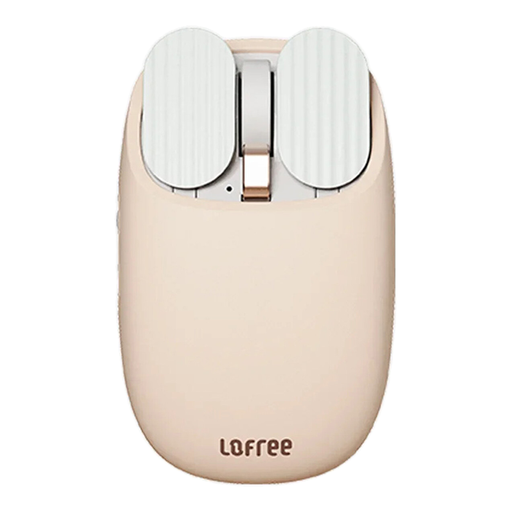
Consider this model if you want connection choice while working across devices. Its name specifies Bluetooth and 2.4G modes, five adjustable DPI levels and an 800mAh battery; check how its scrolling controls and shape suit extended map work.
 No image available
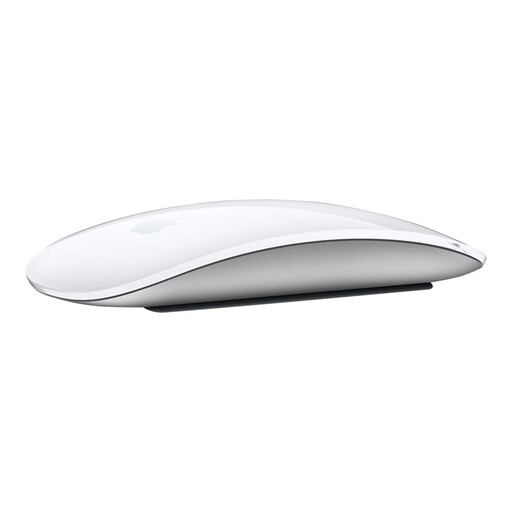
If you prefer a Multi-Touch surface for navigation, check whether this mouse works with the laptop or tablet on which you plan routes. Also consider its hand fit and click noise for longer sessions in a shared room.
Bluetooth is a practical choice if your laptop supports it and you want to leave its USB ports free. If you prefer a receiver connection, check that the particular mouse supports it and whether the receiver is supplied; Logitech says the Logi Bolt receiver compatible with its MX Anywhere 3S is not included.
Not by itself: comfortable pointer speed and controllable scrolling matter when placing route points and moving through lists. Higher tracking resolution may suit a preference for smaller hand movements, but it is not a minimum requirement for ordinary map navigation.
Choose a mouse shape and size that suit your hand, then arrange the desk so you can reach it comfortably. The Health and Safety Executive advises keeping the mouse in line with your elbow and, for prolonged laptop use, using a separate keyboard and mouse so the screen can be raised.
For a qualifying distance sale where no exception applies, regulation 30 of the UK Consumer Contracts Regulations 2013 sets a cancellation period ending 14 days after the day you, or someone you name, takes physical possession of the goods. This concerns change-of-mind cancellation; remedies for faulty, damaged or misdescribed goods are separate. Check the seller’s cancellation instructions and any applicable exception.
Consider an appropriate electronics-recycling or retailer take-back route where one is available. The UK government’s guidance on waste electrical and electronic equipment describes a framework intended to encourage recovery, reuse and recycling of electrical products and components.