Desk-based route planners
If you repeatedly pan across maps, zoom in and compare route details on a desktop display, adjustable pointer sensitivity, scrolling and navigation controls are worth checking.


For frequent route planning at a desk, choose a mouse whose pointer sensitivity, scroll wheel and navigation controls suit the way you use your maps. If you use a glass desk or move between surfaces, check the exact model’s tracking conditions; if hand position matters more, consider a vertical mouse or trackball. A mouse will not remove reflections from the screen, so deal with window glare separately.
If you repeatedly pan across maps, zoom in and compare route details on a desktop display, adjustable pointer sensitivity, scrolling and navigation controls are worth checking.
If the desk is near a bright window or has a glass surface, treat screen reflections and mouse tracking as separate questions. A track-on-glass claim needs to apply to your exact mouse and desk.
If hand or forearm comfort shapes your choice, a vertical mouse or trackball offers a different way to control the pointer. The Health and Safety Executive advises considering the whole workstation during regular display-screen work.
Start with how you control the map, then check the surface beneath the mouse and whether its shape suits longer sessions. Manage reflections on the display separately: tracking on glass does not make a sunlit screen easier to read.
| Concern | What to check | Who this matters to |
|---|---|---|
| Map control | Check adjustable pointer sensitivity, wheel control and navigation buttons that work with your software. | If I regularly pan, zoom and move between route details, I want controls I can use without losing my place. Around 50% of consumers put map control first. |
| Desk-surface tracking | Check an explicit track-on-glass specification and any glass-thickness condition; confirm the connection you need. | Moving between work surfaces makes dependable tracking my main concern, particularly if one desk is glass. For around 30% of consumers, surface flexibility comes first. |
| Hand position | Check the shape, hand-size guidance and device compatibility; assess the rest of the workstation too. | During longer mapping sessions, I care most about finding a control style that suits my hand rather than carrying the smallest mouse. Hand position is the first concern for around 20% of consumers. |
Reflected window light can obscure route labels and map controls regardless of the mouse sensor. UK display-screen workstation requirements address screen adjustability and reflections where those requirements apply.
Reposition or tilt the display and manage window light before judging whether you need different mouse controls.
Logitech specifies a minimum glass thickness of 4 mm for the MX Master 3S track-on-glass claim. That condition should not be extended to other models.
Check the exact model’s specification and your desk material and thickness. If you cannot establish that the surface qualifies, consider using a mouse mat.
A compact shape may suit carrying between locations, while hand position may matter more to someone who works at a desk for longer periods. Neither shape establishes how comfortable it will be for you.
Decide which need takes priority, check any hand-size guidance and consider the workstation as a whole.
Kensington presents its vertical mouse as a different hand-position option, but its comfort claims do not establish an outcome for an individual user.
Consider whether the grip and controls suit you, and reassess the wider workstation if discomfort persists.
Logitech’s MX Master 3S represents a desk-based productivity shape, while the MX Anywhere 3S is a compact option for moving between surfaces.
Kensington’s cited vertical mouse and trackball offer alternatives when hand position or moving the device across the desk matters more than a conventional mouse shape.
These mice offer different approaches to route-map navigation, from a conventional desk mouse to vertical shapes and gesture controls. Check surface requirements and device compatibility for the particular model you choose; none addresses glare on the display.
 No image available
A conventional desk-mouse option if frequent map navigation is your priority.
If you plan to use it on glass, check the exact variant’s tracking conditions and your desk thickness. Confirm the box contents if you need a USB receiver.
 No image available
Consider this option if a different hand position and a detachable wrist rest matter more to you than a compact mouse.
Check compatibility with your computer and confirm glass-tracking suitability before using it directly on a glass desk.
 No image available
A vertical-shape option if you prefer a handshake-style grip while navigating routes.
The product name specifies six buttons and a 1600 DPI sensor. Check operating-system compatibility and glass-tracking suitability for your setup.
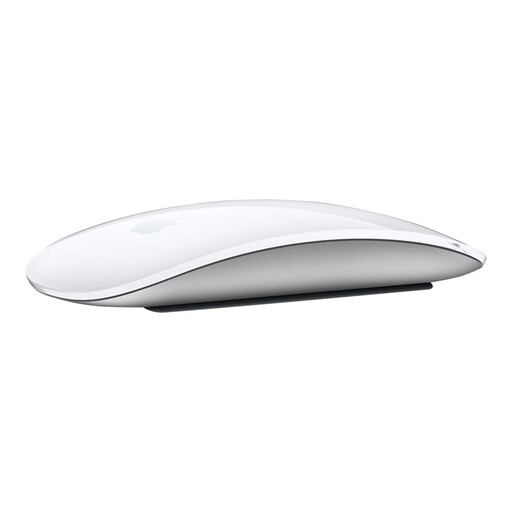 No image available
Consider its Multi-Touch controls if gesture-based map navigation suits the device and software you use.
Check device compatibility and confirm tracking suitability before placing it directly on a glass desk.
No. Mouse tracking and reflections on the display are separate issues. UK display-screen workstation requirements address adjustable screen brightness and contrast and reflections liable to cause discomfort where those requirements apply; repositioning, tilting or shading the screen addresses the visibility problem more directly.
Logitech specifies track-on-glass capability for the MX Master 3S with a minimum glass thickness of 4 mm. Check your desk’s material and thickness, and confirm that the claim applies to the exact variant you intend to buy.
Not if you use its Bluetooth connection with a compatible device. Logitech says the MX Anywhere 3S can connect to up to three devices via Bluetooth and that the compatible Logi Bolt receiver is not included.
Consider the whole display-screen workstation rather than relying on a mouse change to address discomfort or glare. The Health and Safety Executive says that when a home-workstation assessment indicates equipment needs to be provided, the worker cannot be charged for it.