For repeated delivery-schedule updates, start with a conventional productivity mouse if familiar pointer control and frequent scrolling matter most. Consider a vertical mouse if an upright grip suits your hand, or a thumb-operated trackball if limited desk space makes moving a mouse awkward. Whichever shape you choose, check hand fit, connection options and whether your work computer permits any software needed for the controls you want.
Who is this choice for?
Frequent schedule and spreadsheet editors
If you repeatedly select small fields and move through delivery portals or spreadsheets, predictable pointer movement, wheel control and reachable navigation buttons are worth checking. Lenovo UK describes how mouse controls can affect navigation through small interface elements and large spreadsheets.
Home-office workers focused on hand fit
If you use a mouse for sustained periods, compare the grip, size and button reach of conventional, vertical and trackball designs at your usual desk. The Health and Safety Executive advises considering display-screen equipment in the context of the worker and workstation.
Compact-desk and multi-device workers
If mouse travel is restricted or you switch computers, consider whether a trackball's thumb control or a suitable wireless connection addresses the constraint. Check the connection methods of the particular mouse rather than assuming every wireless model offers the same options.
What matters when choosing?
Choose a mouse shape around the task that is hardest at your desk, then check whether its controls and connection will work with your computer.
Conventional productivity mouse
Consider it when: You want a familiar grip for repeated selections, scrolling and movement between schedules and other windows.
Bear in mind: Its grip is not upright, and the shortcut functions you want may depend on software permitted by your workplace.
Vertical mouse
Consider it when: An upright grip feels suitable during extended mouse use and you can reach its controls comfortably.
Bear in mind: Hand size and handedness affect fit; a different mouse shape does not replace attention to the whole workstation.
Thumb-operated trackball
Consider it when: There is little room to move a mouse across your desk and thumb control feels manageable.
Bear in mind: Pointer movement feels different from a conventional mouse, so check the ball position and button reach before relying on it for long sessions.
| Concern |
What to check |
Who this matters to |
| Hand comfort and posture |
Check hand-size and handedness guidance, then assess grip and button reach at your normal desk position. |
If long stretches of schedule edits leave me wanting a different hand position, the shape must fit without making controls awkward to reach. Around 31% of consumers put sustained hand comfort first. |
| Controlled navigation |
Try the pointer-speed settings and wheel behaviour; check whether useful button assignments require software. |
When I move between small fields and long lists, I want to select accurately without fighting the pointer or wheel. Roughly 31% of consumers make navigation their primary concern. |
| Connection and devices |
Confirm the mouse's connection methods, available ports and compatibility with your work computer. |
If I switch devices or use a managed laptop, a connection I can actually use matters more than extra controls. For about 23% of consumers, compatibility comes first. |
| Desk space and disruption |
Assess mouse travel space and, if relevant, the stated click characteristics; consider whether thumb control suits you. |
At a small or shared desk, I need the mouse to fit my working area without distracting people nearby. Around 15% of consumers prioritise space or low-disruption use. |
Purchasing pitfalls
-
Assuming an ergonomic shape fits every hand
Logitech positions Lift for small to medium hands and MX Ergo S for medium to large hands. A shape or button layout that is awkward to reach may not suit your schedule-work routine.
Use the manufacturer's size and handedness guidance as a starting point. If possible, try the grip or check the retailer's applicable return terms before committing.
-
Choosing shortcut buttons without checking work-computer rules
Some button assignments depend on companion software. A managed computer may restrict installation, leaving you unable to use the particular shortcuts you had planned.
Check which controls work without software and ask your employer or IT team whether the required application is permitted.
-
Treating a new mouse as the whole workstation solution
A different grip does not address the position of your screen, chair or desk. The Health and Safety Executive says an individual display-screen equipment assessment should be carried out where the regulations apply to a home worker.
If you use display-screen equipment daily for sustained periods or have concerns about your setup, review the workstation and use your employer's assessment process where applicable.
-
Assuming adaptive accessories come with the mouse
Microsoft describes the Adaptive Mouse Tail and Thumb Support as separately sold accessories. The mouse core can be used alone, but it may not have the form you intend without additional parts.
Identify the components needed for your preferred grip before choosing a configuration.
A setup using the Tail, Thumb Support or a 3D-printed design requires obtaining or producing those components separately.
Brands to consider
Logitech
Its relevant ranges include conventional MX Master mice, Lift and MX Vertical upright-grip models, and the thumb-operated MX Ergo S trackball.
- Logitech provides model-specific guidance on shapes, hand sizes and configurable controls.
- Check fit and software compatibility for the particular model; the brand's comfort or productivity claims do not establish how it will feel in your workspace.
Razer
Pro Click V2 includes a conventional work-mouse option and a distinct Vertical model with programmable controls.
- Razer specifies a 71.7-degree design and six buttons for Pro Click V2 Vertical.
- That vertical model is right-handed; check hand fit and whether you can use the software needed for your preferred button functions.
Microsoft
Adaptive Mouse offers a configurable alternative when a fixed conventional shape or thumb-support position does not suit the user.
- Microsoft states that the mouse core can connect to up to three wireless devices or by USB-C and can be combined with left- or right-side thumb support.
- The Tail and Thumb Support are separate accessories; confirm which components your intended setup needs.
Joybuy mice for schedule work
These mice offer conventional and vertical shapes for home-office schedule work. Compare the controls and connection stated for each model against your desk space and work computer.
 No image available
Logitech MX Master 3S, Black
Consider this conventional shape for schedule work if it fits your hand. Check its wheel behaviour and whether any controls you plan to customise will work on your computer.
View on Joybuy
 No image available
HP 920 Ergonomic Wireless Mouse, Black, with detachable wrist rest
Consider this model if you want to assess a different grip for extended schedule work. Its detachable wrist rest is part of the named configuration; check hand fit and any software requirements for the controls you intend to use.
View on Joybuy
 No image available
V7 MW500BT Bluetooth Vertical Mouse, 2.4 GHz, 6 buttons
Consider its vertical shape if an upright grip and accessible buttons suit your schedule routine. The named configuration has Bluetooth and 2.4 GHz modes and a sensor stated as adjustable up to 1600 DPI; confirm hand fit and the connection you can use.
View on Joybuy
 No image available
HOFOTEK M311 2.4G+BT Office Mouse, White-Grey, 1xAA
Consider this conventional mouse if its stated connection options fit your home-office devices. The title specifies adjustable DPI levels and a 1xAA battery configuration; check wheel behaviour for long schedule lists. Its silent-click description is not a guarantee of silence in a shared room.
View on Joybuy
 No image available
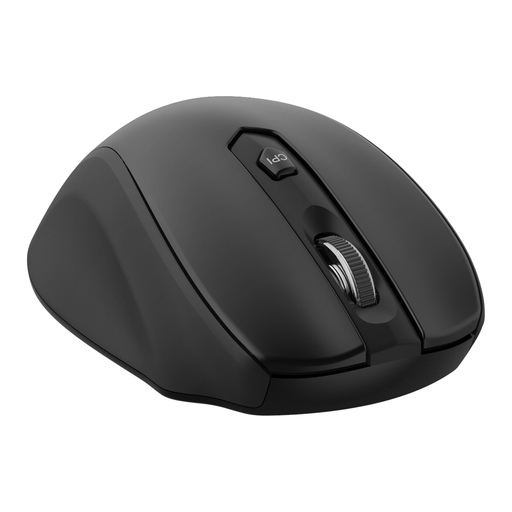
ET 2.4G Wireless Optical Mouse, Black, with USB receiver
Consider this receiver-based mouse if your work computer has a suitable USB port. Its named configuration has five adjustable DPI levels and six buttons; check hand fit and wheel behaviour if you navigate schedules for extended periods.
View on Joybuy
Common questions
Do I need a vertical mouse for delivery-schedule work?
No. A vertical mouse is worth considering if its upright grip fits your hand and that grip is your priority; a conventional mouse may better suit someone who prefers familiar movement, while a trackball may suit a restricted mouse area. Assess the choice alongside your whole workstation, as the Health and Safety Executive advises for home display-screen work.
Should I choose Bluetooth or a USB receiver?
Choose a connection that your work computer permits and that the specific mouse offers. Bluetooth can leave a USB port free on a compatible computer; a receiver is another option if the computer and workplace setup support it. Logitech's wireless-mouse setup guidance describes these as separate connection methods.
Will programmable buttons work without extra software?
It depends on the model and the button actions you need. Logitech documents MX Vertical customisation through Logi Options+, while Razer uses Synapse for additional Pro Click V2 Vertical customisation. Check the functions available without those applications and whether your employer allows installation before relying on shortcuts.
Must my employer supply a mouse for home working?
Home working alone does not establish an entitlement to a particular mouse. The Health and Safety Executive says employers should carry out an individual display-screen equipment assessment where the regulations apply, and describes DSE users as workers who use it daily for continuous periods of an hour or more. Raise your equipment needs through your employer's assessment process so they can be considered for your work arrangement.


