What matters when choosing?
For shared-desk schedule work, decide which need takes priority before comparing mouse shapes and connection methods.
| Concern |
What to check |
Who this matters to |
| Schedule navigation |
Check whether the wheel offers control for individual rows and a useful way to move through long lists in your scheduling system. |
If I move between dense delivery rows and long lists, I need speed without losing my place. Around 31% of consumers put controlled schedule navigation first. |
| Click disturbance |
Check the exact model’s quiet-click description, alongside its fit and scroll control; manufacturer wording is not an independent noise measurement. |
When colleagues work nearby, I want repeated schedule edits to cause less distraction. Quiet shared-desk operation comes first for around 25% of consumers. |
| Connection flexibility |
Confirm permitted Bluetooth pairing or a compatible receiver and spare port on each assigned computer. |
If I change desks or computers, I need a mouse I can connect where I work. Around 25% of consumers prioritise that flexibility. |
| Long-session comfort |
Assess hand-size fit and mouse placement together. The Health and Safety Executive advises keeping the mouse close enough to use with a straight wrist. |
During extended editing sessions, I care most about a shape I can use comfortably at the actual desk. For around 19% of consumers, long-session comfort is the primary need. |
Joybuy mouse options
These mice offer conventional wireless, compact dual-connection and vertical-shape options for delivery-schedule work. Compare each model’s connection method, controls and hand fit with the shared desk where you will use it.
 No image available
Logitech MX Master 3S Ergonomic Black
Consider this wireless mouse if moving through long schedules is a priority, but check that its scrolling controls feel precise enough for individual row edits.
Assess the shape against your hand and confirm that the assigned computer and workplace policy permit the connection method you intend to use.
View on Joybuy
 No image available
HOFOTEK M311 2.4G+BT Silent Office Mouse, White-Grey
Consider this compact mouse if you move between desks and want both 2.4G and Bluetooth connection options. Its name specifies adjustable multi-level DPI and a 1xAA battery.
Check the wheel and hand fit for repeated schedule edits, and confirm which connection methods your work computers permit. Silent-click wording is a product claim, not a measured noise comparison.
View on Joybuy
 No image available
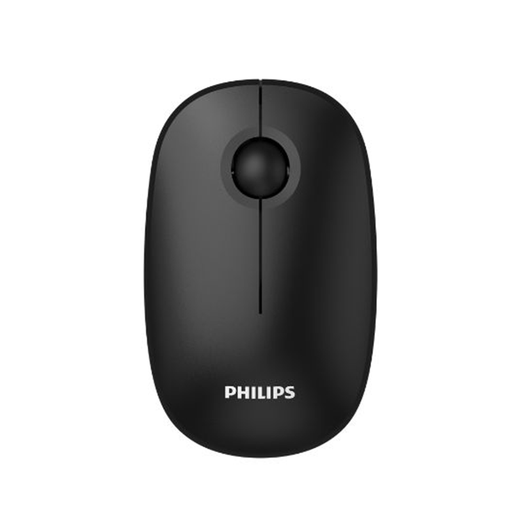
Philips 3000 Series SPK7378B/00 Wireless Mouse, Black, EU Version
Consider this receiver-connected mouse if the shared computer has a suitable permitted USB port. Its title specifies 2.4GHz wireless connection, a USB receiver and a 1600 DPI optical sensor.
Check wheel behaviour and hand fit for schedule editing. Treat the title’s quiet-click description as a product claim rather than an independent noise measurement.
View on Joybuy
 No image available
V7 MW500BT Bluetooth Vertical Ergonomic Mouse
Consider this vertical shape if hand fit during longer schedule-editing sessions matters more than retaining a conventional grip. Its title specifies 2.4GHz dual-mode connectivity, six buttons and an adjustable 1600 DPI sensor.
Check the wheel, hand fit and permitted connection method at your desk; do not assume its clicks will be quieter than those of another mouse.
View on Joybuy
Frequently asked questions
Do I need a vertical mouse for long delivery-schedule sessions?
No: a vertical mouse is an option when its shape fits your hand and remains controllable for your work, not a substitute for arranging the workstation. The Health and Safety Executive advises keeping the mouse within easy reach and using it with a straight wrist.
Can I use a Bluetooth mouse at a shared desk?
Yes, if the assigned computer meets the mouse’s requirements and workplace IT rules allow pairing. For Surface Arc Mouse specifically, Microsoft Support specifies Windows 10 or 11 with Bluetooth 4.0 or later; check other models against their own requirements.
Should I reassess my setup when I move between desks?
Yes. The Health and Safety Executive advises a basic display-screen-equipment risk assessment when workers change desks regularly, because mouse reach and the wider workstation arrangement can change. Use your employer’s process and adjust the mouse position at each desk.
What if a mouse feels uncomfortable or appears faulty?
For discomfort at work, raise the workstation setup through your employer’s display-screen-equipment process rather than relying on a different mouse alone. For a faulty consumer purchase, keep the order details and contact the supplying retailer; GOV.UK provides guidance on consumer rights relating to faulty goods.


