High-volume photo cataloguers
If you spend long sessions moving through folders, grids and metadata panels on one computer, wheel control, pointer settings and accessible shortcuts may matter more to you than device switching.


For two displays connected to one computer, choose a mouse for the work you do most: scrolling through photos, using repeated shortcuts and maintaining a comfortable grip. You do not need device switching just because you have two monitors; it matters when the mouse must move between separate computers. If space or hand fit is the main constraint, consider a different shape or a trackball, while allowing for a change in how you control the pointer.
If you spend long sessions moving through folders, grids and metadata panels on one computer, wheel control, pointer settings and accessible shortcuts may matter more to you than device switching.
If hand fit becomes your deciding concern during sorting and tagging, you may want to compare a conventional mouse with a vertical design or trackball. Logitech positions Lift for small to medium hands, while PCMag UK discusses trackballs as a distinct control style; neither shape guarantees individual comfort.
If your screens are connected to separate computers rather than one computer with two displays, a mouse that switches between devices may be useful. Razer and HP describe multi-device features on specific productivity models.
Establish whether the two screens share one computer before considering device switching. Then weigh navigation, hand fit and the space or surface available at your desk.
| Concern | What to check | Who this matters to |
|---|---|---|
| Archive navigation | Try the wheel for both long lists and controlled stops; check whether shortcut buttons are reachable and customisable on your operating system. | When I repeatedly move between folders and photo grids, I want scrolling and shortcuts that suit those actions. Around 33% of consumers put navigation first. |
| Comfort and fit | Check hand-size guidance, handedness and grip before choosing a strongly shaped or vertical mouse; try the shape if possible. | During a long tagging session, I need a shape that fits my hand more than another button. Comfort is the primary concern for around 33% of consumers. |
| Separate-device switching | Confirm that there are separate host devices, then check pairing capacity, connection types, available ports and operating-system compatibility. | If one screen belongs to my laptop and the other to a desktop, I want one mouse I can switch between them. Around 17% of consumers prioritise separate-device switching. |
| Desk space and surface | Check the space available for movement and the exact model’s stated tracking conditions, particularly for glass. | With little room to move a mouse, or a desk surface that needs checking, I want dependable pointer control in my setup. Space or surface fit comes first for around 17% of consumers. |
Two displays attached to one Windows computer use the computer’s display arrangement; switching between host devices serves a different purpose.
Check what each screen is connected to. For one Windows computer, arrange the displays in settings and adjust pointer speed before deciding whether you need a different mouse.
A sensitivity figure does not establish whether a mouse fits your hand or whether its wheel and buttons suit photo sorting. Microsoft provides a separate pointer-speed setting in Windows.
Consider grip, wheel behaviour and reachable controls, then tune pointer speed for your display layout and available desk space.
Vertical designs vary. Logitech positions Lift for small to medium hands and offers left- and right-handed versions; those details cannot be assumed for other models.
Check the exact variant, hand-size guidance and handedness, and review the applicable return terms before choosing an unfamiliar shape.
Glass-tracking conditions are model-specific. Logitech states a minimum glass thickness of 4 mm for MX Master 3S; that condition does not describe other mice.
Compare your desk surface with the exact model’s stated requirements rather than relying on a general tracking claim.
A mouse mat may also be needed if the chosen mouse does not track on your desk surface.
Its MX Master 3S productivity mouse and Lift vertical mouse illustrate two different approaches to this desk task.
Pro Click V2 is relevant when the mouse needs to move between separate computing devices as well as support shortcut-led work.
The 930 Creator is a multi-device productivity model to consider for a desk with separate host devices.
These mice offer different starting points for the same photo-archive task: a conventional productivity shape, vertical options, a multi-device option and a wired mouse. Choose by your actual computer setup and preferred controls, then check fit and software requirements where they matter.
 No image available
Consider this conventional productivity shape if long folder lists make wheel control a priority. Logitech specifies adjustable sensitivity up to 8,000 DPI and MagSpeed scrolling for MX Master 3S; check that any button customisation you need works with your operating system. For a glass desk, Logitech specifies a minimum glass thickness of 4 mm.
 No image available
Consider this model if you want to assess a different hand position for longer sorting sessions. Its named configuration includes a detachable wrist rest; check hand-size and handedness fit, and confirm software support if custom shortcuts matter to you.
 No image available
Consider this model if your two screens belong to separate computers and switching between them is a priority. Before relying on cross-computer cursor control, confirm its driver and network requirements for your setup; also check the precise grip shape before choosing it for comfort.
 No image available
This is another vertical shape to assess if grip is a priority during photo sorting. Its named configuration includes Bluetooth and 2.4 GHz wireless modes, six buttons and adjustable sensitivity up to 1600 DPI. Check hand fit, wheel behaviour and whether the buttons can be customised before relying on it for repeated archive actions.
 No image available
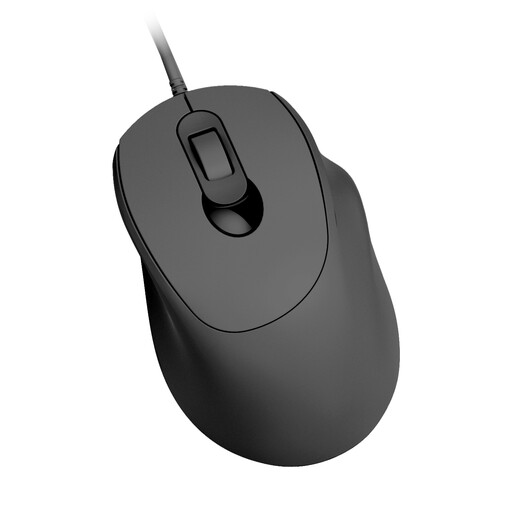
Consider this USB mouse if a wired connection suits your archive desk and you want straightforward pointer adjustment. Its named configuration has four buttons, silent clicks and 1000, 1200 and 1600 DPI settings, with Windows and Mac compatibility stated. Check your available port, hand fit and any need for button remapping.
No, not when both monitors are connected to one computer. For a Windows setup, Microsoft Support advises arranging the displays so pointer movement matches their physical positions; adjust pointer speed if crossing the screens feels awkward. Choose a different mouse for a separate need such as grip, wheel control or shortcuts.
It is useful when the mouse must switch between separate computers or other host devices, rather than merely cross two displays on one computer. Check the supported connections, how switching works and whether your devices have the required ports or Bluetooth capability.
No particular maximum DPI follows from using two monitors. Choose sensitivity you can set to suit your control preference and desk space; on Windows, Microsoft Support also provides a pointer-speed setting. Hand fit and the wheel may be more important to your sorting routine than the maximum figure.
Look for an appropriate electrical-equipment reuse or recycling route available locally or through a retailer rather than putting the mouse in general waste. GOV.UK describes UK waste electrical and electronic equipment rules as intended to reduce electrical waste sent to landfill or incineration and encourage its recovery, reuse and recycling.