Two-screen gallery builders
If you organise thumbnails, inspect images and move between a canvas, browser and asset panel, consider how easily you can control pointer movement, scroll through lists and reach repeated commands.


For gallery work that involves moving between image grids and editing panels on two screens, consider a productivity mouse with adjustable pointer speed, scrolling controls and configurable buttons. A vertical mouse is worth considering when hand fit and an upright grip matter more; Apple’s Magic Mouse suits a compatible Mac or iPad setup when swipe and scroll gestures are the priority. Two screens connected to one computer do not, by themselves, call for multi-device switching.
If you organise thumbnails, inspect images and move between a canvas, browser and asset panel, consider how easily you can control pointer movement, scroll through lists and reach repeated commands.
If you spend extended periods using a mouse, hand fit and where the mouse sits on your desk deserve attention. The Health and Safety Executive advises keeping it within easy reach so you can use it with a straight wrist.
If you prefer swiping and scrolling on a mouse surface, Apple’s USB-C Magic Mouse offers those gestures for compatible Mac and iPad setups. Check the operating-system requirements for the model before choosing it.
Start with the work you repeat most often, then check whether the mouse fits your hand, computer and software setup.
Consider it when: You regularly scroll through image lists and want pointer speed or buttons tailored to repeated gallery tasks.
Bear in mind: Check hand fit and whether your operating system and applications support the customisation you intend to use.
Consider it when: An upright grip and a shape that fits your hand matter more to you than having extra controls.
Bear in mind: Vertical shapes vary: Logitech positions Lift for small-to-medium hands and offers a separate left-handed version.
Consider it when: You build your gallery on a compatible Mac or iPad and prefer swipe and scroll gestures to dedicated shortcut buttons.
Bear in mind: Apple specifies macOS 15.1 or later, or iPadOS 18.1 or later, for the USB-C Magic Mouse.
| Concern | What to check | Who this matters to |
|---|---|---|
| Pointer and scrolling control | Look for adjustable pointer speed and the scrolling controls you need for long image lists. | If I move repeatedly between thumbnails and editing panels, I want the pointer to remain controllable without slowing down every search through a list. Around 36% of consumers put navigation and control first. |
| Hand and wrist comfort | Check hand-size guidance, handedness and whether the mouse can sit within easy reach. | During long gallery sessions, I need a shape I can reach and hold comfortably at my desk. For around 29% of consumers, hand fit and comfort are the primary concern. |
| Connection and customisation | Confirm connection options, available ports and support for any companion software or button settings you plan to use. | If I rely on shortcuts or switch between separate computers, I need those functions to work with my actual devices and applications. Compatibility comes first for around 21% of consumers. |
| Mac or iPad gestures | Check the exact device and operating-system version, then decide whether gestures suit your workflow. | When I navigate by swiping and scrolling on a Mac or iPad, I may prefer a touch surface to extra buttons. Around 14% of consumers prioritise that gesture-led workflow. |
A high maximum sensitivity does not tell you whether the pointer will feel controlled across your particular screen arrangement.
Check that tracking speed is adjustable. If you plan to use an MX Master 3S on glass, Logitech specifies a minimum glass thickness of 4 mm for that use.
Button reach and grip depend on the mouse’s size and handedness. Logitech’s Lift, for instance, is positioned for small-to-medium hands and has a separate left-handed version.
Check the manufacturer’s fit guidance and the exact left- or right-handed variant before ordering.
Multi-device pairing switches a mouse between separate host devices; it is not required simply because one computer drives two displays.
Establish how many computers or tablets you need to control before making device switching a selection criterion.
Even a shape you like can be awkward to use if you have to reach too far across the desk.
Keep the mouse within easy reach and consider its position alongside your keyboard and screens. The Health and Safety Executive advises using a mouse with a straight wrist.
Its MX Master 3S and Lift lines offer different approaches to two-screen work: configurable navigation controls or a vertical shape aimed at a specified hand-size range.
The USB-C Magic Mouse is a gesture-led option for compatible Mac and iPad users.
The Pro Click V2 is a right-handed productivity-mouse option for people considering configurable shortcuts and switching between devices.
These mice cover different ways of working on two screens: configurable navigation controls, ergonomic shapes and a straightforward wired connection. Compare each model’s fit and controls with the tasks you perform most often.
 No image available
Consider this model if you want to adjust pointer movement and scroll through long image lists. Logitech specifies an 8,000 DPI sensor with adjustable sensitivity and MagSpeed scrolling for MX Master 3S; check Logi Options+ compatibility if you plan to customise controls.
If you will use it on glass, Logitech specifies glass at least 4 mm thick. Check that its shape fits your hand.
 No image available
Consider this mouse if hand positioning is a priority during long gallery sessions. This black HP 920 variant has a detachable wrist rest; check the mouse’s dimensions, button reach and hand fit before choosing it.
 No image available
Consider this model if programmable controls and side scrolling would help with repeated gallery tasks. Before relying on either feature, confirm the exact MT760L-LG variant, its shape and its compatibility with your operating system and customisation software.
 No image available
Consider this vertical model if an upright grip and basic navigation buttons suit your gallery work. Its named configuration includes Bluetooth and 2.4 GHz wireless modes, six buttons and an adjustable sensor rated up to 1600 DPI; check hand fit and handedness before ordering.
 No image available
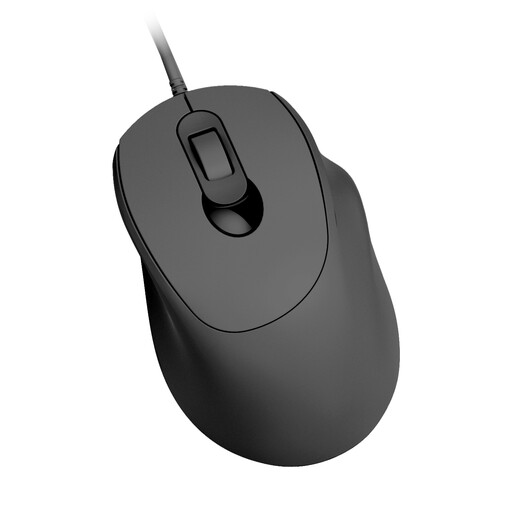
Consider this model if you prefer a wired USB mouse for a single-computer setup. The named V2 variant has four buttons and selectable 1000, 1200 and 1600 DPI settings, with Windows and Mac compatibility stated in its title; check what the buttons do if you need dedicated gallery shortcuts.
No. If both screens connect to one computer, that computer’s display setup handles pointer movement between them. Multi-device switching is useful when you also need to control a separate computer or tablet; Logitech describes Easy-Switch as a way for compatible mice to pair with up to three devices.
Keep the mouse within easy reach so you can use it with a straight wrist, as the Health and Safety Executive advises. Consider its position alongside the rest of your workstation rather than relying on mouse shape alone.
No; check your device and software version before buying. Apple states that the USB-C Magic Mouse requires macOS 15.1 or later on a Mac, or iPadOS 18.1 or later on an iPad.