For two-screen dissertation writing, check the display arrangement first, then consider whether a familiar mouse with adjustable pointer speed and suitable scrolling meets your needs. A vertical mouse offers a different grip, a stationary trackball needs less room for pointer movement, and a centred rollerbar puts control in front of the keyboard. Hand fit, desk layout and software compatibility still matter whichever type you choose.
Who might choose each type?
Two-screen document navigators
Writers moving between a draft, source PDFs, notes and citation tools may value adjustable pointer movement and scrolling. Microsoft Support also advises arranging the on-screen display layout to match the physical screens in Windows.
Long-session comfort seekers
Writers concerned about their hand and arm position over extended desk sessions may want to compare conventional, vertical and stationary controls. The Health and Safety Executive advises keeping the mouse in line with the elbow; a different mouse is not a substitute for workstation positioning.
Small-desk or flexible-hand users
Writers with little room to move a mouse, or who want to use either hand, may consider a stationary trackball. Thumb-operated and finger-operated models use different controls, so the particular design matters.
What matters when choosing?
Decide whether grip and fit, movement between displays, document navigation or desk setup will drive the choice. If the pointer crosses between screens awkwardly, check the display arrangement before changing mice.
Conventional productivity mouse
Consider it when: you want familiar pointer control, adjustable movement and convenient scrolling through documents.
Bear in mind: the mouse still moves beside the keyboard, while shortcut settings may depend on compatible software.
Vertical mouse
Consider it when: you want a different hand position without switching to trackball control.
Bear in mind: shape and hand size are model-specific, and a vertical grip does not correct screen alignment.
Thumb-operated trackball
Consider it when: a crowded desk leaves little room to move a conventional mouse.
Bear in mind: moving the pointer with your thumb is a different technique and may take getting used to.
Finger-operated trackball
Consider it when: you want stationary, potentially ambidextrous control and a dedicated way to scroll through long documents.
Bear in mind: check the base size and software conditions; Kensington specifies connection-dependent Mac software compatibility for its Expert Mouse Wireless Trackball.
Centred rollerbar
Consider it when: you specifically want cursor control in front of the keyboard rather than at its side.
Bear in mind: this changes the pointing technique and calls for enough clear space across the front of the keyboard.
| Concern |
What to check |
Who this matters to |
| Long-session comfort |
Check hand fit and handedness, then whether the mouse can sit in line with your elbow, as advised by the Health and Safety Executive. |
If long writing sessions make hand position my main concern, I want a shape that fits without forcing an awkward reach. Around 31% of consumers put long-session comfort first. |
| Movement between displays |
Look for suitable pointer-speed adjustment; in Windows, arrange the displays to match their physical positions before testing pointer travel. |
When moving between my draft and sources, I need the pointer to cross where I expect it to. Around 25% of consumers prioritise two-screen navigation. |
| Document navigation |
Check the scroll control and whether any shortcuts you want require compatible configuration software. |
For long chapters, PDFs and reference lists, I want to scroll and return to the right place without interrupting my writing. Around 25% of consumers make document navigation their primary concern. |
| Desk fit and connection |
Check the device footprint, handedness and whether your computer has the required Bluetooth support or USB port. |
With limited desk space or a particular connection setup, I need the mouse to fit the way I work. Around 19% of consumers put desk fit and compatibility first. |
Mistakes to avoid
-
Expecting a new mouse to fix misaligned displays
A pointer that crosses at the wrong height or in an unexpected direction may reflect the display layout rather than the mouse.
In Windows, arrange the displays in Settings to match their positions on your desk, as Microsoft Support advises, then test pointer movement before deciding whether to adjust its speed.
-
Choosing an ergonomic shape without checking fit
Fit varies by model: Logitech presents Lift for small-to-medium hands, while Kensington describes its Expert Mouse Wireless Trackball as suitable for average-to-larger hands.
Check the exact model’s hand-size and handedness guidance, where it will sit on your desk, and the seller’s applicable return terms.
-
Overlooking software and connection conditions
Button configuration can depend on software, operating system and connection method. Kensington states that TrackballWorks on Mac works with its Expert Mouse Wireless Trackball only through the 2.4 GHz connection.
Confirm your operating system, available ports and intended connection before relying on a particular customisation feature.
-
Using mouse choice to compensate for desk layout
A different pointing device will not remove the need to position the keyboard, screens and mouse so you can work without twisting or reaching unnecessarily.
Review the workstation layout alongside the mouse choice; the Health and Safety Executive advises placing the mouse in line with the elbow.
Relevant brands to consider
Logitech
Logitech offers examples of three different approaches here: the MX Master 3S productivity mouse, Lift vertical mouse and ERGO M575S thumb trackball.
- Logitech specifies sensitivity adjustment through Logi Options+ for MX Master 3S and stationary thumb control for ERGO M575S.
- Logitech presents Lift for small-to-medium hands; a trackball also requires a different pointer-control technique from a conventional mouse.
Kensington
The Expert Mouse Wireless Trackball is a finger-operated, ambidextrous option for writers considering stationary control.
- Kensington specifies a scroll ring, four customisable buttons and Bluetooth LE or USB-receiver connection for this model.
- Kensington states that TrackballWorks on Mac requires the 2.4 GHz connection and that this model does not support Windows ARM-based computers.
Contour Design
RollerMouse Red represents a centred-control approach, placing its rollerbar in front of the keyboard.
- Contour Design specifies six programmable buttons, USB-C connection with a USB-A adapter, and Windows and macOS support for the cited wired model.
- Check the exact variant’s desk footprint and applicable purchase and warranty terms before ordering.
Joybuy mouse choices
These choices cover conventional mice for document work and mice to consider if you prefer a vertical grip. Compare the individual controls and fit rather than treating the list as a choice between every pointing-device type discussed above.
 No image available
Logitech MX Master 3S Black mouse
Consider this conventional mouse if scrolling through long documents and configuring controls are priorities. Check that your computer supports the settings you want, whether the shape fits your hand, and whether a Logi Bolt receiver is included in the exact bundle.
View on Joybuy
 No image available
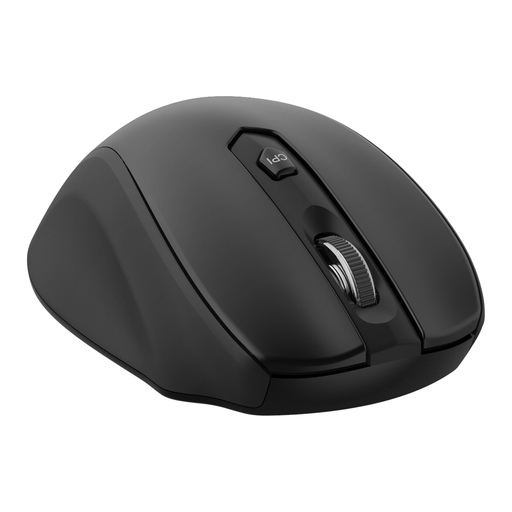
ET 2.4G wireless mouse, black, single
This is a conventional option if you want pointer-speed choices and page-navigation buttons. Its title specifies a USB receiver, five adjustable DPI levels and six buttons; check the scroll behaviour and hand fit if those will affect your choice.
View on Joybuy
 No image available
HP 920 ergonomic wireless mouse, black, with detachable wrist rest
Consider this model if the included detachable wrist rest is relevant to your desk setup. Check how the mouse and rest fit your hand and keyboard position; do not assume a particular shape will relieve discomfort.
View on Joybuy
 No image available
HOFOTEK M311 2.4G+BT mouse, white-grey
Consider this conventional mouse if you want to compare wireless connection options for your study setup. Its title specifies 2.4G+BT, adjustable DPI and one AA battery; check its scrolling and button functions if rapid document navigation matters to you.
View on Joybuy
 No image available
V7 MW500BT Bluetooth vertical mouse
Consider this model if you prefer a vertical grip while moving between drafts and reference pages. Its title specifies 2.4GHz dual-mode connection, six buttons and an adjustable sensor rated at 1600 DPI; check hand fit before choosing it for long sessions.
View on Joybuy
Common questions
Do I need a special mouse for two monitors?
No special two-monitor mouse is usually necessary. In Windows, Microsoft Support advises arranging the displays so their on-screen positions match the physical screens; you can then adjust pointer speed if travel still feels awkward.
Should I choose a vertical mouse for dissertation writing?
A vertical mouse is worth considering if you prefer that grip and the particular model fits your hand. For example, Logitech presents Lift for small-to-medium hands and offers a left-handed version; the shape alone does not determine whether it suits your workstation.
When might a trackball suit a two-screen desk?
A stationary trackball may suit a desk with little room to move a mouse; it does not add a special two-screen function. Compare thumb and finger controls, the space needed for the base, and the button and connection conditions of the exact model.
Where should the mouse sit during a long writing session?
Place the mouse where you can reach it without an awkward sideways movement. The Health and Safety Executive advises keeping it in line with the elbow, so assess keyboard and screen placement alongside the mouse.


