Two-screen timetable coordinators
You compare a timetable with messages, spreadsheets or documents on another display and want controllable pointer movement, scrolling and access to the actions you repeat.


For frequent movement between a club timetable, messages and supporting documents, start with a mouse whose pointer speed, scrolling and controls you can adjust to your workflow. Consider a vertical mouse if grip comfort matters more, or a thumb-operated trackball if desk space is tight. Check physical fit and computer compatibility whichever shape you choose; a mouse does not replace a well-arranged workstation.
You compare a timetable with messages, spreadsheets or documents on another display and want controllable pointer movement, scrolling and access to the actions you repeat.
You spend extended periods arranging fixtures, volunteer rotas or attendance details and need to consider hand fit alongside the position of your mouse, keyboard and screens. The Health and Safety Executive advises keeping the mouse in line with your elbow.
You work beside paperwork or on a crowded desk and would rather not move a mouse across a broad area. Logitech describes its ERGO M575S thumb-operated trackball as a stationary option for small or busy setups.
Decide whether navigation, sustained comfort, shortcuts or workspace flexibility is your main priority. Then check the connection and physical fit of the mouse you are considering.
| Concern | What to check | Who this matters to |
|---|---|---|
| Navigation across two screens | Look for adjustable pointer speed and a scroll wheel you can control through long schedules. | When I move between timetable cells, messages and documents, I want to cross both displays without overshooting small controls. Around 40% of consumers put controllable navigation first. |
| Comfort during long sessions | Check hand-size and handedness guidance, then consider where the mouse sits relative to your elbow and keyboard. | If I spend a long session rearranging fixtures, the grip needs to feel suitable without drawing my arm into an awkward position. Sustained comfort comes first for around 30% of consumers. |
| Repeated actions | Identify the shortcuts you would assign and check whether their configuration software works with your computer. | I repeatedly switch applications or use the same browser commands, so assignable controls matter only if I will set them up. Around 20% of consumers prioritise those shortcuts. |
| Desk space and devices | Check the room available to move the mouse, plus Bluetooth support or the port needed for a receiver. | With paperwork on my desk or more than one computer in use, I need a pointing method and connection that suit that space. Workspace or device flexibility is the primary need for around 10% of consumers. |
A high maximum setting does not tell you whether you can select timetable cells comfortably. Logitech lists adjustable sensitivity for the MX Master 3S for Business.
Choose a mouse with controllable pointer speed and set it so you can move between displays without overshooting cells or controls.
Logitech positions Lift for small-to-medium hands and offers a left-handed version. The Health and Safety Executive also advises positioning the mouse in line with the elbow; shape alone does not determine the whole workstation setup.
Check the specific model's hand-fit and handedness guidance, then consider its position beside your keyboard.
Assignable controls help only when they match actions you repeat. Logitech's MX Master 3S for Business uses Logi Options+ for customisation on Windows and macOS.
Identify the commands you would assign before choosing a button layout, and check that the required software works on your computer.
Connection options differ between models. Logitech lists Bluetooth Low Energy and a Logi Bolt USB-A receiver for the MX Master 3S for Business; HP lists Bluetooth 5.3 or an HP Unifying dongle for the 920.
Check your computer's Bluetooth capability and available ports, including any docking-station arrangement, before ordering.
Its referenced models span productivity controls, a vertical grip and stationary thumb-trackball operation.
The HP 920 is a vertical wireless option with a detachable wrist rest.
Its Pro Fit Ergo Vertical Wireless Mouse is another vertical option to compare by grip and controls.
These mice offer different starting points for timetable and browser work. The HP 920 and V7 MW500BT have explicitly identified vertical shapes; for every model, match the grip and connection to your workstation before choosing.
 No image available
For moving between a timetable and supporting windows, check whether this model's scrolling and button layout suit the actions you repeat. Confirm its grip fit and the software needed for any shortcuts you plan to configure.
 No image available
If you want one mouse for timetable sheets and browser work, check this model's scrolling controls, grip and connection options against your setup. Confirm software compatibility before relying on configurable or cross-computer controls.
 No image available
Consider its vertical grip if hand position is your priority during longer timetable sessions, while checking that the shape fits your hand. HP lists five programmable buttons, Bluetooth 5.3 or an HP Unifying dongle, and connection to up to three devices for the 920.
 No image available
Consider the vertical shape if you prefer an upright grip while working through a timetable, but check hand fit before buying. The product name specifies Bluetooth and 2.4 GHz connection options, six buttons and an adjustable sensor listed at 1600 DPI.
 No image available
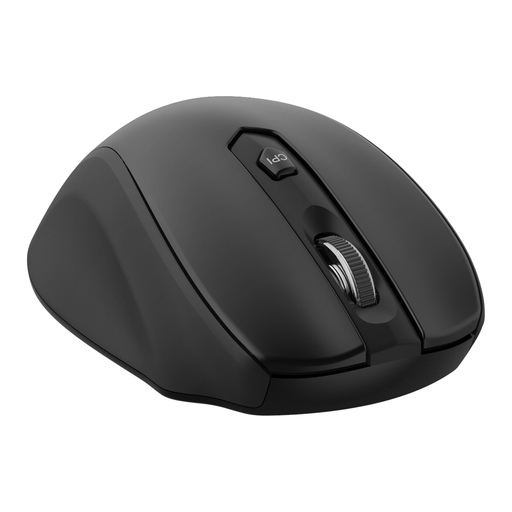
For timetable and browser work on a computer with a suitable receiver port, this is an option to compare by pointer control and button layout. The product name specifies five adjustable DPI levels and six buttons; confirm compatibility with your computer.
Choose by the navigation and controls your timetable work requires, rather than looking for a two-screen label. Adjustable pointer speed and scrolling are worth checking if you frequently cross displays or work through long schedules.
Consider a vertical mouse when you prefer a more upright grip during long desk sessions, provided the particular shape suits your hand and handedness. Logitech positions Lift for small-to-medium hands and offers a left-handed version; those fit details should not be assumed for other models.
Check Bluetooth support, available receiver ports and whether the model can switch between your devices. HP lists Bluetooth 5.3, an HP Unifying dongle and connection to up to three devices for the 920; confirm that the connection you intend to use works with each computer.
The Health and Safety Executive says employers must carry out a workstation assessment for workers who use display screen equipment daily as part of normal work and continuously for an hour or more. That assessment considers the workstation, task and individual requirements; buying a different mouse does not complete it.
The Health and Safety Executive advises keeping the mouse in line with your elbow, with the screen and keyboard central, and avoiding twisting your back. Arrange the displays and input devices together so the mouse does not end up far to one side.