For long event calendars on a large display, start with a mouse whose scrolling and pointer speed you can adjust, and consider configurable buttons if your computer and software support them. If hand comfort matters more, check the shape against your hand and desk setup; if you work across computers, confirm connection and switching requirements before choosing.
Who the mouse needs to suit
Frequent calendar editors on large displays
If you scroll through long event lists, adjust time blocks and move between a calendar, spreadsheet and email, consider accessible scrolling controls, adjustable pointer speed and shortcuts you can configure for your applications.
Desk workers prioritising hand comfort
If extended desk sessions make mouse fit your main concern, check whether your fingers reach the wheel and buttons comfortably. Shape is one part of the decision; mouse position and the wider workstation matter too.
Multi-device event coordinators
If you update schedules on more than one computer, look at how a mouse pairs and switches between your devices, including any operating-system or software requirements.
What matters when choosing
Decide whether navigation, hand fit, device switching or portability is your main constraint before comparing individual controls.
| Concern | What to check | Who this matters to |
|---|
| Dense-schedule navigation |
Check the scroll-wheel modes, adjustable pointer speed and whether button customisation works with your computer. |
If I move through long schedules and related applications all day, I want controls that make repeated navigation easier. Around 36% of consumers put navigation and shortcuts first. |
| Comfort and hand fit |
Check the mouse shape against your hand size and whether you can reach its wheel and buttons without an awkward stretch. |
During long desk sessions, I need a shape I can use comfortably rather than the greatest number of shortcuts. For around 29% of consumers, fit and comfort are the primary concern. |
| Device compatibility |
Confirm the required Bluetooth or USB connection, supported operating systems and how switching between devices works. |
If I update the same calendar on several computers, I need the mouse to connect to each one without disrupting my work. Device compatibility comes first for around 21% of consumers. |
| Portability |
Consider the mouse’s size alongside its control layout, and confirm that it connects to the computer you carry. |
When I take calendar work between meetings or venues, I would rather carry a smaller mouse, provided its controls still suit me. Around 14% of consumers prioritise portability. |
Buying pitfalls
-
Choosing by maximum DPI alone
Pointer sensitivity can be adjusted for a large display, but a high maximum DPI does not tell you whether the wheel, buttons or shape suit calendar editing.
Compare scrolling and control reach as well as sensitivity, then set pointer speed for your display and working style.
-
Expecting a vertical mouse to resolve every discomfort
A different mouse shape does not address every workstation factor. The UK Health and Safety Executive notes that poor display-screen workstation setup can contribute to pain and fatigue.
If discomfort persists, review mouse position, desk setup and breaks. If you are a qualifying display-screen equipment user at work, use your employer’s workstation assessment process.
-
Overlooking software and connection requirements
Shortcuts and device-switching features may depend on a supported operating system, compatible hardware or software that you can install.
Before ordering, check your computer’s Bluetooth capability or USB ports and confirm any software requirements for the controls you intend to use.
-
Relying on a search-result title for the exact variant
A short result title is not enough to settle which model variant, connection options or current stock you would be ordering.
Compare the model and variant details on the product page, then check the current specifications, stock and seller terms.
Relevant mouse brands for reference
Logitech
The MX Master 3S is relevant to scrolling and configurable calendar controls; Lift offers a vertical alternative for small to medium hands.
- Logitech specifies adjustable 8,000 DPI tracking and MagSpeed scrolling for MX Master 3S, with button customisation through compatible software. Its Lift has a 57° vertical shape and a left-handed variant.
- These are model-specific features. Check the variant, software compatibility and hand fit rather than assuming the same controls across Logitech mice.
Microsoft
The Bluetooth Ergonomic Mouse is a reference point for coordinators switching between compatible Windows PCs.
- Microsoft says the model can pair with up to three PCs and has customisable thumb buttons.
- Microsoft says it works best with Windows 11 or Windows 10 and requires Bluetooth 4.0 or later. Full customisation and Smart Switch require Microsoft Mouse and Keyboard Center.
Razer
The Pro Click V2 is relevant when the same mouse must cover calendar work and other productivity or gaming tasks.
- Razer describes five-way multi-device connectivity and a wheel with tactile and free-spin scrolling modes.
- Shortcut setup depends on Razer Synapse 4; consider whether its additional gaming-oriented features serve your calendar workflow.
Joybuy mice for event-calendar work
These mice offer different starting points for desk-based calendar navigation, vertical-shaped use and work across devices. Compare each model’s controls, fit and computer requirements against the way you edit schedules.
 No image available
Logitech MX Master 3S Black Mouse
Consider this model if scrolling through long schedules and configuring controls are central to your desk work.
Logitech specifies adjustable 8,000 DPI tracking and MagSpeed scrolling for MX Master 3S. Check that the software needed for your preferred shortcuts works on your computer, and that the shape fits your hand.
Joybuy
 No image available
RAPOO MT760L-LG Mouse
For a wide calendar or work across computers, check whether its scrolling controls and connection options suit your setup.
Confirm the body shape before choosing it for comfort: the product descriptions give conflicting accounts. Cross-computer cursor control is described as requiring a driver and computers on the same Wi-Fi or Ethernet network; also check the scroll-wheel mode if fast navigation is important.
Joybuy
 No image available
V7 MW500BT Bluetooth and 2.4GHz Vertical Mouse
Consider its vertical shape if hand fit is more important to you than fast scrolling through long schedules.
The product name specifies six buttons and an adjustable 1600 DPI sensor. Check that your hand reaches the controls comfortably, and confirm whether a USB receiver is supplied if you plan to use the 2.4GHz connection.
Joybuy
 No image available
HOFOTEK M311 2.4G+BT White-Grey Mouse
If you work on calendars across devices, check how this mouse switches between the computers you intend to use.
Its product name specifies adjustable DPI, silent clicks and one AA battery. Check the control reach for longer desk sessions and confirm the switching procedure before ordering.
Joybuy
 No image available
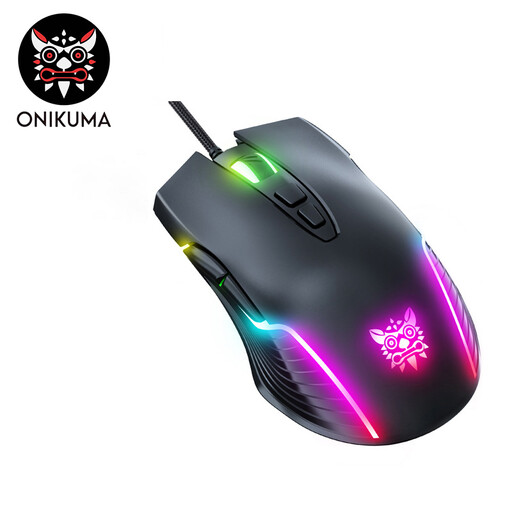
ONIKUMA CW905 Wired Gaming Mouse
This is a wired option to consider if a cable suits your calendar-editing desk setup.
Its product name lists adjustable pointer settings and RGB lighting. If you want to assign calendar shortcuts, confirm button programmability and operating-system compatibility before buying.
Joybuy
Common questions
Do I need an ergonomic mouse to design an event calendar?
Not necessarily: if navigating long schedules and using shortcuts are your main tasks, compare scrolling and controls first. If hand fit is the overriding concern, consider an ergonomic or vertical shape, but assess your desk setup as well as the mouse.
How can I tell whether a mouse will fit my hand?
Check whether your fingers reach the main buttons and wheel comfortably and whether your thumb reaches any side controls without strain. Logitech suggests measuring from the crease below your palm to the tip of your middle finger as a starting point when comparing sizes.
Will a Bluetooth mouse work with my work computer?
It will depend on the particular mouse and computer, so check their connection and software requirements together. Microsoft says its Bluetooth Ergonomic Mouse requires Bluetooth 4.0 or later, works best with Windows 11 or Windows 10, and needs Microsoft Mouse and Keyboard Center for full customisation and Smart Switch.
Must a UK employer provide a particular ergonomic mouse?
The UK Health and Safety Executive’s display-screen equipment guidance does not prescribe a particular mouse model. For workers who use display-screen equipment daily for continuous periods of an hour or more, employers must assess workstations and reduce identified risks; the appropriate measures depend on that assessment.


