High-volume catalogue editors
If you repeatedly scroll listings, change fields, check images and move between browser tabs, look for navigation controls that suit those repeated actions.


Choose a conventional productivity mouse if fast scrolling and configurable controls matter most for catalogue updates. Consider a vertical mouse if an upright grip fits your hand, a thumb trackball if you want the device to stay still, or a centred rollerbar if sideways reach is the main issue. At standing height, follow the Health and Safety Executive’s advice to keep your shoulders relaxed and the mouse in line with your elbow; a new mouse does not replace a workable desk setup.
If you repeatedly scroll listings, change fields, check images and move between browser tabs, look for navigation controls that suit those repeated actions.
When your desk height changes during the day, check whether the mouse remains in line with your elbow without making you raise your shoulder, as the Health and Safety Executive advises.
A vertical mouse, stationary thumb trackball or centred rollerbar changes how you control the pointer. Hand fit, device position and the available desk space matter alongside the shape.
Choose when: Scrolling through long listings and assigning actions to controls are your main priorities.
Bear in mind: Its familiar side-of-keyboard position still needs to let your shoulder relax and your elbow align with the mouse.
Choose when: You prefer a more upright grip for repeated clicking and pointer work.
Bear in mind: Check the particular model’s hand-size guidance and handedness; a change of grip may take getting used to.
Choose when: Keeping the device stationary matters more than retaining conventional mouse movement.
Bear in mind: Thumb-controlled pointing is a different technique, so consider whether it suits detailed field and image selection.
Choose when: Sideways reach is your main concern and there is room directly in front of the keyboard.
Bear in mind: Measure that space: Contour Design specifies its RollerMouse Red at 16.14 inches long.
| Concern | What to check | Who this matters to |
|---|---|---|
| Comfort and workstation alignment | At standing height, check mouse position against your elbow and the model’s hand-size and handedness guidance. | If I change desk height, I need a grip and position that do not make me reach or raise my shoulder. Around 42% of consumers put workstation alignment and comfort first. |
| Scrolling and repeatable actions | Check wheel control and whether any button customisation works with your computer and editing software. | When I work through long product lists, quick navigation and repeatable controls matter more to me than a different grip. Around 33% of consumers prioritise editing workflow. |
| Desk space, surface and connection | Measure the keyboard area and check the mouse’s connection method and any stated glass-surface conditions. | If I use a compact or changing workspace, the device needs to fit the surface and connect to my computer. Around 25% of consumers make workspace flexibility their primary concern. |
A mouse can still leave you reaching or raising your shoulder if the standing desk and device position are wrong.
Set the desk height, then check whether the mouse sits in line with your elbow while your shoulders stay relaxed. For employee display screen equipment work, consider the whole workstation in its assessment, as the Health and Safety Executive advises.
Logitech specifies Lift for small to medium hands, while Logitech MX Ergo S and Kensington Pro Fit Ergo Vertical are aimed at larger hand-size ranges.
Check the exact model’s fit and handedness guidance before choosing a vertical mouse or trackball.
The stated glass-tracking capability of Logitech MX Master 3S applies to glass at least 4 mm thick; it says nothing about another mouse’s performance.
Check the surface requirements for the exact model or use a suitable mouse mat.
A rollerbar sits in front of the keyboard, where it may compete for room on a compact standing desk. Contour Design specifies RollerMouse Red at 16.14 inches long.
Measure the keyboard area before buying and check that both devices can remain comfortably positioned.
Its cited models cover conventional productivity mice, vertical mice and thumb trackballs for different catalogue-work preferences.
Its Pro Fit Ergo Vertical is a vertical-mouse option aimed at average to larger hands.
Its RollerMouse Red offers cursor control from a rollerbar positioned in front of the keyboard rather than beside it.
These mice cover conventional catalogue navigation and vertical-grip options. Choose by the controls, connection and fit you need, then check that the mouse can sit comfortably alongside your keyboard at standing height.
 No image available
Consider this conventional mouse if repeated scrolling is central to your catalogue work.
Logitech specifies an 8,000 DPI sensor for MX Master 3S and glass tracking on surfaces at least 4 mm thick. If you need a Logi Bolt receiver, confirm whether it is included with this bundle.
 No image available
Consider this vertical-grip option if hand position matters alongside routine catalogue navigation.
The named variant has a detachable wrist rest. Check its hand fit and handedness, and confirm that HP Accessory Center works with your computer if you plan to customise buttons.
 No image available
Consider this mouse if you want a vertical grip while moving between catalogue fields and browser pages.
Its name specifies Bluetooth and 2.4GHz connection options, six buttons and an adjustable 1600 DPI sensor. Check hand fit and handedness before choosing it.
 No image available
Consider this conventional office mouse if adjustable pointer sensitivity and connection choice matter more than a change of grip.
The named variant specifies 2.4G+BT connectivity, multi-level DPI adjustment and one AA battery. If shortcuts are important to your catalogue workflow, check whether its buttons can be customised.
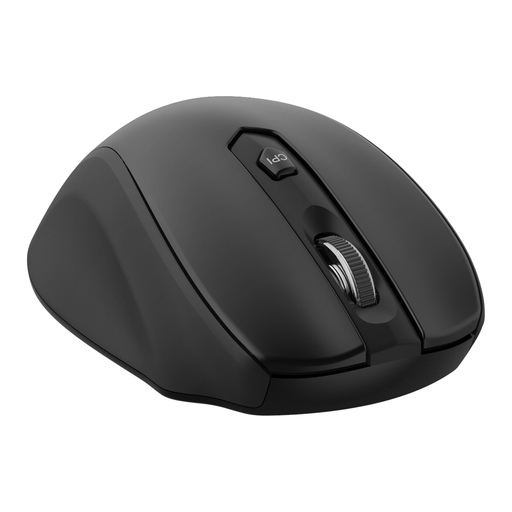 No image available
Consider this mouse for routine catalogue navigation if a receiver-based wireless connection suits your computer.
The named variant has five adjustable DPI levels and six buttons. Check that you have a compatible USB port and that its hand fit suits you.
For employees who regularly use display screen equipment as a significant part of their normal work, the Health and Safety Executive says employers must assess the workstation and reduce risks. A mouse choice can form part of that assessment, which also considers the work, the overall setup and individual requirements.
Place the mouse in line with your elbow and set the desk so your shoulders can stay relaxed, following Health and Safety Executive guidance. Recheck its position after changing the desk height or input device rather than relying on the mouse shape alone.
Choose the control method according to your hand fit and whether grip, device movement or sideways reach is the issue; no one shape establishes a remedy for discomfort. Review the whole workstation too. The Health and Safety Executive says an employer must reassess a display screen equipment workstation when a user complains of pain or discomfort.
For employees covered by display screen equipment rules, the Health and Safety Executive says work should be periodically interrupted by breaks or changes of activity that reduce time at the equipment. Plan those interruptions into sustained catalogue work rather than treating a different mouse as a replacement for them.