Shared-room accessibility checker
If you inspect colours in web pages, slides or digital coursework while others are nearby, quiet clicks and a compact wireless setup may matter alongside the checking task itself.


For a Bluetooth-capable laptop in a shared room, start with a quiet mouse whose shape suits your hand; choose a model with both Bluetooth and a USB receiver if you need a connection fallback. Adjustable pointer control can help you select small on-screen elements, but a mouse cannot assess colour contrast. The Department for Education’s contrast-checking guidance calls for the foreground and background colour values, while text checks also need the relevant text-size context.
If you inspect colours in web pages, slides or digital coursework while others are nearby, quiet clicks and a compact wireless setup may matter alongside the checking task itself.
If you work mainly on one laptop and carry it between your room, library and classes, a Bluetooth mouse can leave a USB port free, provided your laptop supports pairing.
If you repeatedly navigate small interface elements, charts or colour pairs, consider whether the mouse shape, pointer settings and scrolling controls suit the way you work.
Check connection compatibility and hand fit before deciding whether quiet clicks, adjustable pointer control or extra navigation buttons justify a particular mouse.
| Concern | What to check | Who this matters to |
|---|---|---|
| Quiet use | Look for a stated quiet-click design, then consider the mouse shape for your usual grip. A click claim does not describe every sound in the room. | If I review colour pairs while someone else studies or sleeps nearby, I want repeated clicks to be less intrusive. Around 40% of consumers put quiet use first. |
| Pointer control | Check adjustable pointer settings and whether the stated tracking suits your work surface. A higher DPI figure does not validate contrast. | When small swatches or interface elements are hard to select, I want pointer movement I can control precisely. Detailed inspection comes first for around 30% of consumers. |
| Compatibility and portability | Confirm your operating system, Bluetooth support and available USB ports; decide whether you need a receiver fallback. | Moving between study locations, I need a connection that works with my laptop without making my setup awkward to carry. Around 30% of consumers prioritise compatibility and portability. |
Pointer sensitivity affects navigation, not the result of a colour-contrast check. The Department for Education’s contrast checker requires foreground and background colour values; text checks also depend on the relevant text-size context.
Use a contrast checker on the actual colour pair and element type. Treat adjustable DPI as a way to tune pointer movement.
A Bluetooth-only mouse needs a compatible device that can pair with it. A receiver-based mouse instead needs a suitable USB connection.
Check your laptop’s operating system, Bluetooth capability and ports before choosing either connection type.
If the connection you choose does not suit your laptop, using the mouse may require a suitable adapter or a different mouse.
Manufacturers’ click-noise claims do not account for the scroll wheel, desk surface, typing or room acoustics. They should not be treated as guarantees about a shared study space.
Use quiet-click descriptions to narrow the choice, and consider the surface on which you will use the mouse.
A mouse can help you navigate a chart, slide or interface, but it cannot make a colour-only distinction clear to every reader.
Check applicable contrast requirements and add an appropriate label, pattern, text cue or other identifier where information would otherwise depend on colour alone.
Logitech’s M240 Silent illustrates a compact Bluetooth choice; the MX Anywhere 3S is a separate option for buyers considering more detailed tracking and device switching.
Dell’s MS355 is a compact quiet-mouse option when a student wants both Bluetooth and an RF-receiver connection.
HP’s 280 Silent and 480 Comfort illustrate different connection and control choices rather than interchangeable versions of one mouse.
Microsoft’s Bluetooth Mouse is a compact option to examine for a compatible Windows laptop.
These mice offer different ways to navigate on-screen colour checks: quiet-click wireless and wired choices, dual-mode connections, and shapes or controls for longer sessions. Match the connection to your laptop and assess comfort separately; none replaces a contrast checker.
 No image available
Consider this for a shared-room setup if you want a quiet-click claim and a choice of wireless connection methods. The title lists 2.4G+BT connectivity, adjustable multi-level DPI and a 1xAA battery; confirm that your device supports the mode you intend to use.
 No image available
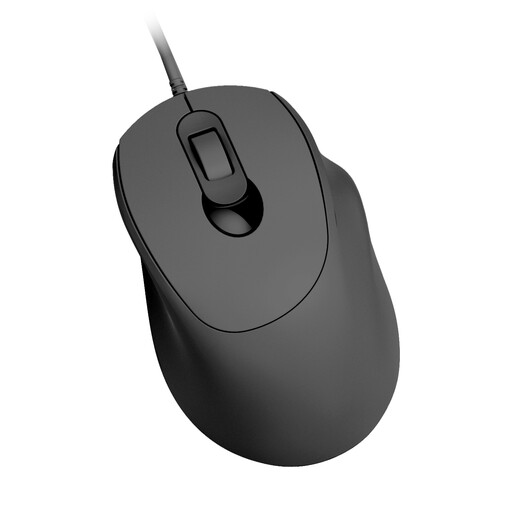
Consider this if your laptop has a suitable USB connection and you do not mind a cable on the desk. Its title lists four buttons, quiet clicks, Windows and Mac compatibility, and adjustable 1000/1200/1600 DPI settings; the wired connection keeps the mouse tethered when you move.
 No image available
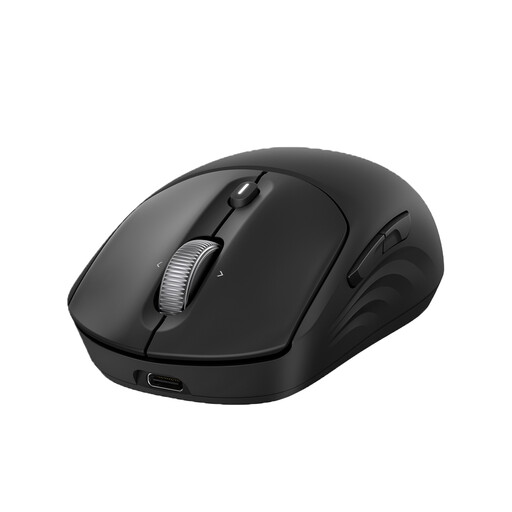
Consider this rechargeable model if navigation controls matter during longer reviews. If you need programmable shortcuts, check that the functions and any optional software work with your device; if low noise is essential, confirm its click behaviour before choosing it.
 No image available
Consider this if you prefer to assess a vertical grip for longer computer sessions. The title lists a thumb-rest shape, six buttons, Bluetooth and 2.4 GHz modes, and an adjustable sensor up to 1600 DPI; check hand fit and click noise if either is decisive for your room.
 No image available
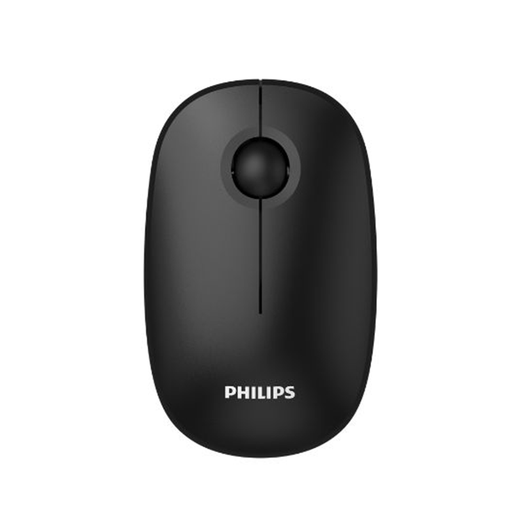
Consider this quiet-click option if a USB receiver suits your laptop. Its title lists a 2.4 GHz receiver and 1600 DPI optical tracking, so check that you have a suitable USB port or adapter before choosing it.
No. A mouse helps you navigate and select elements, but it does not test contrast. The Department for Education’s contrast-checking guidance calls for the foreground and background colour values; for text, check the applicable text-size context too.
For normal text in the WCAG AA checks described by the DWP Accessibility Manual, check for a contrast ratio of at least 4.5:1. Apply the criterion relevant to the element and the work you are assessing rather than assuming one figure covers every kind of content.
Choose Bluetooth if your laptop supports it and keeping a USB port free matters to you; choose a receiver option if that connection better suits your device or you want a fallback. Check the mouse’s stated operating-system support, your available ports and whether an adapter would be needed.
Do not rely on colour alone when the distinction carries information. Add clear labels or another identifier and check the applicable contrast requirements for the chart or interface.
Yes, a student can ask about support for their individual access needs, though that does not mean a particular mouse is automatically required. GOV.UK states that education providers have a duty to make reasonable adjustments; contact your university’s disability-support team to discuss what you need.