Multi-device training planners
You prepare materials on a work laptop and another computer or compatible device. Switching connections easily matters while you move between documents, slides and training tools.


Choose a multi-device mouse if preparing training materials regularly takes you between compatible computers; prioritise scrolling and shortcut controls if you spend much of that time navigating documents and slides. If hand fit or limited desk space matters more, consider a vertical mouse or stationary trackball instead, while checking that its pointing style and connections suit your setup.
You prepare materials on a work laptop and another computer or compatible device. Switching connections easily matters while you move between documents, slides and training tools.
You spend extended periods building schedules, handouts or online learning content. Mouse fit matters, but the Health and Safety Executive advises considering display-screen work as part of the whole workstation and work routine.
You prepare sessions at shared desks, crowded worktables or temporary workspaces. A stationary pointing device or a mouse that suits changing setups may matter more to you than extra buttons.
Start with the part of preparation that most affects your choice: moving between devices, working at a desk for long stretches, or finding room to point comfortably.
| Concern | What to check | Who this matters to |
|---|---|---|
| Documents and device switching | Check how many devices the exact mouse can use, how you switch between them, and whether its connection and shortcut software work with your computers. | If I prepare slides on one computer and run through materials on another, I want to move between them without repeatedly reconnecting. Around 42% of consumers put this workflow need first. |
| Fit during long sessions | Check hand-size guidance, handedness and the shape you can comfortably use. Consider your desk layout and work routine too. | When I spend hours preparing a session, I care about how the mouse fits my hand, but I do not expect a new shape alone to resolve discomfort. This is the first concern for around 33% of consumers. |
| Limited or changing workspace | Check the room needed to move the mouse, the connection available at each desk and whether you are comfortable with trackball control. | At a crowded table or temporary desk, I need a pointing method that works in the space available. Around 25% of consumers prioritise that setup need. |
A different shape may affect how you hold the mouse, but screen position, desk layout and work routine also matter. The Health and Safety Executive advises assessing the whole workstation where display-screen equipment risks apply.
If discomfort occurs during regular work, review the workstation and routine as well as mouse fit. Try the shape where possible, or check the seller’s return terms before choosing it.
Device counts and connection methods vary. HP specifies support for up to two devices on the HP 430, while Razer describes five-way connectivity for the Pro Click V2; neither figure establishes compatibility with every computer you use.
List your intended computers, then check the exact model’s pairing limit, switching method, Bluetooth requirements, receiver port and operating-system support.
Logitech positions Lift for small to medium hands and offers a left-handed version. Its vertical shape alone cannot tell you whether it fits your hand or grip.
Check the manufacturer’s dimensions, sizing guidance and handed version. If you cannot try the mouse, review the seller’s applicable return process.
UK government guidance says unwanted electrical products and batteries should go to an appropriate recycling collection point rather than household rubbish.
Use a suitable electrical-waste route for the mouse and a battery collection route for removable batteries.
Relevant here for multi-device mice, vertical designs and stationary trackballs.
Relevant for a conventional mouse used across a two-device planning setup.
Relevant when the same mouse must serve training preparation and other shortcut-heavy work or gaming.
These mice cover document-navigation and device-switching setups, an upright-grip option, and gesture navigation on compatible Apple devices. Choose by the computers and pointing style you actually use.
 No image available
Consider this mouse when scrolling through long training documents and moving between computers are central to your preparation. Check connection compatibility, software requirements and hand fit for your setup.
 No image available
This is an option for preparation across compatible devices when quieter clicks also matter. Its stated connections are 2.4G and Bluetooth; check how it switches between your computers and whether its shape suits your grip.
 No image available
Consider its upright grip if mouse shape is a priority during desk-based planning. The title specifies six buttons and an adjustable sensor up to 1600 DPI; check hand fit, host compatibility and device-switching behaviour separately.
 No image available
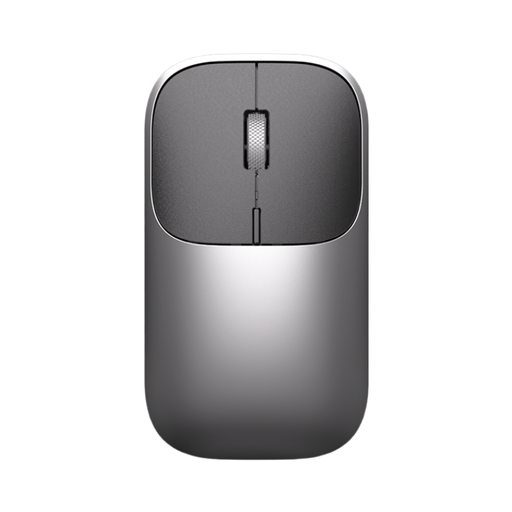
Consider this dual-connection mouse for a laptop-and-second-device planning setup. It has adjustable DPI; check the pointer settings you need and whether each computer supports Bluetooth 5.0 or the receiver connection.
 No image available
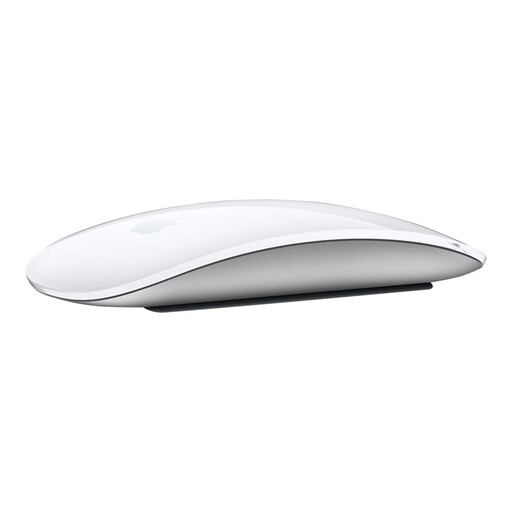
Its Multi-Touch surface makes it relevant to gesture-based navigation while preparing materials on a compatible Mac or iPad. Check the operating-system requirements and whether its shape suits you; do not assume it offers the device switching or shortcut buttons of another mouse.
Not necessarily: choose a shape that fits your hand and work, rather than assuming a vertical design will resolve discomfort. For regular display-screen work, the Health and Safety Executive advises considering the whole workstation, the task and individual needs.
Choose the connection your computers can use: Bluetooth requires compatible hosts, while a receiver needs a suitable free USB port. If you switch computers during preparation, also check the exact mouse’s device limit and switching method.
A stationary trackball can reduce the desk area needed to move the pointing device. Logitech says the thumb-operated ERGO M575S is suited to small or busy setups, but you still need to be comfortable controlling the cursor with your thumb.
Take the mouse to an appropriate electrical-waste collection route and removable batteries to a battery collection point. UK government guidance advises against putting unwanted electrical products and batteries in household rubbish.