For portfolio design at a standing desk, choose a conventional productivity mouse if scrolling and controls for recurring commands matter most, a vertical mouse if you prefer a more upright grip, or a stationary trackball if mousing space is tight. Whichever shape you favour, check hand fit, connection and software compatibility, and whether you can reach it comfortably at your standing desk height.
Who each option may suit
Designers who rely on workflow controls
If you move between layout tools, browser previews and long pages, adjustable pointer speed, scrolling controls and accessible shortcuts may matter more to you than a change of grip shape. Logitech documents these controls on its MX Master 3S for Business.
Long-session users considering a different grip
If your priority is a more upright hand position, compare vertical mice by hand-size guidance and handedness before choosing one. The Health and Safety Executive also advises considering posture and the wider display-screen workstation, not just the pointing device.
Designers with little mousing space
A trackball stays in one place beside a keyboard, laptop stand or drawing tablet. Kensington describes this stationary arrangement as requiring less desk space than moving a conventional mouse; you would also need to be comfortable controlling the pointer with the ball.
What to check before choosing
Choose the control method that addresses your main constraint, then check fit and compatibility in the standing-desk setup you actually use. The percentages below indicate roughly how consumers might divide by their single most important concern; they are not measured purchase rates.
Conventional productivity mouse
Choose it when: Familiar pointer movement, scrolling and controls for recurring design or browser commands are your priorities.
Trade-off: A sculpted conventional mouse does not give you the upright grip of a vertical model.
Vertical mouse
Choose it when: You prefer a more upright hand position and can find a shape suited to your hand and handedness.
Trade-off: The unfamiliar grip may take getting used to, and fit varies between models.
Stationary trackball
Choose it when: You have limited space to move a mouse or want the pointing device to stay put.
Trade-off: Finger-operated pointer control may feel less familiar for fine layout adjustments.
| Concern | What to check | Who this matters to |
|---|
| Pointer and workflow control |
Check adjustable cursor speed, scrolling controls and button placement. If you want custom shortcuts, confirm that the configuration software supports your computer. |
When I switch between design tools and long browser pages, I want controls I can use without interrupting my work. Around 31% of consumers may put this workflow need first. |
| Grip and posture |
Check hand-size guidance, handedness and reach at your standing desk height. Assess screen, keyboard and desk positions together, as the Health and Safety Executive advises for display-screen work. |
During a long session, I want a grip that suits my hand rather than assuming any ergonomic label will do. For around 31% of consumers, comfortable positioning may be the primary concern. |
| Connection flexibility |
Check Bluetooth support, the required receiver and USB port, and compatibility with each computer you intend to use. |
If I move between a laptop and another computer, I need a connection method that works with both. Connection flexibility may come first for around 23% of consumers. |
| Space for pointer movement |
Compare the available desk area with the device footprint, and consider whether finger-operated trackball control suits your work. |
With other equipment beside my keyboard, I have little room to move a mouse. Around 15% of consumers may prioritise keeping the pointing device stationary. |
Buying pitfalls
-
Choosing by the highest DPI figure
Dots per inch (DPI) describes a tracking setting, not whether a mouse shape or button layout will suit portfolio work. A larger stated range alone does not establish better design results.
Look for cursor-speed settings you can adjust on your display, alongside scrolling and controls you can reach comfortably.
-
Assuming every vertical mouse fits the same hand
Logitech positions Lift for small to medium hands and offers a left-handed version; Razer describes its Pro Click V2 Vertical as right-handed. The shape you choose still has to suit your own grip.
Check the manufacturer’s fit and handedness guidance, and understand the seller’s applicable return terms before ordering.
-
Expecting a mouse to fix the whole workstation
The Health and Safety Executive’s display-screen guidance considers posture and workstation arrangement more broadly. Changing the mouse does not position the screen, keyboard or desk for you.
Set desk height and mouse reach together, then reassess your screen and keyboard positions when you change between sitting and standing.
-
Choosing a trackball for its ergonomic label alone
A stationary trackball saves mousing space but changes how you move the pointer. Kensington positions its Expert Mouse Wireless Trackball for average to larger hands.
Prioritise a trackball when space or reduced device travel matters to you, and check fit and computer compatibility before switching control methods.
Brands to consider
Logitech
Logitech offers both the conventional MX Master 3S for Business productivity mouse and the vertical Lift, giving these two grip styles distinct controls and fit guidance.
- Logitech specifies adjustable tracking, seven buttons and a thumb wheel for MX Master 3S for Business; it describes Lift as a 57° vertical mouse with a left-handed option.
- Lift is positioned for small to medium hands. Check operating-system support before relying on controls configured through Logi Options+.
Razer
Razer’s Pro Click V2 Vertical is a wireless vertical option for people considering an upright, right-handed grip.
- Razer specifies six buttons and base support on this model.
- It is right-handed. Its vertical shape should not be treated as proof that it will relieve discomfort for every user.
Kensington
Kensington’s Expert Mouse Wireless Trackball represents the stationary-control option for a desk with limited room for mouse travel.
- Kensington specifies Bluetooth or USB-receiver connection, four configurable buttons and a scroll ring.
- Kensington positions this model for average to larger hands and says its Windows 11 trackball functions are not currently supported on Windows ARM-based computers.
Joybuy product choices
These mice cover conventional pointer controls and a vertical-grip option for portfolio work. Compare their stated features with your preferred grip, connection and available desk space; a stationary trackball is a separate route to consider.
 No image available
Logitech MX Master 3S Black mouse
A conventional mouse to consider when familiar pointer movement is your priority for design and browser work.
Joybuy describes this Black model as wireless. Check its shape against your hand and confirm software compatibility if you plan to customise controls.
View on Joybuy
 No image available
HOFOTEK M311 2.4G+BT Silent Office Mouse, White-Grey
Consider this conventional mouse if adjustable pointer settings and a choice of wireless connection matter to your desk setup.
Its title specifies 2.4G+BT connection, multi-level DPI adjustment, silent clicks and one AA battery. Check hand fit and whether its controls meet your shortcut needs.
View on Joybuy
 No image available
V7 MW500BT Bluetooth vertical mouse, 2.4GHz, 6 buttons
This is a vertical-grip option for consumers who prefer a more upright hand position while working at a standing desk.
The product title specifies Bluetooth and 2.4GHz modes, six buttons and an adjustable sensor rated up to 1600 DPI. Confirm its size and handedness before choosing it.
View on Joybuy
 No image available
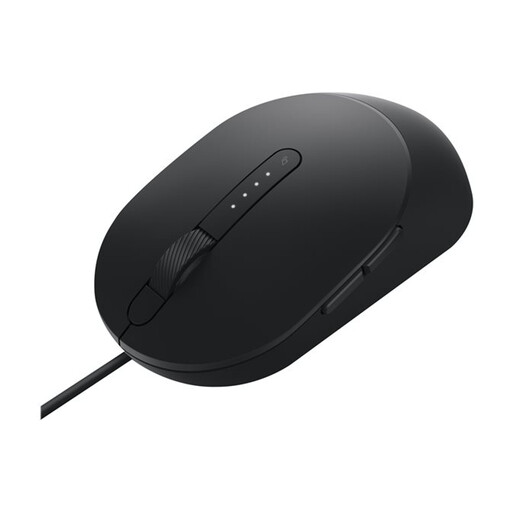
Dell MS3220 Laser Mouse
A conventional mouse to consider for portfolio work at a fixed workstation.
The named model is a laser mouse. If you need a wired connection or particular shortcut controls, confirm the port and control details for the computer you use.
View on Joybuy
 No image available
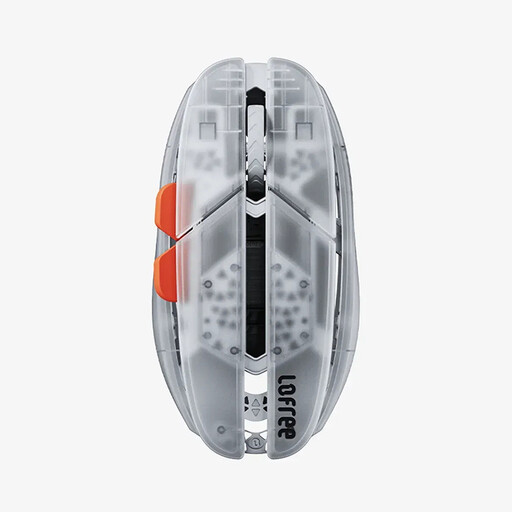
lofree Hypace OE923 Semi-Transparent Special Version mouse
Consider this conventional mouse if you want to choose between wireless and wired connections at your desk.
Its title specifies Bluetooth, 2.4G and wired modes, a magnesium-alloy frame with a PC shell, and a PAW3950 sensor. Check the shape, button layout and any configuration-app compatibility against your workflow.
View on Joybuy
Common questions
Is a vertical mouse automatically the right choice for a standing desk?
No: a vertical mouse is worth considering if you prefer its upright grip and the model fits your hand and handedness. Logitech positions Lift for small to medium hands and offers a left-handed version, whereas Razer describes its Pro Click V2 Vertical as right-handed. If familiar pointer movement and scrolling controls matter more, compare conventional mice too.
What should I adjust before deciding whether a mouse feels comfortable?
Adjust your reach and the wider workstation, not just the mouse. The Health and Safety Executive’s display-screen guidance considers posture and workstation arrangement; after changing desk height, reassess where your mouse, keyboard and screen sit.
Should I choose Bluetooth or a USB receiver?
Choose a connection your computer supports and that leaves you with the ports you need. Bluetooth may avoid occupying a USB port; a receiver needs a suitable free port. Logitech specifies Bluetooth Low Energy and a Logi Bolt receiver for MX Master 3S for Business, while Kensington specifies Bluetooth or a USB nano receiver for its Expert Mouse Wireless Trackball.


