For tax-record work that involves frequent movement through spreadsheets, PDFs and online forms, start with a conventional mouse whose scrolling and controls suit those tasks. Consider a vertical mouse if grip and hand fit matter more, or a centred rollerbar if repeatedly reaching to a side mouse is the main difficulty. Whichever you choose, check computer compatibility and where the device will sit on your desk.
Who is choosing a mouse?
Spreadsheet and document navigators
If you move between long spreadsheets, PDFs and tax portals, pay attention to scrolling, accessible navigation controls and whether any customisation software works with your computer. Logitech lists a thumb wheel and configurable controls on its MX Master 3S for Business, but those features are useful only if they suit your repeated tasks.
Comfort-first desk users
If grip is your main concern during long sessions, choose by the exact model’s hand-size guidance and handedness rather than its ergonomic label. Logitech describes Lift as fitting small-to-medium hands; Kensington positions its Pro Fit Ergo Vertical for average-to-larger right hands. The Health and Safety Executive also advises keeping the mouse in line with your elbow as part of the wider workstation setup.
People reducing sideways reach
If repeatedly reaching past your keyboard for a side-mounted mouse is awkward, a centred device is another option. Contour Design’s RollerMouse Red places its rollerbar in front of the keyboard, so check that your desk and keyboard arrangement can accommodate a different way of controlling the pointer.
What matters when choosing?
Choose the type of pointing device around the task that matters most, then check the exact model’s fit, connection and controls.
Conventional mouse
Choose it when: scrolling through records and reaching repeat-use controls matter more than changing your grip.
Bear in mind: programmable buttons offer little benefit unless their software works with your computer and you intend to set them up.
Vertical mouse
Choose it when: you prefer a more upright hand position and can find a model suited to your hand size and handedness.
Bear in mind: a different grip takes adjustment, and a vertical shape cannot correct an awkward desk setup.
Centred rollerbar
Choose it when: keeping pointer control directly in front of the keyboard addresses your main reach problem.
Bear in mind: it uses a different control method and needs suitable space in front of the keyboard.
| Concern |
What to check |
Who this matters to |
| Moving through records |
Try the scroll-wheel behaviour and check whether navigation buttons or customisation software support your workflow. |
If I spend much of the task moving between spreadsheet cells, PDFs and forms, I want scrolling and repeat actions to feel manageable. Around 37% of consumers put document navigation first. |
| Grip and hand fit |
Check the model’s hand-size guidance, handedness and whether you can reach its buttons without stretching. |
During long desk sessions, I would choose a shape that suits my hand before adding more controls. About 36% of consumers prioritise grip and fit. |
| Sideways reach |
Measure the space in front of the keyboard and check how a centred device connects to your computer. |
If reaching to a side mouse interrupts my work, I need pointing control closer to the keyboard. Roughly 27% of consumers make reducing that reach their primary concern. |
Mistakes to avoid
-
Treating a vertical mouse as the whole workstation solution
A different mouse shape does not address an awkward reach or other parts of the desk setup. The Health and Safety Executive advises positioning the mouse in line with your elbow.
Check the mouse position alongside your keyboard, screen and chair. If preparing records is part of regular employment, ask your employer about the workstation-assessment process.
-
Choosing by the ergonomic label alone
Vertical models do not all target the same hands: Logitech positions Lift for small-to-medium hands, while Kensington describes its Pro Fit Ergo Vertical as right-handed and suited to average-to-larger hands.
Check hand-size guidance, handedness and button reach for the exact model you plan to use.
-
Assuming every wireless connection will work
Connection methods differ. Logitech specifies Bluetooth Low Energy and a USB-A Logi Bolt receiver for MX Master 3S for Business; Kensington specifies a 2.4 GHz nano receiver for its Pro Fit Ergo Vertical.
Check your computer’s ports and Bluetooth capability, then confirm operating-system support for any optional button software you want to use.
If a required USB port is unavailable, using a receiver may also require an adapter.
-
Focusing on headline DPI instead of everyday controls
A DPI range alone cannot tell you whether scrolling through tax records or moving between forms will suit your workflow.
Start with the wheel, pointer-speed settings and buttons you would actually use; check connection and hand fit before deciding whether additional controls matter.
Brands to consider
These brands illustrate different types of pointing device; choose by the specifications and fit of a particular model, not by brand name alone.
Logitech
Its range includes conventional productivity mice and vertical models relevant to different tax-record workflows.
- Logitech lists seven buttons, a thumb wheel, Bluetooth Low Energy and a USB-A Logi Bolt receiver for MX Master 3S for Business. It states that optional Logi Options+ support is available for Windows and macOS.
- Logitech describes Lift as fitting small-to-medium hands; check its handed version and fit rather than assuming it will suit every user.
Kensington
Its Pro Fit Ergo Vertical is a right-handed wireless option for consumers comparing vertical shapes.
- Kensington specifies a 2.4 GHz nano receiver and selectable 800, 1000, 1200 and 1600 DPI settings for this model.
- Kensington positions it for average-to-larger hands and states that Windows ARM-based computers are not currently supported.
Contour Design
Its RollerMouse Red is a centred rollerbar device for a desk arrangement that places pointer control in front of the keyboard.
- Contour Design lists adjustable 600–2800 DPI settings, USB-C connection with a USB-A adapter and programmable shortcuts for RollerMouse Red.
- Its control method differs from a side-mounted mouse, so check keyboard placement, desk space and connection before choosing it.
Joybuy product choices
These mice offer conventional and vertical options for preparing records at a computer. If your main concern is reducing sideways reach, use the desk-layout checks above when considering a centred device instead.
 No image available
Logitech MX Master 3S Ergonomic Mouse, Black
Consider this conventional mouse if navigating records is your main priority. Check whether its wheel and controls suit the documents you use, and confirm computer and software compatibility before relying on button customisation.
View on Joybuy
 No image available
HP 920 Ergonomic Wireless Mouse, Black, with Detachable Wrist Rest
This is an option if you want to consider a different mouse shape while working at your desk. It has a detachable wrist rest; check the grip, handedness and button reach for your own setup rather than treating the rest as a guarantee of comfort.
View on Joybuy
 No image available
V7 MW500BT Bluetooth Vertical Mouse, 2.4GHz, 6 Buttons
Consider its vertical shape if grip is a higher priority than adding document-navigation controls. The title specifies 1600 DPI adjustable tracking; check hand fit, handedness and which of its connection methods your computer can use.
View on Joybuy
 No image available
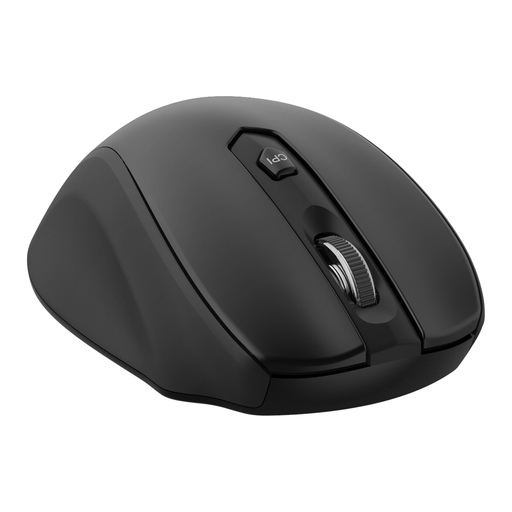
ET 2.4G Wireless Optical Mouse, Black, with USB Receiver
This conventional mouse may suit a setup that uses a USB receiver and straightforward navigation controls. Its title specifies six buttons and five adjustable DPI levels; check the wheel and side-button placement against the records you work through.
View on Joybuy
 No image available
HOFOTEK M311 2.4G+BT Office Mouse, White-Grey
Consider this conventional option if choosing between Bluetooth and 2.4G connectivity matters to your setup. Its title specifies a single AA battery; if you need the 2.4G connection, confirm whether a receiver comes with the mouse. Check that its wheel and controls meet your navigation needs.
View on Joybuy
Questions about choosing a mouse
Do I need a vertical mouse to prepare tax records?
No: a vertical mouse is one option if its grip and hand fit suit you. A conventional mouse may be more relevant when scrolling and repeat-use controls are your priorities, while a centred rollerbar addresses a different problem: reaching sideways from the keyboard.
What should I check before buying a wireless mouse?
Check the exact model’s connection method against your computer’s Bluetooth capability and available USB ports. If you want programmable controls, also confirm that the required software supports your operating system; Logitech lists Bluetooth Low Energy, a USB-A Logi Bolt receiver and optional Windows and macOS software support for MX Master 3S for Business.
Where should the mouse sit on my desk?
Place it where you can use it without an awkward sideways reach. The Health and Safety Executive’s posture guidance says to keep the mouse in line with your elbow; consider its position together with your keyboard and screen rather than changing the mouse alone.
Does UK display-screen-equipment guidance specify a mouse model for employees?
The Health and Safety Executive’s cited guidance does not specify a particular mouse model. It states that the Display Screen Equipment Regulations apply to workers who use display screen equipment daily for continuous periods of an hour or more. If preparing records forms part of that work, discuss your workstation setup and assessment process with your employer.


