For a calm virtual aquarium running alongside home-office work, choose a mouse that fits your hand and desk layout before prioritising gaming features. Extra buttons make sense if you will set up shortcuts for other tasks too; wireless removes a desk cable but requires battery planning, while a wired mouse avoids that upkeep. Check software compatibility before relying on remapping.
Who is this for?
Home-office aquarium keepers
If the aquarium stays on screen while you work, the mouse also needs to suit your usual desk tasks. The Health and Safety Executive advises keeping the mouse in line with your elbow; the shape still needs to fit your own hand and grip.
Shortcut-focused casual players
If you regularly use aquarium controls or desktop shortcuts, assignable buttons may be useful. Decide which actions you would actually map before choosing a mouse with more controls.
Cable-conscious multi-device users
If desk space or switching between devices matters to you, consider the connection modes as well as the mouse shape. Wireless use also brings battery upkeep, and a receiver-based connection needs a USB port.
What matters when choosing?
For a virtual aquarium that runs beside ordinary home-office work, start with the mouse you can use comfortably for both. Then decide whether shortcuts or a cable-free desk will change how you use it.
| Concern |
What to check |
Who this matters to |
| Hand and desk fit |
Compare shape and handedness with your grip; check that the mouse can sit in line with your elbow, as the Health and Safety Executive advises. |
If I use the same mouse throughout my working day, I want its shape and position to suit my hand and desk. Around 36% of consumers put hand and workstation fit first. |
| Shortcuts and scrolling |
Choose buttons for actions you will use, and confirm remapping software works on your computer. |
When I move between occasional aquarium actions and other PC tasks, I want shortcuts I can remember and reach easily. For around 29% of consumers, those controls are the main priority. |
| Wireless setup |
Check Bluetooth or receiver options, available USB ports and the battery or charging arrangement. |
I would rather clear a cable from my desk or connect to another device, even if that means managing power. That connection flexibility comes first for around 21% of consumers. |
| Simple controls |
Check basic clicking, scrolling, fit and computer compatibility before considering extra gaming functions. |
If the aquarium mostly runs in the background, I need straightforward pointer control more than additional settings. Around 14% of consumers prioritise that simpler approach. |
What should you watch for?
-
Assuming a calm aquarium needs competitive-gaming features
Microsoft Store describes one desktop aquarium as an unobtrusive background experience. Sensor settings, lighting or numerous buttons will not necessarily improve that kind of use.
Choose additional gaming functions when you have another specific use for them, such as other games or frequent desktop shortcuts.
-
Choosing by weight or button count alone
Neither figure tells you whether the shape suits your grip. The Health and Safety Executive also treats mouse position as part of the workstation setup.
Compare dimensions and handedness with your current mouse, and try the shape where possible.
-
Expecting every button function to work without setup
Basic pointer operation and configurable shortcuts are different requirements. Some button and scroll functions depend on the manufacturer's software.
Check operating-system support and identify the actions you want to assign before relying on remapping.
-
Overlooking wireless upkeep
Connection modes and power arrangements differ between mice. Razer's stated battery life for the Basilisk V3 X HyperSpeed, for example, varies by wireless mode and applies under its stated conditions.
Confirm which connection you will use, whether it needs a USB receiver and what power or charging accessories are included.
Depending on the model, ongoing use may involve replacement batteries, charging time or a USB port reserved for the receiver.
Relevant brands to consider
These product lines illustrate different approaches to controls and connectivity; their specifications do not establish which shape will fit your hand.
Logitech G
The wired G502 X line is relevant if you want extra controls and a choice of scroll behaviour for desktop tasks.
- Logitech G specifies an 89 g weight, a removable and reversible DPI-shift button, and ratcheted or free-spin scrolling for the G502 X.
- Those features do not establish personal comfort or a benefit for a particular virtual-aquarium application.
Razer
The Basilisk line is relevant if you prefer a right-handed shape and want to compare wired controls with wireless connection options.
- Razer lists 11 programmable buttons for the wired Basilisk V3 and nine programmable controls with dual-mode wireless for the Basilisk V3 X HyperSpeed.
- Check Razer Synapse compatibility before relying on remapping or particular scroll functions. Manufacturer-rated battery life depends on the stated mode and conditions.
SteelSeries
The Rival 5 is an option to examine if you also want several controls for casual gaming and other desktop tasks.
- SteelSeries specifies nine programmable buttons and an 85 g weight for the Rival 5.
- Weight and button count alone cannot tell you whether its shape will suit your grip.
Joybuy product choices
These mice cover occasional virtual-aquarium controls alongside everyday desk use: wired and wireless gaming models, plus a vertical everyday-use alternative. Check the connection, shape and any shortcut requirements against your own setup.
 No image available
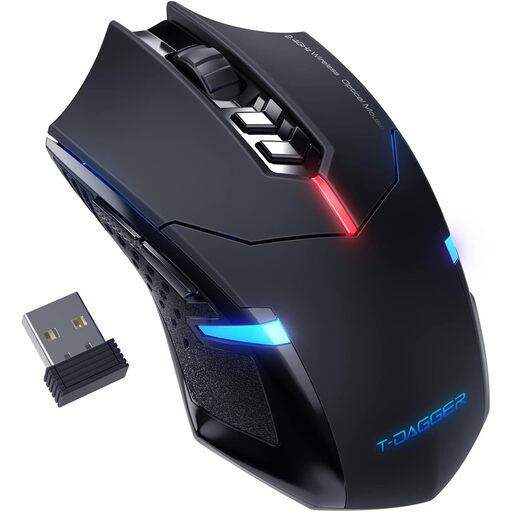
ET Wireless Gaming Mouse with USB connection
Consider this for a desk where you want to avoid a mouse cable while keeping occasional pointer and scrolling controls close at hand. Its name specifies adjustable DPI and LED backlighting; check its battery arrangement before choosing it.
If you use a Mac and need side buttons, note that the listing says those buttons are unavailable on Mac.
View on Joybuy
 No image available
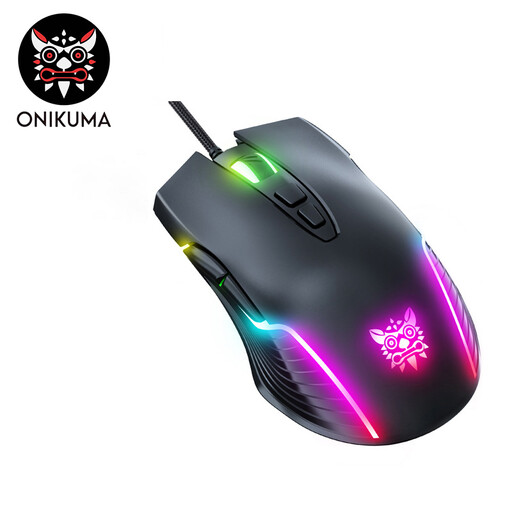
ONIKUMA CW905 Wired Gaming Mouse
A wired choice if you would rather avoid wireless battery upkeep during desk use. The name identifies adjustable settings and RGB lighting, but confirm operating-system compatibility and button remapping before choosing it for shortcuts.
Check the shape against your hand and grip rather than relying on its ergonomic description.
View on Joybuy
No image available
Rapoo VT7 MAX Wireless Gaming Mouse, White
Consider this if you also play games or have a use for more shortcuts beyond the aquarium. The named white variant is listed at 53 g with ten programmable buttons; button and macro setup requires A HUB software, so check compatibility first.
The stated battery life of up to 750 hours depends on updating the driver to enable low-power mode. It is not a guide to battery life under every setting or to how the shape will fit your hand.
View on Joybuy
 No image available
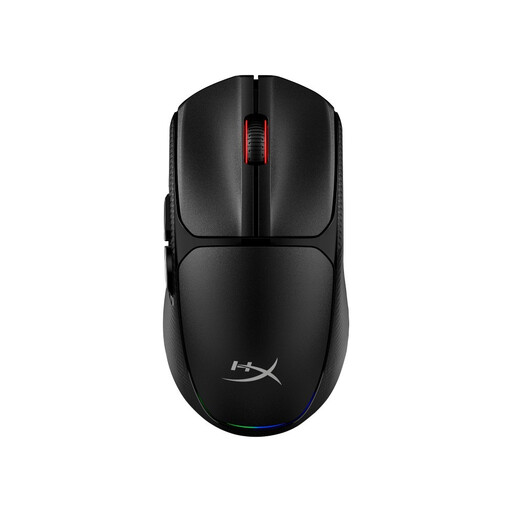
HyperX Pulsefire Fuse Wireless Gaming Mouse
A wireless gaming-mouse option for occasional aquarium use and general desk tasks. If you need assignable shortcuts, check the button functions and software compatibility before choosing it.
Check that its receiver arrangement and charging routine suit your desk, and assess the shape against your own grip.
View on Joybuy
 No image available
V7 MW500BT Bluetooth Vertical Mouse
Consider this everyday-use alternative if a vertical shape interests you more than gaming-specific features. Its name specifies Bluetooth and 2.4 GHz connections, six buttons and an adjustable sensor rated up to 1600 DPI.
Check whether the vertical grip fits your hand and whether replacing its AA battery suits you. Confirm button functions before choosing it for remappable shortcuts.
View on Joybuy
Common questions
Do I need a high-end gaming mouse for a virtual aquarium?
Not for a calm aquarium running mainly in the background. Microsoft Store describes its Desktop Aquarium as an unobtrusive animated background, so start with hand fit and everyday controls; consider additional gaming features if you will use them for other games or PC tasks.
Where should the mouse sit on a home-office desk?
The Health and Safety Executive advises positioning the mouse in line with your elbow. Leave enough space to use it without reaching sideways, and check that the mouse shape suits your hand; workstation positioning does not establish that one model will be comfortable for everyone.
Will programmable buttons work without configuration software?
Do not assume that remapping works without setup. Basic pointer use and configured shortcuts are separate functions; Razer, for example, uses Razer Synapse for certain Basilisk V3 button and scroll settings. Check the specific mouse's software and operating-system support if those functions matter to you.


