What matters when choosing?
Establish whether the screens share one computer before considering device-switching features. Then weigh hand fit, navigation and connection against the way you prepare lessons.
| Concern | What to check | Who this matters to |
|---|
| Comfort and workstation fit |
Check the mouse's size and shape at your desk, including whether you can keep it in line with your elbow. |
If I plan or mark for long stretches, I need a grip and desk arrangement I can use without reaching awkwardly. Around 36% of consumers would put comfort and workstation fit first. |
| Movement and scrolling |
Arrange Windows displays to match their positions on the desk; check pointer-speed adjustment and scrolling control. |
When I move between slides, documents and browser pages, I want broad cursor movement without losing control of small edits. Navigation would be the primary concern for around 29% of consumers. |
| Separate-device control |
Check pairing capacity and switching method. For cross-computer software, check device, software and network requirements. |
If my screens belong to separate computers, I want to know whether I must press a switch or can move the cursor between them. Around 14% of consumers would prioritise separate-device control. |
| Connection and distraction |
Match Bluetooth or receiver requirements to your computer; consider click noise if you work near others. |
In a shared workspace, I want a straightforward connection without distracting clicks or unnecessary setup. Simple, low-distraction operation would come first for around 21% of consumers. |
Joybuy product choices
These mice cover conventional pointer use, different navigation styles and options to consider when you work across separate devices. Choose according to your computer setup and check fit and compatibility for the particular model.
 No image available
Logitech MX Master 3S Ergonomic Black
Consider this shape for long planning sessions on one computer if it fits your hand and its scrolling suits your documents. If you want to use Logitech Flow with separate computers, confirm support for this variant and the software, channel and network requirements.
View on Joybuy
 No image available
RAPOO MT760L-LG
If moving a cursor between separate computers matters to you, confirm the exact MT760L-LG variant, its driver compatibility and network requirements before choosing it. Check its shape and scrolling controls for your planning tasks; wireless charging requires a separately purchased P3 module.
View on Joybuy
 No image available
V7 MW500BT Bluetooth Vertical Mouse
Consider the vertical shape if you want to try a different grip during desk work, while checking how it fits your hand. The product name specifies Bluetooth and 2.4 GHz connection, six buttons and an adjustable sensor rated up to 1600 DPI; check pairing and switching behaviour if you use separate computers.
View on Joybuy
 No image available
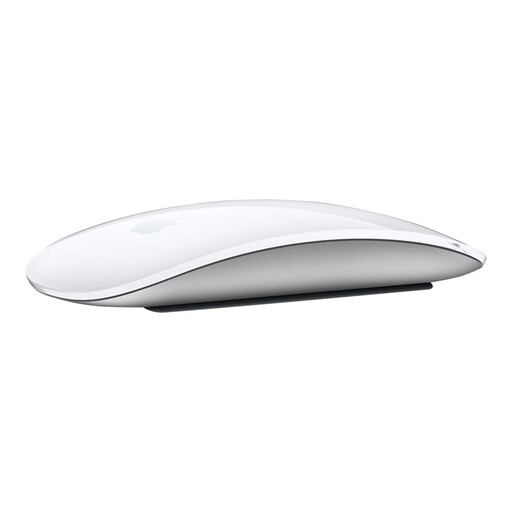
Apple Magic Mouse White Multi-Touch
The Multi-Touch surface offers a different way to navigate planning documents from a conventional scroll wheel. Check compatibility with the computer you use, particularly if it runs Windows, and whether gestures and the mouse's shape suit longer sessions.
View on Joybuy
 No image available
HOFOTEK M311 White-Grey Silent Office Mouse
Consider its stated quiet-click design if you prepare lessons near others. The product name specifies 2.4 GHz and Bluetooth connection, adjustable DPI and one AA battery; check the scrolling behaviour and whether its size suits extended use.
View on Joybuy
Frequently asked questions
Do I need a multi-device mouse for two screens?
No, not when both monitors connect to one computer: they share its pointer. Choose multi-device switching if you also need to control another computer or device.
When would Logitech Flow be useful?
Consider Logitech Flow if separate computers drive your screens and you want cursor movement between them. Logitech says it requires a supported mouse, Logi Options+ on both computers, separate mouse channels and a shared Wi-Fi or Ethernet network.
How do I set up a mouse for two Windows displays?
Arrange the displays in Windows to match their positions on your desk, then test movement across their edges. If the pointer feels too fast or slow, adjust its speed in Windows; Microsoft Support describes both settings.
Does UK display screen equipment guidance specify an ergonomic mouse?
The Health and Safety Executive's display screen equipment guidance focuses on assessing the whole workstation rather than prescribing a particular mouse model. For workplace use, consider the equipment, furniture, working conditions and individual needs together.
What if planning at my desk makes my hand or shoulder uncomfortable?
Review more than the mouse: check its position, your screens, chair, desk and work routine. The Health and Safety Executive advises keeping the mouse in line with the elbow and taking short breaks often rather than relying on less frequent, longer breaks.


