For long loan reports and spreadsheets, choose a conventional productivity mouse if scrolling and shortcut controls are your main priority. Consider a vertical mouse when hand position matters more, or a trackball when you need a stationary device on a cramped desk. Whichever route you take, check hand fit, workstation connections and whether you can keep the device within easy reach.
Who is choosing a mouse?
Frequent loan-report users
If you repeatedly filter records, move through long exports and switch between library-management screens, scrolling and reachable controls may shape your choice. Logitech’s MX Master 3S for Business illustrates the productivity-mouse features available for this kind of work.
Desk workers focused on hand position
During extended computer work, the deciding question may be whether the mouse fits your hand and can sit comfortably within reach. Logitech and Trust offer vertical designs, while University Hospitals Birmingham NHS Foundation Trust advises keeping the mouse close enough to use with a relaxed hand.
People at compact or shared desks
At a crowded circulation counter or shared workstation, there may be little room to move a conventional mouse. Kensington describes trackballs as stationary devices that require less space for pointer movement; the control style still needs to suit the people using the desk.
What matters most when buying?
Start with the task that most affects your working day: moving through records, finding a comfortable hand position, or fitting the device into the available workspace. Then check the exact model against the computer and desk where it will be used.
Conventional productivity mouse
Choose it when: long reports make scrolling and shortcut access your main concern.
Bear in mind: extra controls must be reachable for your hand, and customisation can depend on permitted software.
Vertical mouse
Choose it when: an upright hand position is your priority and the particular shape fits your hand.
Bear in mind: a different grip may take getting used to, and mouse placement still matters.
Stationary trackball
Choose it when: there is too little clear desk space to move a conventional mouse easily.
Bear in mind: controlling the pointer by moving the ball is a different skill.
| Concern |
What to check |
Who this matters to |
| Report navigation |
Try the wheel in long tables and check whether any shortcut buttons work with your applications. |
If I spend much of the day moving through loan exports, I want scrolling and recurring actions to feel manageable. Roughly 42% of consumers put navigation first when choosing for this work. |
| Hand position and fit |
Check hand-size guidance, button reach and whether the mouse can sit within easy reach. |
For prolonged sessions, I care most about finding a shape I can use without reaching across the desk. Around 33% of consumers make hand position and fit their primary concern. |
| Desk space and setup |
Compare the space needed to operate the device, then confirm its connection method with workplace IT. |
At a compact or shared workstation, I need a pointer that fits the space and connects to the computer I use. About 25% of consumers prioritise desk space and setup. |
Mistakes to avoid
-
Choosing a vertical mouse on its label alone
Vertical mice vary in size, angle, handedness and button reach. Logitech describes Lift as suited to small or medium hands; that does not establish a fit for everyone or guarantee relief from discomfort.
Check the exact model’s fit guidance and handedness, and consider whether you can try its shape before committing to it.
-
Leaving the mouse too far away
A different mouse shape cannot resolve the need to stretch your arm across a poorly arranged desk. University Hospitals Birmingham NHS Foundation Trust advises positioning the mouse within easy reach and using a relaxed hand.
Make room beside the keyboard for the mouse or trackball, and change activity or take breaks during prolonged screen work.
-
Assuming wireless means compatible
A managed library computer may restrict Bluetooth, USB receivers or configuration software. A mouse’s optional button settings may therefore be harder to use at work than on a personal computer.
Confirm the permitted connection, available ports, operating-system support and software-installation rules before ordering.
-
Expecting a trackball to feel like a conventional mouse
Kensington describes trackballs as stationary, which addresses desk footprint, but their pointer-control movement differs from moving a mouse across a surface.
Allow for a change in control style if you choose a trackball for a counter or compact desk; do not assume it will immediately suit every spreadsheet task.
Relevant brands to consider
Logitech
Its MX Master productivity-mouse and Lift vertical-mouse lines offer different approaches to desk-based work.
- Logitech lists a MagSpeed wheel, thumb wheel and seven buttons for the MX Master 3S for Business. It describes Lift as sized for small to medium hands, with a left-handed version.
- Check the precise model’s hand fit, connection and software requirements; features stated for the Business model should not be assumed for every MX Master variant.
Kensington
Its trackball range is relevant when a stationary pointing device would suit a compact desk.
- Kensington lists adjustable DPI settings, dual wireless connectivity and a detachable wrist rest for its Orbit Wireless Trackball with Scroll Ring.
- A trackball changes how you control the pointer. Check the chosen model’s handedness, button arrangement and connection rather than assuming those details are shared across the range.
Trust
Its Verto line provides another vertical-mouse option to assess for desk work.
- Trust describes the Verto Wireless as placing the arm and wrist in a 60-degree position and including a thumb rest.
- The stated position is a product-design claim, not a promise of comfort. Check hand fit, button reach and whether the chosen Verto model is wired or wireless.
Joybuy product choices
These mice cover conventional navigation and vertical-mouse options for working through library-loan records. Compare their stated features with your hand fit and workstation requirements; the trackball route remains a separate choice to consider.
 No image available
Logitech MX Master 3S Black mouse
Consider this conventional mouse if moving through long loan reports is your priority. Check that its shape fits your hand and that the workstation permits the connection and any configuration software you intend to use.
View on Joybuy
 No image available
HP 920 Ergonomic Wireless Mouse, Black, with detachable wrist rest
Consider the HP 920 if an ergonomic mouse shape and a detachable wrist rest are relevant to your desk setup. Check hand fit and handedness, and confirm that your computer permits the connection and any button-configuration software you need.
View on Joybuy
 No image available
V7 MW500BT Bluetooth vertical mouse
Consider this vertical design if hand position is your main concern. Its title specifies Bluetooth and 2.4 GHz wireless modes, six buttons and an adjustable 1600 DPI sensor; check hand fit, connection permission and whether the wheel suits long reports.
View on Joybuy
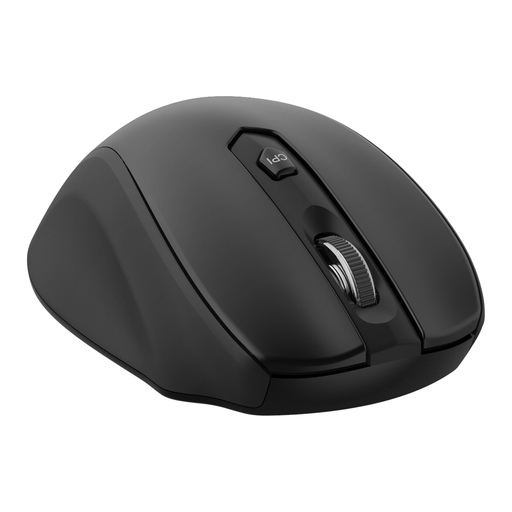 No image available
ET 2.4G Wireless Mouse, Black, with USB receiver (Single)
Consider this conventional mouse if a USB-receiver connection suits your workstation. Its title lists five adjustable DPI levels and six buttons; check hand fit and scrolling behaviour for long loan exports before choosing it.
View on Joybuy
Common questions
Do I need a vertical mouse to analyse library loans?
No: a vertical mouse is one option when hand position is your main concern, not a requirement for loan analysis. If navigating long reports matters more, assess the scrolling and controls on a conventional productivity mouse; either way, keep the device within easy reach.
Would a trackball work at a small library counter?
A trackball is worth considering when there is little room to move a mouse: Kensington describes its trackballs as stationary devices that require less desk space. Check the particular model’s handedness and controls, and allow for its different pointer movement.
What compatibility checks matter on a work computer?
Check the exact mouse’s connection method, available ports, operating-system support and any workplace restrictions on wireless devices or configuration software. Extra buttons are useful for recurring commands only if you can set up and use them on the intended computer.
Must an employee buy their own mouse for an uncomfortable workstation?
A personal mouse purchase is not a substitute for discussing a workstation problem with your employer. The UK Health and Safety Executive says employers must assess workstations for workers who use display screen equipment daily as part of normal work for continuous periods of an hour or more; raise persistent discomfort or equipment needs through that workplace process.


