Shared-office responsive-design checker
If you inspect breakpoints, dropdowns and menu navigation at a desk near colleagues, quiet clicking matters alongside dependable pointer control. A mouse helps with desktop checks, not the final touch test.


For short desktop checks near colleagues, start with a mouse whose clicks are described as quiet. Prioritise multi-device switching if you regularly move between compatible computers, or consider a vertical shape for longer sessions if it fits your hand. Browser emulation helps with layout checks, but Chrome for Developers notes that Device Mode does not run the page on a phone: check touch behaviour on a real device too.
If you inspect breakpoints, dropdowns and menu navigation at a desk near colleagues, quiet clicking matters alongside dependable pointer control. A mouse helps with desktop checks, not the final touch test.
If your work moves between compatible computers, check how many devices the mouse can pair with and how you switch between them. That distinction matters more than extra connections you will rarely use.
If menu checks are part of extended desk work, consider hand fit and your workstation setup rather than choosing solely by compactness. Check the stated hand-size range and handedness of the exact mouse variant.
For mobile-menu checks in a shared office, decide which matters most in your own work: quieter input, controlled desktop navigation, switching computers or comfort during longer sessions. The mouse still needs to suit your computer and workplace setup.
| Concern | What to check | Who this matters to |
|---|---|---|
| Quiet operation | Look for an explicit quiet-click description; check scrolling separately if wheel noise matters near colleagues. | I repeatedly open and close menus beside colleagues and want the mouse itself to draw less attention. Around 36% of consumers put quieter operation first. |
| Desktop navigation | Check pointer control on your desk surface and whether the scroll wheel suits repeated page and browser-tool navigation; a high DPI figure alone does not establish better testing. | When I move between viewport sizes and menu states, I need cursor movement and scrolling I can control. Responsive-check navigation is the first concern for around 29% of consumers. |
| Device switching | Confirm the number of pairable devices, the switching method and compatibility with each computer and its permitted connection type. | I regularly change computers and would rather switch the mouse than set up its connection again. Around 21% of consumers primarily need that workflow. |
| Long-session comfort | Check hand-size guidance and handedness for the exact variant; consider the mouse as part of the whole workstation. | If menu checks sit within hours of desk work, hand fit matters more to me than a small travel shape. Comfort comes first for around 14% of consumers. |
Chrome for Developers explains that Device Mode does not actually run the page on a mobile device. A menu that looks right at a narrow viewport still needs its touch interaction and device-browser behaviour checked.
Use emulation for quick layout and breakpoint checks, then try opening, navigating and closing the menu on a relevant physical phone before signing off the result.
Mouse sensitivity concerns desktop pointer movement; it cannot establish whether a menu works with fingers or has usable touch targets.
Choose sensitivity you can control at your desk, and assess touch targets separately on the phone. web.dev recommends targets of around 48 device-independent pixels, with spacing where applicable.
Logitech describes its Lift as a 57-degree vertical mouse for small to medium hands, with a left-handed option. That model-specific fit does not establish that a vertical shape will suit every user or resolve discomfort.
Check the exact variant, your hand fit and the applicable return terms. For regular workplace use, consider the wider display screen equipment workstation rather than relying on mouse shape alone.
Wireless connection and pairing with several devices are different features. Even a multi-device model must work with the computers, available ports and workplace connection rules you use.
Before buying, check the stated device count, switching control, operating-system support and whether your chosen connection needs a receiver.
Logitech offers distinct routes in the models considered here: MX Anywhere 3S for compact, multi-device use and Lift for a vertical shape. Their features should not be treated as interchangeable.
Dell describes MS355 as a silent mouse for straightforward navigation, while MS7421W is a separate compact model with more controls and connection options.
HP is relevant when switching between computers is the main requirement rather than an assumed quiet-click feature.
These mice relate to quiet desk use or desktop navigation while checking mobile menus. Compare the connection and hand fit of each exact variant; a mouse for browser-based checks does not replace testing the menu on a touchscreen.
 No image available
Consider this for desk checks where quiet clicking and moving between devices are priorities; confirm how switching works with your particular computers.
The product name specifies 2.4G+BT connectivity, adjustable DPI and one AA battery. Check which connection option and accessories are supplied with this variant.
 No image available
This model is worth considering if quiet desk navigation and changing computers matter to your workflow. Check the exact listing for its connection options and switching controls.
Its named ergonomic shape is not a substitute for checking how the mouse fits your hand during longer sessions.
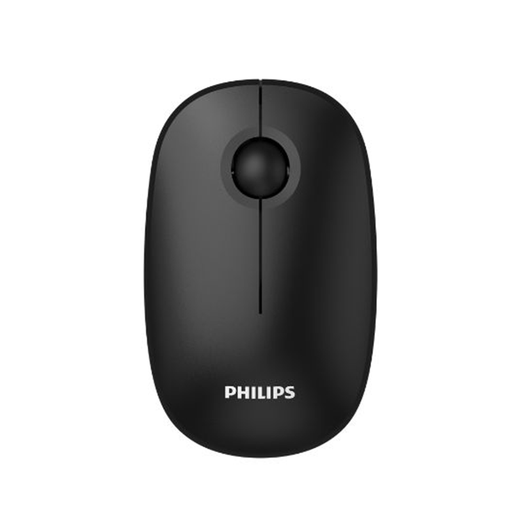 No image available
For basic menu navigation near colleagues, this variant combines a silent-click description with a specified USB-receiver connection.
Its product name states 2.4GHz wireless connectivity and a 1600 DPI optical sensor. Check that a USB receiver is permitted on your work computer.
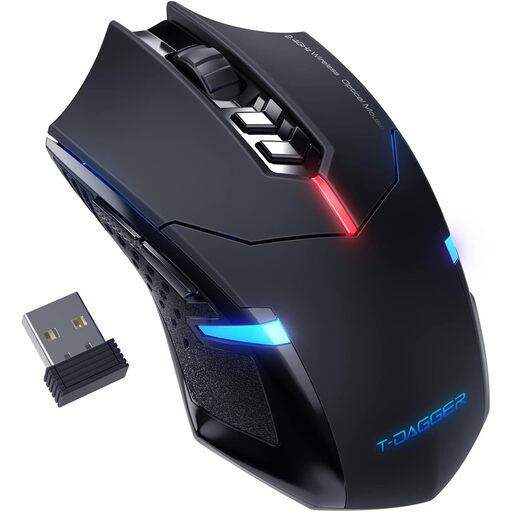 No image available
Consider this if you want adjustable pointer speed for desktop checks as well as quieter clicking; the LED and gaming styling may also matter in a shared workspace.
The product name specifies a USB connection and five adjustable DPI levels. The listing states that its side buttons are unavailable on Mac OS X.
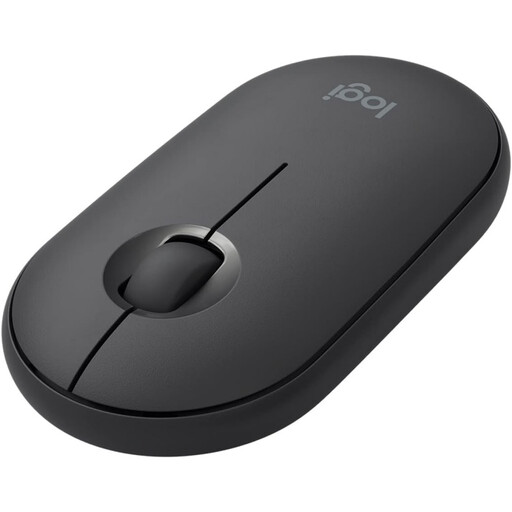 No image available
This is a compact option to consider when moving between desks and keeping clicks unobtrusive are priorities. Confirm that its shape suits the length of your work sessions.
Check the exact variant’s Bluetooth or USB-receiver configuration and what comes with it before buying.
No. Chrome for Developers says Device Mode does not run the page on an actual mobile device. Use it to inspect viewport sizes and initial menu states, then check touch interaction and behaviour in a real phone browser; Chrome’s remote debugging tools can help inspect a connected Android device.
Check that touch opens and closes the menu, that its links are easy to activate without hitting neighbouring controls, and that it works in the phone’s browser. web.dev recommends touch targets of around 48 device-independent pixels, with spacing where applicable; that figure is guidance, not a UK legal minimum.
No particular model is prescribed in the cited Health and Safety Executive guidance. The HSE says display screen equipment rules apply to workers using it daily for continuous periods of an hour or more; assess mouse fit as part of the wider workstation rather than assuming one shape will suit everyone.
Choose a connection your laptop and workplace IT policy permit. Bluetooth may avoid occupying a USB port, while a receiver-based mouse needs a suitable port; check operating-system compatibility, the exact connection method and whether a receiver comes with the variant.