For long newsletters at a fixed desk, consider a full-size mouse if controlled scrolling and configurable buttons are your priorities. A vertical shape is worth considering when hand fit matters more to you, while a compact mouse is easier to accommodate when you edit in different places. Check the exact model’s connection, operating-system requirements and hand fit before choosing; a different shape alone will not fix an awkward workstation.
Who is this for?
Long-form newsletter editors
If you repeatedly move between lengthy copy, links and layout blocks, scrolling control and accessible buttons may be more useful to you than a small travel shape. Logitech’s MX Master 3S is one example with a fast-scroll wheel and configurable controls.
Comfort-first desk workers
If extended editing sessions make hand fit and reach your main concerns, assess the mouse alongside your desk arrangement. The Health and Safety Executive advises positioning the mouse in line with your elbow.
Multi-device or mobile editors
If you move between work locations or compatible computers, look at the mouse’s size and connection options. Check how switching works on the exact model rather than assuming every wireless mouse supports it.
What matters when choosing?
Start with the task that most affects your editing: navigating long documents, working comfortably at a desk, moving between locations or connecting to your equipment. Then check whether the mouse’s shape and controls suit that task.
| Concern |
What to check |
Who this matters to |
| Document navigation |
Check for controlled and rapid wheel modes; if you edit wide layouts, consider whether a horizontal control would be useful. |
When I repeatedly move between distant sections of a newsletter, I want to scroll quickly but still stop at the right line. Around 33% of consumers put navigation first. |
| Desk comfort |
Assess hand-size guidance, handedness and button reach. The Health and Safety Executive advises keeping the mouse in line with your elbow. |
During a long desk session, I need a shape I can reach and hold comfortably without stretching across the workstation. For around 27% of consumers, comfort is the primary concern. |
| Portability and device switching |
Check dimensions, connection methods and whether the exact model can switch between your devices. |
If I edit in several locations, I want a mouse that is convenient to carry and works with the computers I use there. Around 20% of consumers prioritise portability and switching. |
| Compatibility and shared-space use |
Confirm operating-system and port requirements, plus software support for any shortcuts you plan to use. |
I need the mouse to work with my computer, and quieter clicking matters when I share a workspace. Compatibility and lower-distraction use come first for around 20% of consumers. |
Buying pitfalls
-
Choosing a vertical mouse without checking fit
A vertical shape is not automatically comfortable for every hand. Logitech describes Lift as intended for small-to-medium hands and offers a separate left-handed version.
Check the manufacturer’s fit guidance and the exact handed version. If you cannot try the shape, review the retailer’s applicable returns process before ordering.
-
Assuming a wireless mouse includes a USB receiver
Connection options and box contents are separate questions. Logitech says MX Anywhere 3S can use a compatible Logi Bolt receiver but does not include one.
Check the exact package contents and your computer’s available ports, particularly if you intend to use a receiver rather than Bluetooth.
A receiver used with MX Anywhere 3S would need to be obtained separately.
-
Treating the mouse as the whole comfort solution
A different mouse shape does not correct a workstation that makes you twist or reach to use it.
Follow the Health and Safety Executive’s posture guidance by placing the mouse in line with your elbow, and review your screen, keyboard and breaks as part of your desk setup.
-
Assuming gestures and shortcuts work on every computer
Features can depend on the model, operating system and companion software. Apple and Microsoft specify compatibility requirements for Magic Mouse and Surface Precision Mouse respectively.
Check your operating-system version and connection options, then confirm support for the particular gesture or shortcut you want to use.
Brands to consider for this task
Logitech
Logitech offers distinct shapes relevant to newsletter editing, from desk-oriented controls to compact and vertical designs.
- According to Logitech, MX Master 3S has MagSpeed scrolling and quiet clicks, while MX Anywhere 3S can connect to up to three devices by Bluetooth.
- Logitech positions Lift for small-to-medium hands and offers a left-handed version; check fit, the precise variant and software compatibility rather than assuming these features suit every setup.
Apple
Magic Mouse is a gesture-based option for users with a compatible Mac or iPad.
- Apple specifies Multi-Touch gestures for scrolling through documents and swiping between pages.
- Apple lists specific macOS and iPadOS requirements. Check your device and operating-system version before choosing it for gestures.
Microsoft
Surface Precision Mouse is relevant to editors considering a mouse for a supported Windows setup.
- Microsoft Support says Surface Precision Mouse can pair with up to three devices.
- Microsoft specifies Windows 10 or Windows 11 and a USB-A port or Bluetooth 4.0 or later for this model; those requirements should not be assumed to apply to every Microsoft mouse.
Joybuy mice for newsletter editing
These mice offer different starting points for newsletter editing: desk-based navigation, a vertical grip or a portable setup. Compare the exact model’s hand fit and connection requirements with the way you work.
 No image available
Logitech MX Master 3S Black Mouse
Consider this full-size model if scrolling through long copy and assigning repeated editing actions matter most at your desk.
Logitech specifies MagSpeed scrolling and an 8,000 DPI sensor for MX Master 3S. Check hand fit, software compatibility and the exact box contents if you plan to use a Logi Bolt receiver.
Shop on Joybuy
 No image available
HP 920 Ergonomic Wireless Mouse, Black, with Detachable Wrist Rest
Consider its vertical shape if hand position is more important to you than specialised scrolling controls.
The named variant has a detachable wrist rest. Check the shape, handedness and button reach against your own desk setup before choosing it.
Shop on Joybuy
 No image available
V7 MW500BT Bluetooth Vertical Mouse
This is another vertical-shape option for desk editing if you want to assess an upright grip.
Its product name specifies Bluetooth and 2.4 GHz connection modes, six buttons and an adjustable sensor up to 1600 DPI. Check hand fit and handedness; two connection modes do not by themselves establish switching between paired devices.
Shop on Joybuy
 No image available
HOFOTEK M311 2.4G+BT Wireless Mouse, White-Grey
Consider this model if you edit in a shared space or move between devices, but confirm that its controls suit the actions you repeat most.
Its product name specifies 2.4G+BT connection, adjustable DPI and one AA battery. Check its dimensions, device-switching controls and shortcut support if those are important to your workflow.
Shop on Joybuy
 No image available
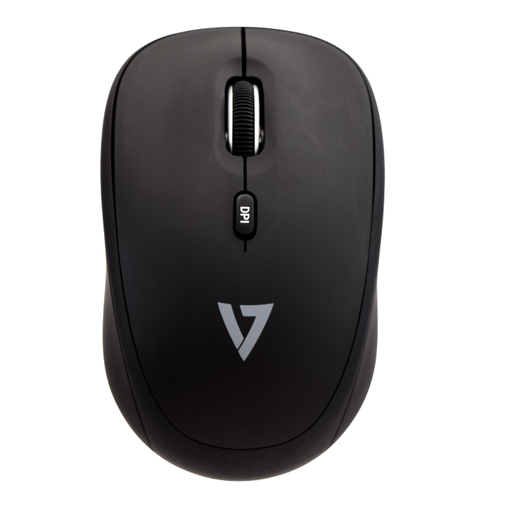
V7 MW100-1E Wireless Mouse, Black
Consider this mouse for editing between locations if a straightforward receiver-based connection suits your computer.
Its product name specifies an ambidextrous design, four buttons, a 1600 DPI optical sensor and a 2.4 GHz USB nano receiver. Check for a suitable USB port; confirm compatibility separately if you do not use Windows 10 or Windows 11.
Shop on Joybuy
Common questions
Do I need a vertical mouse to edit newsletters comfortably?
Not necessarily: consider a vertical mouse if its shape fits your hand and a more upright grip is your priority. Also assess your desk arrangement; the Health and Safety Executive advises keeping the mouse in line with your elbow.
Is fast scrolling useful for a long newsletter?
It can be useful when you often move between distant sections, provided you can also stop accurately at the line or layout element you need. Treat a manufacturer’s scroll-speed description as a feature claim, not a promise that every editing task will take less time.
What should I check for a Windows laptop using Bluetooth?
Match the exact mouse’s Bluetooth and operating-system requirements to your laptop. For Surface Precision Mouse, Microsoft specifies Bluetooth 4.0 or later when not using USB-A, alongside Windows 10 or Windows 11.
Will Magic Mouse gestures work on any computer?
No: Apple lists specific Mac and iPad operating-system requirements for Magic Mouse. Check your device and software version rather than assuming that a Bluetooth connection alone provides its gestures.


