Choose a configurable mouse if repeated scrolling, image selection and shortcuts drive your gallery work. If hand position or limited desk space matters more, consider a well-fitting vertical mouse or a stationary controller instead. Check your operating system, connection method and any software needed for custom buttons; mouse shape alone does not address the wider workstation setup.
Who is this for?
Shortcut-heavy gallery builders
You repeatedly flag, rate, sort, crop or move images and want controls that put useful commands within reach. Mouse buttons can complement, rather than replace, the keyboard shortcuts documented by Adobe for Lightroom Classic.
Long-session photo organisers
You spend extended periods browsing and arranging photos, so hand fit and desk layout matter alongside navigation controls. The Health and Safety Executive advises considering the mouse or trackball as part of the whole display-screen workstation.
Space-limited or alternative-control users
You have little room to move a conventional mouse, share a workstation or prefer a different pointing position. A stationary trackball or a controller placed in front of the keyboard may be worth assessing against your desk layout.
What matters when choosing?
Configurable mouse
Consider it: when moving through images and applying repeated commands is your main task.
Trade-off: custom shortcuts depend on compatible software and on the commands you set up.
Vertical mouse
Consider it: when a different grip is your priority and the particular model fits your hand.
Trade-off: the shape takes adjustment and does not correct a poorly arranged workstation.
Stationary trackball
Consider it: when mouse travel is difficult at a compact desk or an ambidextrous layout matters.
Trade-off: cursor control feels different; check hand fit and connection-specific compatibility.
Centred rollerbar
Consider it: when reaching sideways for a mouse is the desk-layout issue you want to address.
Trade-off: it needs space in front of the keyboard and a change in pointing technique.
| Concern |
What to check |
Who this matters to |
| Shortcuts and navigation |
Button placement and scrolling behaviour; whether customisation software works with your system and gallery app. |
If I repeatedly sort images and switch tools, I want useful commands close to the pointer without giving up keyboard shortcuts. Around 36% of consumers would put this workflow need first. |
| Comfort and fit |
The maker's hand-size and handedness guidance; whether the grip works with your desk arrangement. |
During long organising sessions, I need a shape that fits my hand, but I also need to consider the rest of my workstation. For roughly 29% of consumers, fit would be the primary concern. |
| Desk travel and control |
Trackball or rollerbar position, available desk space and the control method used to select and scroll. |
At a restricted desk, I would rather assess a controller that stays put than keep moving a mouse across the surface. Reduced desk travel would come first for around 21% of consumers. |
| Device compatibility |
Bluetooth or receiver requirements, available ports and operating-system support for any button software. |
When moving between computers, I need the intended connection and controls to work on each device. Approximately 14% of consumers would make compatibility their first priority. |
Buying pitfalls
-
Choosing by DPI alone
A sensor specification does not tell you whether the mouse fits your hand, scrolls the way you want or lets you configure shortcuts in your software.
Check fit, button reach, scrolling and software support before treating DPI as a deciding factor.
-
Expecting mouse shape to fix the workstation
The Health and Safety Executive considers the mouse or trackball alongside the display, furniture, software and work environment when assessing display-screen work.
Keep the controller within comfortable reach, review your chair and screen positions, and take breaks or change activity during long sorting sessions.
-
Skipping fit and connection checks
Logitech specifies Lift for small-to-medium hands and offers a left-handed version. Kensington specifies its Expert Mouse Wireless Trackball for average-to-larger hands, with compatibility that differs by connection method.
Check the exact handed version, the maker's fit guidance and your intended Bluetooth or receiver connection before ordering.
-
Assuming alternative controls need no adjustment
A trackball stays stationary, while a rollerbar sits in front of the keyboard. Either changes how you move the cursor and arrange the desk for selecting or dragging photos.
Choose the layout that addresses your space or reaching concern, and allow time to learn its control method.
Brands to consider for these control styles
Logitech
Its MX Master and Lift ranges offer different approaches to gallery work: configurable controls on MX Master models and a vertical shape on Lift.
- Logitech lists MagSpeed scrolling and Logi Options+ customisation for MX Master 4, while it specifies Lift for small-to-medium hands and offers a left-handed version.
- Check software compatibility before relying on custom controls, and check Lift's hand-size guidance rather than assuming its shape fits everyone.
Kensington
The Expert Mouse Wireless Trackball is a stationary, ambidextrous alternative to moving a conventional mouse across the desk.
- Kensington describes a scroll ring, four customisable buttons and a detachable wrist rest.
- The model is specified for average-to-larger hands. Check compatibility for the connection you intend to use; Kensington excludes Windows ARM-based computers from its stated Windows 11 trackball functions.
Contour
RollerMouse Red places its pointing control in front of the keyboard for users considering a centred desk layout.
- Contour describes programmable controls that may be relevant when assigning repeated gallery commands.
- Check the space available in front of your keyboard and whether you are willing to adapt to rollerbar control. Do not treat the brand's comfort claims as an assured result.
Joybuy mouse options for gallery work
These mice cover gallery navigation and longer organising sessions, including configurable controls and vertical designs. Match the particular model to your hand, connection and software needs.
 No image available
Logitech MX Master 3S Ergonomic Mouse, Black
For repeated gallery navigation, check whether its controls suit the commands you use most. Assess hand fit and Logi Options+ compatibility before relying on customised buttons.
View on Joybuy
 No image available
RAPOO Mice-MT760L-LG
For repeated image selection, assess whether its controls and scrolling suit your gallery software. Confirm the exact model shape before choosing it for a particular grip; check software support if custom buttons matter to you.
View on Joybuy
 No image available
HP 920 Ergonomic Wireless Mouse, Black, with Detachable Wrist Rest
For longer organising sessions, consider whether the detachable wrist rest works with your hand and desk layout. Check HP Accessory Center support for your operating system before counting on customised buttons.
View on Joybuy
 No image available
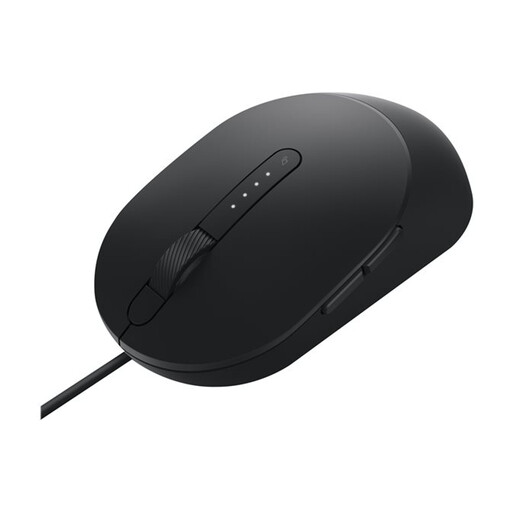
Dell MS3220 Laser Mouse
For gallery navigation, check whether its button arrangement supports your frequent commands. Confirm that the wired USB connection, port and cable placement suit your desk, and check software support before relying on programmable buttons.
View on Joybuy
 No image available
V7 MW500BT Bluetooth Vertical Mouse, 2.4GHz, 6 Buttons
For gallery browsing with a vertical grip, check whether the shape fits your hand. Its name specifies Bluetooth and 2.4GHz connection options and an adjustable sensor up to 1600 DPI; confirm that your device supports the connection you plan to use.
View on Joybuy
Frequently asked questions
Should I choose an ergonomic mouse for long gallery sessions?
Choose one if the particular shape fits your hand and addresses a grip or reach concern, not as a standalone solution to discomfort. The Health and Safety Executive advises considering the whole display-screen workstation and work routine, including breaks.
Can programmable buttons replace Lightroom Classic keyboard shortcuts?
They are better treated as a complement to the shortcuts you use. Adobe documents Lightroom Classic keyboard shortcuts; before buying for mouse-side commands, check that the model's customisation software supports your operating system and intended workflow.
What should I check before choosing a wireless mouse?
Check whether you will connect by Bluetooth or a USB receiver, whether your computer has the required connection, and whether any customisation app supports your operating system. Logitech lists Bluetooth Low Energy and Logi Bolt options for Lift; Kensington gives connection-specific compatibility information for its Expert Mouse Wireless Trackball.
What should I do with an old mouse?
Check local electrical-waste collection options or your retailer's take-back information. GOV.UK describes UK waste electrical and electronic equipment rules as intended to reduce electrical equipment sent to landfill or incineration.


