Two-screen visual-layout designers
If you move between a homepage layout, images and a browser preview, pointer adjustment and navigation through long pages or asset lists are worth checking.


For two displays connected to one computer, choose a mouse that fits your hand and makes pointer movement, scrolling and repeated design actions comfortable; switching between computers is not required just to use a second screen. A familiar productivity mouse suits a mix of navigation and shortcuts, while a vertical mouse puts fit first, a specialist mouse serves command-heavy applications, and a trackball keeps the device stationary on a crowded desk.
If you move between a homepage layout, images and a browser preview, pointer adjustment and navigation through long pages or asset lists are worth checking.
If you repeatedly zoom, change tools or invoke application commands, configurable buttons may matter more to your workflow than a mouse’s maximum DPI.
If you work at a desk for extended periods, assess the mouse’s fit alongside its position on the desk. The UK Health and Safety Executive advises keeping the mouse in line with your elbow to avoid unnecessary reaching.
Start by establishing whether your two screens share one computer: that determines whether cross-computer controls have a purpose. Then decide whether navigation, repeated commands or hand comfort is your leading concern.
Consider it when: You want scrolling and configurable controls in a familiar mouse format for varied layout work.
Bear in mind: A sculpted shape must fit your hand; cross-computer features add little if both displays use one computer.
Consider it when: Hand position is your main concern and you are willing to adapt to a different grip.
Bear in mind: Fit varies by hand size and handedness, and mouse shape does not replace good workstation positioning.
Consider it when: Your portfolio work also involves command-heavy design or technical software whose shortcuts you will configure.
Bear in mind: Dedicated controls may offer little for simpler browser-based layout tasks.
Consider it when: Desk space is tight or you prefer moving the pointer without moving the device.
Bear in mind: The control technique takes getting used to, so assess it against the precise movements your work requires.
| Concern | What to check | Who this matters to |
|---|---|---|
| Pointer control and navigation | Check sensitivity adjustment and tracking on your desk surface; try the scrolling controls needed for long pages. | If I regularly move between layout details and a preview, I want comfortable cursor travel without losing control over small selections. Around 38% of consumers put pointer control and navigation first. |
| Shortcuts and computer switching | Check whether buttons can be configured in your software. If you use separate computers, check the switching feature’s software and network requirements. | When I repeat tool commands, I want controls I will actually configure; switching computers matters only if my screens belong to separate machines. For around 37% of consumers, that workflow is the primary need. |
| Comfort and desk fit | Check hand-size and handedness fit, grip and mouse position before choosing a vertical shape or trackball. | During longer sessions, I care most about a shape that suits my hand and a position that does not make me reach across the desk. Comfort and fit come first for around 25% of consumers. |
Two displays connected to one computer do not, by themselves, call for software that controls a second computer. That feature adds setup steps without addressing the screen arrangement.
Check whether you have one computer or two. If you need Logitech Flow across separate computers, Logitech says it requires compatible devices, software on both computers, paired channels and a shared Wi-Fi or Ethernet network.
A maximum sensitivity figure does not tell you whether the mouse fits your hand or tracks appropriately on your desk.
Look for adjustment that suits your displays and check surface requirements. For example, Logitech’s glass-tracking condition for the MX Master 3S specifies glass at least 4 mm thick.
A vertical grip or stationary trackball cannot remove awkward reaching caused by where the mouse, keyboard and screens sit.
Assess hand fit and position the mouse near your working arm. The UK Health and Safety Executive advises keeping it in line with your elbow and arranging the screen and keyboard to avoid twisting.
Electrical products and batteries need an appropriate collection route rather than ordinary household disposal, according to GOV.UK.
Check local electrical-waste and battery collection options when replacing a wireless mouse. GOV.UK advises taping lithium-battery terminals where applicable before recycling.
Its range includes sculpted productivity mice and vertical alternatives relevant to different two-screen workflows.
A specialist input-device option when homepage work overlaps with technical or command-heavy applications.
Its Expert Mouse Wireless Trackball offers a stationary, ambidextrous alternative to moving a conventional mouse.
Its Pro Click is relevant if programmable controls and pairing with several devices are priorities.
These mice offer different starting points for two-screen pointer work, from conventional wireless shapes to vertical designs. Choose by fit and the controls you will use, rather than assuming that every model serves the same shortcut workflow.
 No image available
Consider this model if a wrist rest is part of the desk setup you want for longer design sessions. Check that the mouse shape and rest position suit your hand and working posture.
 No image available
Consider this model if you want to set up pointer control and repeated actions for layout work. Check that its shape suits your hand; cross-computer control is relevant only if you use separate computers, not merely two displays.
 No image available
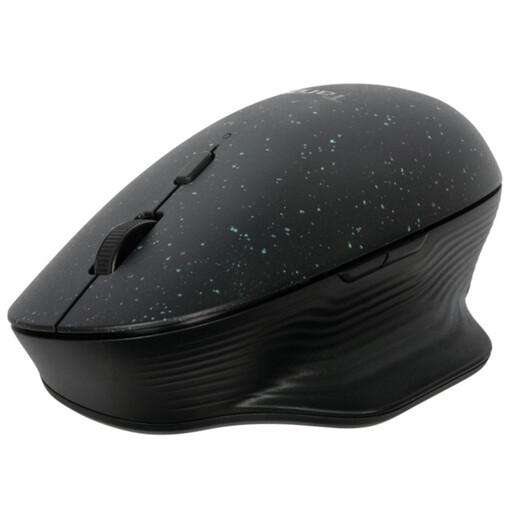
Consider this wireless model if grip and hand use are more important to you than a large set of shortcuts. Before buying for design commands, confirm which buttons can be customised and whether the controls work with your software.
 No image available
Consider this model if configurable navigation is central to your layout workflow. Confirm the exact shape and model-specific controls before choosing it for either a vertical grip or a particular shortcut setup.
 No image available
Consider this vertical mouse if you want to try a different grip for desk-based design work. Its title specifies 2.4 GHz dual-mode connectivity, six buttons and adjustable sensitivity up to 1600 DPI; check its dimensions and whether that adjustment suits your displays.
No, not when both displays are connected to one computer. Cross-computer controls serve separate computers; Logitech says its Flow feature requires compatible pairing, Logi Options+ on both computers and a shared Wi-Fi or Ethernet network.
Choose sensitivity you can adjust to suit cursor travel and small selections, rather than buying on the maximum figure alone. If your mouse will sit on glass, check the exact model’s surface condition; Logitech specifies glass at least 4 mm thick for MX Master 3S tracking on glass.
Consider a vertical mouse when hand position is your main selection concern and you are comfortable learning a different grip. Fit remains model-specific: Logitech positions Lift for small to medium hands and offers a left-handed version, whereas MX Vertical is a right-handed design.
Position the mouse so you can use it without unnecessary reaching, and keep the screen and keyboard arranged to avoid twisting. The UK Health and Safety Executive advises placing the mouse in line with the elbow; if you use display screen equipment for work daily in continuous periods of an hour or more, its workplace guidance may also apply to your employer.
It is most useful when your work also involves commands you will assign to dedicated controls. For example, 3Dconnexion lists a dedicated middle button and five programmable buttons on its CadMouse Pro Wireless; decide whether your applications and habits would put those controls to use.