Long-session home-office revisers
If you spend extended periods making and editing cards, consider hand fit and mouse position as part of the whole desk setup. The Health and Safety Executive advises placing the mouse in line with your elbow.


Choose around the task that makes preparing revision cards awkward: quiet clicks in a shared room, a compact or stationary design for a crowded desk, or device switching when your work moves between screens. For longer sessions, check the mouse’s shape and hand fit alongside your desk layout; the Health and Safety Executive advises keeping the mouse in line with your elbow rather than treating a new mouse as a complete workstation fix. Confirm operating-system compatibility, connection method and package contents for the exact model before buying.
If you spend extended periods making and editing cards, consider hand fit and mouse position as part of the whole desk setup. The Health and Safety Executive advises placing the mouse in line with your elbow.
If you study near family or housemates, a model with an explicit quiet-click feature may matter more than a general wireless label. Check the claim for the particular mouse you intend to buy.
If your cards move between a laptop, tablet or another computer, check how many devices the mouse can pair with and whether it supports each operating system you use.
Start with the constraint that affects your card-making most, then check whether the mouse also fits your hand, devices and available desk space.
| Concern | What to check | Who this matters to |
|---|---|---|
| Comfort and desk position | Check hand-size guidance and grip shape; make room to keep the mouse in line with your elbow, as the Health and Safety Executive advises. | If I edit cards for long stretches, I want a grip that fits my hand without arranging the desk around the mouse. Around 31% of consumers put comfort and workstation position first. |
| Click noise | Look for a quiet-click claim for the exact model rather than assuming that wireless operation means quieter buttons. | When other people are studying or relaxing nearby, repeated clicks can distract us. Reducing click noise is the main concern for around 31% of consumers. |
| Desk space and portability | Check the clear area beside your keyboard and decide whether you need a compact mouse to carry or a trackball that stays in place. | Cards and books can crowd my desk, while some days I need to move my setup. Around 23% of consumers make usable space or portability their primary concern. |
| Device switching | Check supported operating systems, connection methods and the number of devices the exact model can pair with. | If I prepare cards across more than one device, I want switching to fit that workflow. For around 15% of consumers, device compatibility and switching come first. |
A different mouse shape will not correct a desk arrangement that makes you twist or reach. The Health and Safety Executive advises considering mouse placement alongside screen and keyboard position.
Choose a shape that fits your grip, then check where the mouse sits relative to your elbow and keyboard.
Logitech specifies Bluetooth use for MX Anywhere 3S across Windows, macOS, Chrome OS and Linux. Microsoft says its Bluetooth Ergonomic Mouse needs Bluetooth 4.0 or later and is designed to work best with Windows 10 or Windows 11.
Check the operating system and Bluetooth capability of every device you plan to use.
Logitech states that MX Anywhere 3S works with a Logi Bolt receiver but does not include one. Receiver arrangements should not be assumed to carry over to another model, even within a product family.
Check the package contents for the exact mouse if you intend to connect by USB receiver rather than Bluetooth.
Using a receiver with MX Anywhere 3S requires obtaining a compatible Logi Bolt receiver separately.
Logitech positions Lift for small to medium hands; its vertical shape should not be assumed to suit every grip.
Use the maker’s hand-size guidance where available and consider whether you can assess the grip before committing to it.
Its relevant models span compact quiet mice, conventional multi-device mice, vertical mice and thumb trackballs.
The Bluetooth Ergonomic Mouse is a conventional option for a Windows-centred desk setup.
The Pro Click V2 is a right-handed option for consumers interested in programmable controls alongside revision-card work.
These options cover quiet wireless mice, a conventional desk mouse and vertical designs for revision-card work. Compare the exact model’s grip, connection and package contents with your main need.
 No image available
Consider this model if quiet clicking and moving between study locations are priorities; check whether its grip suits you for longer sessions.
The product name specifies 2.4G+BT connections, adjustable DPI and a 1xAA battery.
 No image available
Consider this conventional desk mouse if your revision-card workflow involves moving between computers. Check its connection options and confirm the package contents if you need a USB receiver.
 No image available
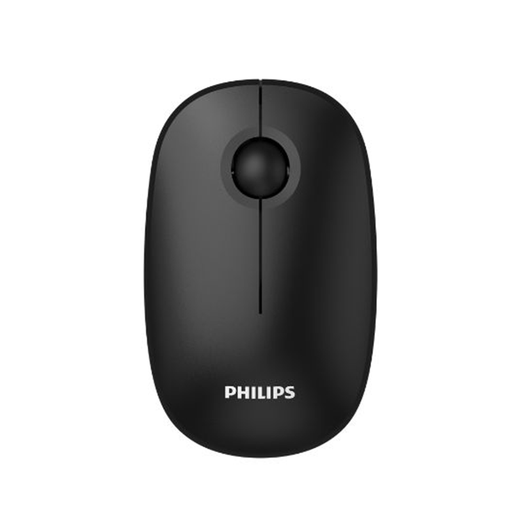
Consider it for a shared study space if the exact model’s silent-click claim meets your needs; it does not mean the surrounding room will be silent.
The product name specifies a 2.4GHz connection, USB receiver, 1600 DPI and Windows and Mac compatibility. Check the grip if hand fit is a priority.
 No image available
Consider this vertical design if a more upright grip is your priority. Check that its shape and the detachable wrist rest fit your hand and desk arrangement; confirm click noise separately if you study in a shared room.
 No image available
Consider this vertical mouse if an upright grip is the main reason for changing your desk setup. Check its hand fit and device compatibility before buying.
The product name specifies six buttons and an adjustable sensor rated at 1600 DPI. If quiet clicks or switching between paired devices matter, confirm those functions for this model.
No: choose a vertical mouse if its grip suits your hand and sustained desk use is your main concern. Logitech positions Lift for small to medium hands, while the Health and Safety Executive also advises keeping the mouse in line with your elbow as part of the wider workstation setup.
Compatibility depends on the exact mouse and device. Logitech specifies Bluetooth use for MX Anywhere 3S across Windows, macOS, Chrome OS and Linux; Microsoft says its Bluetooth Ergonomic Mouse requires Bluetooth 4.0 or later and is designed to work best with Windows 10 or Windows 11.
Not necessarily. Logitech says MX Anywhere 3S is compatible with a Logi Bolt receiver but does not include one, so check the exact package contents if you plan to connect through a USB receiver rather than Bluetooth.
Keep the mouse in line with your elbow and avoid twisting to reach it, in line with Health and Safety Executive posture guidance. Arrange the screen and keyboard centrally too, so the mouse choice works with the rest of your desk rather than forcing an awkward position.