What matters when buying?
Check the shared computer’s permitted connection method and the mouse’s fit before paying for scrolling or switching features that the record-work routine may not use.
| Concern |
What to check |
Who this matters to |
| Quiet use and handover |
Check the model’s click-noise description, shape and pairing steps. Bluetooth needs to be available and permitted on the shared computer. |
When other people work nearby and several users take turns at the desk, I want clicks that are less intrusive and a mouse that is simple to hand over; around 31% of consumers put quiet, straightforward sharing first. |
| Moving through records |
For long lists or wide tables, check wheel modes and horizontal scrolling. Confirm that any configurable buttons work with the intended software. |
Scrolling through lengthy records is my repeated task, so controls that suit those lists matter more than features I would rarely use; roughly 25% of consumers primarily value easier record navigation. |
| Connection and switching |
Check Bluetooth capability, available USB port type, receiver inclusion and workplace IT rules. Consider device switching only if the workflow uses multiple computers. |
If the desk is used with different computers, I need a connection option each host can actually use; about 25% of consumers place connection compatibility and switching first. |
| Comfort and limited space |
Check hand size, handedness and whether the pointing method requires room to move the mouse. Consider the whole workstation for sustained use. |
With a cramped desk or long daily sessions, I care most about a pointing method that fits my setup and hand; approximately 19% of consumers prioritise comfort or limited-space control. |
Brands to consider
These brands illustrate different mouse designs and connection choices; suitability depends on the exact model and the shared desk’s requirements.
Logitech
Logitech offers quiet Bluetooth, compact multi-device, vertical and thumb-trackball designs relevant to different record-work setups.
- Logitech describes its M240 Silent as a Bluetooth mouse with reduced click sound; MX Anywhere 3S can connect to up to three devices over Bluetooth.
- The shapes serve different users, and Logitech says the compatible Logi Bolt receiver for MX Anywhere 3S is not included.
HP
HP’s relevant models range from dual-connection mice to options with scrolling and configurable controls.
- HP lists Bluetooth and a 2.4 GHz USB-A receiver connection for its 255 Dual Wireless Mouse; its 480 Comfort Bluetooth Mouse has a tilt wheel for vertical and horizontal scrolling.
- Check the precise model’s connection method and whether its configurable controls work with the intended computer and software.
Microsoft
Microsoft’s Bluetooth Ergonomic Mouse is an option to assess for a regular user of a compatible Windows computer.
- Microsoft describes customisable thumb buttons and pairing with up to three PCs.
- Microsoft specifies Bluetooth 4.0 or later and says the mouse is designed to work best with Windows 11 or Windows 10; check other required platforms before choosing it.
Joybuy mouse choices
These mice offer choices for ordinary shared-desk clicking and, in some cases, record navigation across devices. Check each mouse’s connection method and shape against the people and computers at your desk.
 No image available
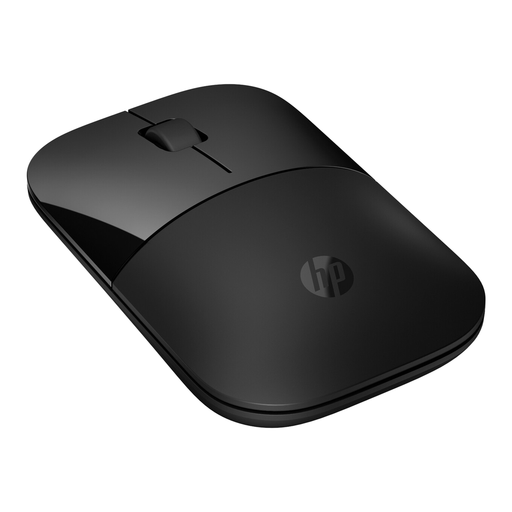
HP Z3700 Dual Black Mouse
Consider this for everyday record entry where a straightforward mouse is needed. Confirm which connection method the shared computer permits and whether the shape suits everyone who will use it.
View on Joybuy
 No image available
HOFOTEK M311 2.4G+BT Silent Office Mouse, White-Grey
Consider this where quiet clicking and a choice of wireless connection matter. The listed variant has adjustable DPI and uses one AA battery; check connection permissions and hand fit for the shared desk.
View on Joybuy
 No image available
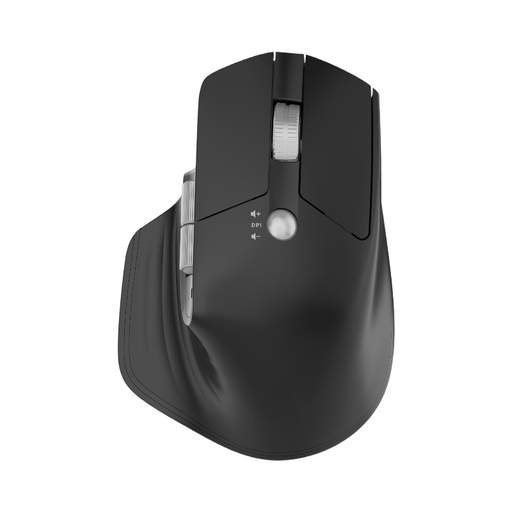
Ochama Ergonomic Bluetooth/2.4G Silent Mouse
This is another option to consider when click noise and wireless connection choice matter. The title specifies one-touch DPI adjustment; check which connection the shared computer accepts and whether the shaped mouse fits its users.
View on Joybuy
 No image available
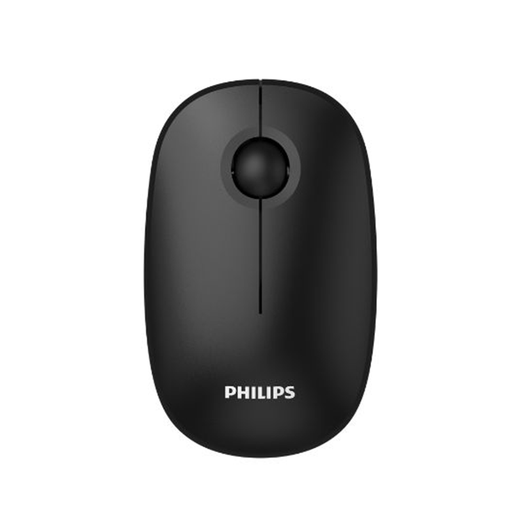
Philips 3000 Series SPK7378B/00 Wireless Mouse, EU Version, Black
Consider this model where using a USB receiver suits the shared computer. Its title specifies 2.4 GHz wireless connection, a USB receiver and a 1600 DPI optical sensor; confirm that a suitable USB port is available.
View on Joybuy
 No image available
Logitech MX Master 3S Ergonomic Black Mouse
Consider this shaped mouse if a regular user needs controls for lengthy records or repeated actions. Check fit, host and software compatibility, and whether a Logi Bolt receiver is included before relying on a receiver connection.
View on Joybuy
Frequently asked questions
Should I use Bluetooth or a USB receiver at a shared desk?
Choose a connection the shared computer supports and workplace IT permits. Bluetooth avoids occupying a USB port, while a receiver can be useful where the computer has a suitable port but Bluetooth is unavailable or not permitted; check whether the receiver comes with the exact mouse.
Will a vertical mouse or trackball resolve discomfort on its own?
No mouse choice should be treated as a complete workstation solution. A vertical shape must fit its user, and a trackball changes how the pointer is controlled; the Health and Safety Executive advises considering the whole workstation, task and individual requirements when assessing display screen work.
What should be checked for daily display screen work?
Consider the mouse as part of the workstation rather than in isolation. The Health and Safety Executive says the UK display screen equipment regulations apply to workers who use display screen equipment daily for continuous periods of an hour or more, and its assessment guidance covers equipment, furniture, working conditions, the job and individual requirements.
Are programmable buttons useful for membership records?
They can be useful if a repeated action in the record system can be assigned to a button and the required configuration works on the computer. If the work mainly involves short fields and ordinary clicking, check quiet operation, connection and fit before prioritising extra controls.


