Choose a stationary trackball when there is too little clear desk space to move a mouse: the device stays in place while you control the cursor. If familiar movement and navigation through long rota sheets matter more, consider a conventional mouse after checking its scrolling and connection options. A vertical mouse is another route when grip and hand fit are the priority, but it still needs travel space and is only one part of the workstation setup.
Who these choices suit
Rota planners short of desk space
If paperwork or a compact keyboard occupies the area beside the computer, cursor control without sliding a device across the desk may be the deciding need. Logitech describes its stationary trackballs as options for small or busy setups.
Coordinators working in long spreadsheets
If rota work means frequent scrolling, selecting cells or moving between devices, compare scrolling controls, connection methods and whether useful shortcuts can be configured. The relevant features vary by model.
People focused on fit during long sessions
A vertical grip or supported trackball position may be worth considering when hand position is the main concern. Check the device against your hand and desk layout; Health and Safety Executive guidance considers the input device alongside the rest of the workstation.
What to consider when buying
Stationary trackball
Choose it when: Paper rotas leave little room to move a mouse; the device stays in place while you move the cursor with the ball.
Allow for: Ball control differs from a conventional mouse, so check the button layout, hand fit and connection method.
Compact conventional mouse
Choose it when: You prefer familiar mouse movement and want scrolling and device-switching features for rota work.
Allow for: Even a compact mouse needs a clear surface for cursor movement; check how your chosen model connects.
Vertical mouse
Choose it when: A more upright grip is your priority and the shape fits your hand; Logitech positions Lift for small to medium hands.
Allow for: A vertical mouse still needs travel space, and changing the mouse alone does not address the whole workstation.
| Concern |
What to check |
Who this matters to |
| Clear desk space |
Check the space beside your keyboard and whether the device remains stationary during use. |
With paper rotas beside my keyboard, I cannot spare room to sweep a mouse across the desk; around 42% of consumers put free desk space first. |
| Rota-sheet navigation |
Check scrolling modes and whether device switching or configurable buttons work with your computer. |
When I edit long rota tables, I want to move between cells and sections without interrupting the task; around 33% of consumers put sheet navigation first. |
| Hand and forearm comfort |
Check hand-size guidance, handedness and grip fit alongside the desk, chair and display arrangement. |
During long desk sessions, I want a grip that fits my hand, not a shape chosen on appearance alone; around 25% of consumers put hand and forearm comfort first. |
Buying pitfalls
-
Assuming a small mouse needs no movement space
A compact conventional mouse is easier to place than a larger one, but it still travels across the desk. A stationary trackball avoids that particular movement requirement.
Check the clear area beside your keyboard and paperwork. If mouse travel is the problem, consider trying a trackball rather than choosing by mouse size alone.
-
Choosing a vertical shape without checking fit
Logitech positions Lift for small to medium hands and offers a left-handed version; the right shape and button reach depend on the person using it.
Check hand-size guidance, handedness and access to the buttons before buying.
-
Overlooking how the mouse connects
Bluetooth capability, available USB ports and operating-system support can determine whether a mouse works with the rota-planning computer.
Check the computer and any workplace restrictions on configuration software against the model you intend to use.
For Logitech MX Anywhere 3S, a compatible Logi Bolt receiver would need to be sourced separately if you require that connection method; Logitech says it is not included.
-
Expecting a new mouse to fix the whole workstation
Health and Safety Executive guidance considers the mouse or other input device together with the screen, keyboard, desk, chair and immediate working environment.
For regular display-screen work, review mouse placement and the wider workstation together, using the employer’s display-screen-equipment assessment process where applicable.
Relevant brands to consider
Logitech
Logitech offers distinct models relevant to this decision: the compact MX Anywhere 3S, the vertical Lift and the stationary ERGO M575S trackball.
- Logitech describes scrolling and multi-device features for MX Anywhere 3S, small-desk use for ERGO M575S and a vertical grip for Lift.
- These are model-specific manufacturer descriptions, not a measure of which design will fit your hand or workstation.
Kensington
Kensington’s Orbit Optical Trackball is a stationary, wired option to consider when cursor control must fit into a small desk area.
- Kensington describes this Orbit model as compact, ambidextrous and connected by USB.
- Kensington positions it for average to larger hands and says Windows ARM-based computers are not currently supported.
Microsoft
Microsoft’s Bluetooth Ergonomic Mouse is relevant if you work across several Windows PCs and want to switch among paired computers.
- Microsoft Support says this model can pair with up to three PCs.
- Microsoft specifies Bluetooth 4.0 or later and says the mouse is designed to work best with Windows 11 or Windows 10; check your computer before choosing it.
Joybuy mouse options
These moving-mouse options suit different rota-planning priorities, including conventional navigation and a vertical grip. Each still needs clear desk space for cursor movement; if that space is the deciding constraint, consider the stationary-trackball route described above.
 No image available
HOFOTEK M311 2.4G+BT Mouse, White-Grey (1xAA Battery)
Consider this conventional mouse if you prefer familiar cursor control and need to move between rota-planning devices.
The title specifies 2.4G+BT connectivity, adjustable DPI and a 1xAA Battery configuration. Check its scrolling behaviour for spreadsheet work and leave room to move the mouse.
View on Joybuy
 No image available
Logitech MX Master 3S Mouse, Black
Consider this moving mouse if navigating long rota sheets and repeating actions matter more than keeping the device stationary.
Check its controls against the actions you use in your rota software. If you need a USB receiver, confirm the box contents before buying; also allow clear space for mouse movement.
View on Joybuy
 No image available
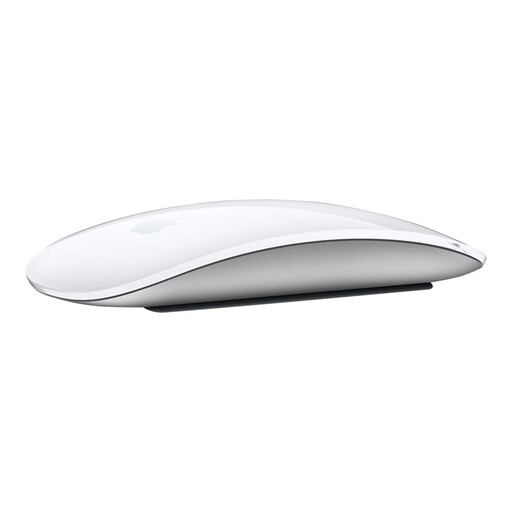
Apple Magic Mouse, White, Multi-Touch
Consider its Multi-Touch controls if you plan rotas on a compatible Mac or iPad and prefer gesture-based navigation.
Check compatibility against macOS X 10.11 or later or iPadOS 13.4 or later, as applicable to your device. This mouse also needs space to move across the desk.
View on Joybuy
 No image available
HP 920 Ergonomic Wireless Mouse, Black, with Detachable Wrist Rest
Consider this vertical mouse if grip preference is more important to you than reducing the area needed for mouse travel.
The title specifies a detachable wrist rest. Check hand fit, handedness and the space available for moving the mouse before choosing it.
View on Joybuy
 No image available
V7 MW500BT Bluetooth Vertical Mouse, 2.4GHz, 6 Buttons, Adjustable 1600 DPI
Consider this vertical model if you want a more upright grip for rota work and its shape fits your hand.
The title specifies Bluetooth and 2.4GHz dual-mode connectivity, six buttons and an adjustable 1600 DPI sensor. Check hand fit and compatibility with your work computer; it still needs desk space for movement.
View on Joybuy
Common questions
Is a trackball a sensible choice for a very small desk?
Yes, if the main problem is the lack of room to move a conventional mouse. The trackball stays in place while you move the cursor with the ball; Logitech describes ERGO M575S as suitable for small or busy setups. Check whether its control method and button layout suit you.
Do I need Bluetooth or a USB receiver?
Choose the connection method that your work computer and chosen mouse both support. Logitech says MX Anywhere 3S supports Bluetooth connections to up to three devices, while its compatible Logi Bolt receiver is not included. For Microsoft’s Bluetooth Ergonomic Mouse, Microsoft Support specifies Bluetooth 4.0 or later.
Does a vertical mouse replace a workstation assessment?
No: changing the mouse does not assess the rest of the workstation. Health and Safety Executive guidance considers the input device alongside the screen, keyboard, desk, chair and immediate work environment; use your employer’s display-screen-equipment assessment process where it applies to your work.


