Dual-screen chart navigators
People who move repeatedly between weather maps, time-series charts, tables and plotting controls, and want to adjust pointer movement and scrolling to suit that work.


Choose a mouse with adjustable cursor sensitivity and scrolling controls if moving between weather charts, tables and plotting panels is your main task. If hand position, limited mousing space or reaching to the side matters more, consider a vertical mouse, trackball or centred rollerbar instead, checking hand fit and desk layout before buying. Two screens connected to one computer do not, by themselves, call for multi-device switching.
People who move repeatedly between weather maps, time-series charts, tables and plotting controls, and want to adjust pointer movement and scrolling to suit that work.
People whose main concern during extended desktop plotting is hand and arm position, rather than getting the most controls on a conventional mouse. Desk setup matters alongside mouse shape.
People with little room to move a mouse beside the keyboard who are willing to consider stationary trackball control or a device positioned in front of the keyboard.
Choose it when: chart navigation, scrolling and shortcuts take priority across the two-screen workspace.
Trade-off: it still needs room for conventional mouse movement.
Choose it when: a more upright hand position is your main reason to change mouse shape.
Trade-off: the grip takes getting used to, and the size and handedness must suit you.
Choose it when: you want stationary cursor control and have a preference for thumb or finger operation.
Trade-off: detailed dragging may feel unfamiliar until you adapt to the control method.
Choose it when: reaching to a mouse beside the keyboard is the main issue.
Trade-off: it needs a suitable position and clear space in front of the keyboard.
| Concern | What to check | Who this matters to |
|---|---|---|
| Cursor control and scrolling | Check adjustable sensitivity and how the scroll wheel handles long records. A faster pointer setting still needs to feel controllable on detailed plots. | When I alternate between dense charts and tables on two screens, I want pointer travel and scrolling I can control without overshooting. Around 36% of consumers put navigation first. |
| Comfort over long sessions | Check hand-size fit, handedness and whether the mouse can sit in line with your elbow. | If I plot for extended periods, my hand position matters more to me than extra controls. Comfort is the primary concern for around 29% of consumers. |
| Shortcuts and separate devices | Check whether your plotting software can use assigned buttons and whether you actually switch between computers. | I want shortcuts for repeated commands, or I need one mouse to control a separate computer as well as my plotting machine. Around 21% of consumers prioritise that workflow. |
| Desk movement and reach | Measure the available space beside and in front of the keyboard; decide whether thumb, finger or rollerbar control suits the layout. | With little room beside my keyboard, I would rather keep the pointing device still or avoid reaching sideways. Reduced movement comes first for around 14% of consumers. |
A mouse does not need device-switching controls merely because both displays connect to one computer.
Check pointer adjustment, scrolling and comfort first. Consider multi-device pairing if you also control a separate computer or tablet.
A vertical grip may be awkward if the mouse does not suit your hand size or handedness.
Check the maker’s stated fit range and the exact left- or right-handed version before choosing it for long plotting sessions.
Keyboard, screen, chair and mouse placement all affect how you sit and reach. The UK Health and Safety Executive advises keeping the mouse in line with the elbow.
Review your workstation layout as well as the mouse shape before deciding which change addresses your difficulty.
A trackball changes how you steer the pointer, while a centred rollerbar occupies space in front of the keyboard.
Measure the usable desk area and check whether the proposed control method suits the plotting actions you perform most often.
Its MX Master 3S, Lift and MX Ergo S illustrate productivity-mouse, vertical-mouse and thumb-trackball approaches to this task.
Its Expert Mouse Wireless Trackball is a finger-operated, stationary alternative to moving a conventional mouse across the desk.
Its RollerMouse Red places cursor control centrally for a desk layout where reaching to a side-mounted mouse is the main concern.
These choices cover conventional mice for chart navigation and one vertical mouse for a different grip. Compare their stated controls with the way you plot; a two-screen desk alone does not make device switching necessary.
 Image unavailable
Consider this model when navigating charts and long tables is your main task: Logitech describes adjustable sensitivity and MagSpeed scrolling for the MX Master 3S.
Check that Logi Options+ supports your operating system before relying on customised controls.
 Image unavailable
Consider its vertical grip if hand position is your priority during long plotting sessions, and check that the shape and handedness suit you.
The product name specifies six buttons and an adjustable sensor rated up to 1600 DPI. Allow time to get used to the grip.
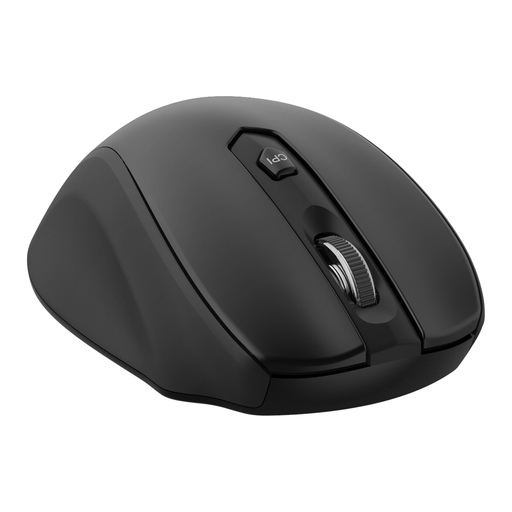 Image unavailable
This conventional wireless mouse is worth considering if adjustable pointer speed matters more to you than a specialised grip.
Its name specifies a USB receiver, five adjustable DPI levels and six buttons. Check the wheel behaviour if you scroll through long records frequently.
 Image unavailable
Consider this mouse if adjustable pointer speed and its stated connection options suit your plotting setup; confirm how switching works if you use separate computers.
The product name specifies multi-level DPI adjustment and a 1xAA battery variant. Check its scrolling and shortcut controls if those are central to your work.
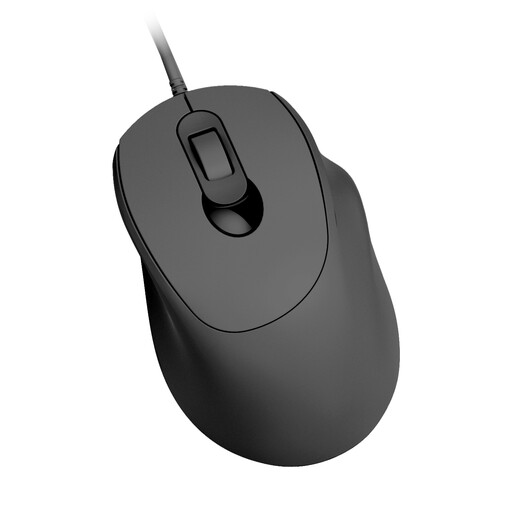 Image unavailable
This USB-connected option suits a desk where a cable can be routed conveniently and you want selectable pointer settings for different plotting tasks.
The product name specifies four buttons and 1000, 1200 and 1600 DPI settings, with Windows and Mac compatibility. Check cable reach against your workstation layout.
No, not when both monitors connect to the same computer. Multi-device switching becomes relevant if you also want to control a separate computer or tablet; Logitech says its Easy-Switch-compatible devices can pair with up to three devices.
Check the workstation layout alongside the mouse. The UK Health and Safety Executive advises keeping the screen and keyboard central and the mouse in line with your elbow; then consider whether a different grip or control position addresses the reach that remains.
Follow the instructions for the exact model when cleaning its contact and sensing areas. Check cursor-speed settings again if your display arrangement or plotting software changes, rather than assuming the same setting will feel right.