Two-screen document reviewers
If you move between a draft, comments and reference material, controlled pointer movement and scrolling can matter more than the mouse’s maximum sensitivity setting.


For one computer connected to two displays, choose a mouse that lets you control pointer speed, scroll comfortably through a report and maintain a grip that suits your desk setup. A full-size mouse suits extensive navigation, a compact mouse suits limited space or travel, and a vertical mouse or trackball is worth considering if its hand position or stationary design suits you. Pairing with several devices matters only if you also switch between separate computers or tablets.
If you move between a draft, comments and reference material, controlled pointer movement and scrolling can matter more than the mouse’s maximum sensitivity setting.
If you review documents for extended periods, consider hand fit and the arrangement of the whole workstation rather than relying on mouse shape alone. The UK Health and Safety Executive advises assessing the workstation as a whole for applicable display-screen-equipment work.
If your review work moves between separate computers or a tablet, a mouse that switches device connections may be useful. Two displays attached to one computer do not create that need.
Decide how you will move through the report and where you will use the mouse before giving extra device connections or a high maximum DPI priority.
Consider it: For long reports at a fixed desk, especially when scrolling and configurable controls are central to your work.
Bear in mind: A larger body takes more desk and bag space, and hand fit still needs checking.
Consider it: When you carry your mouse or have little room beside the keyboard.
Bear in mind: A smaller shape may offer less palm support; multi-device pairing helps only when you use separate devices.
Consider it: If you prefer a more upright hand position while retaining conventional mouse movement.
Bear in mind: The shape can take time to get used to and cannot resolve a poorly arranged workstation by itself.
Consider it: When you want the pointing device to stay in place on a restricted desk.
Bear in mind: Thumb-controlled movement differs from moving a conventional mouse and may take practice.
| Concern | What to check | Who this matters to |
|---|---|---|
| Pointer control | Adjustable sensitivity and suitability for your desk surface. | When I select text and place comments across both displays, I want cursor movement I can control without overshooting. Around 40% of consumers put that pointer-control need first. |
| Document navigation | Whether the wheel supports both deliberate and faster scrolling; whether buttons can be configured for your applications. | For a long draft, I need to move between sections without losing control of line-by-line review. That navigation need comes first for around 30% of consumers. |
| Long-session comfort | Hand fit, button reach and whether the shape suits your workstation. | If I spend extended periods reviewing, I need a grip and desk arrangement I can use comfortably. Around 20% of consumers prioritise that fit and comfort need. |
| Space and device flexibility | Size, connection type and compatibility if you switch between separate devices. | With little desk space or a mouse to carry between work locations, I need a manageable size; separate-device switching matters only if I actually use it. Around 10% of consumers put this flexibility need first. |
Two displays connected to one computer do not require the mouse to switch connections. That feature will not, by itself, improve pointer control or scrolling.
Check whether you actually move between separate computers or tablets before making device switching a priority.
Maximum sensitivity does not determine the cursor speed that feels controllable when selecting words or placing comments.
Look for adjustable sensitivity and try a setting that lets you cross both displays without repeatedly overshooting text.
A different grip cannot address every issue with desk, chair, keyboard or display placement. The UK Health and Safety Executive says that when employees use display screen equipment daily as normal work for continuous periods of an hour or more, employers must assess the workstation.
Review the whole setup and raise persistent discomfort through your workplace display-screen-equipment process.
Bluetooth, USB receivers and customisation options differ between models; a feature is useful only if it works with your computer and applications.
Check available ports, operating-system support, receiver inclusion and any software needed for the controls you plan to use.
An incompatible port or receiver could also mean needing an adapter or a different connection method.
Its relevant range includes the full-size MX Master 3S, compact MX Anywhere 3S and thumb-controlled MX Ergo S trackball.
The HP 920 Ergonomic Wireless Mouse is a vertical option for someone considering a more upright hand position.
The Lenovo 700 Multi-Device Wireless Silent Mouse provides a conventional office-mouse point of comparison.
These mice cover different approaches to two-screen report review: conventional scrolling and pointer control, an upright grip, touch gestures, and compact or multi-connection setups. Choose by the controls and hand fit you need, not by the number of screens alone.
 No image available
Consider this full-size mouse if long reports make controlled and faster scrolling important. Logitech lists adjustable sensitivity up to 8,000 DPI and a wheel with precise and fast scrolling for the MX Master 3S. Check hand fit and operating-system support before relying on customised controls.
 No image available
Consider its upright shape if you prefer that hand position while reviewing. The product name specifies 2.4 GHz and Bluetooth connection options, six buttons and adjustable tracking up to 1,600 DPI. Check grip, button reach and compatibility with your computer.
 No image available
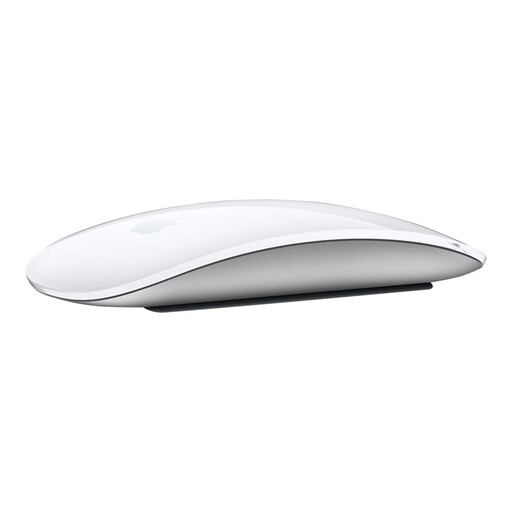
Consider this mouse if touch gestures suit the way you navigate documents. Its Multi-Touch surface differs from conventional shortcut buttons; confirm operating-system compatibility and whether the interaction suits your review work.
 No image available
Consider this model if adjustable pointer sensitivity and a choice of connection methods matter to your setup. Its product name lists a PAW3311 sensor, up to 24,000 DPI, a 63 g weight and Bluetooth, 2.4 GHz and USB-C modes. Check hand fit and whether its wheel and controls suit document review rather than judging it by maximum DPI.
 No image available
Consider this model where a compact mouse or a choice of wireless connections is useful. Its product name lists selectable DPI, 2.4 GHz and Bluetooth connections, and one AA battery. Check hand comfort for longer sessions and the wheel controls you need for reviewing reports.
No, not when both monitors connect to the same computer. Multi-device pairing is for switching the mouse between separate computers or tablets; for two displays on one computer, focus on controllable pointer movement, scrolling and hand fit.
Choose by the movement and hand position you prefer: a vertical mouse retains conventional movement with a more upright grip, while a trackball stays in place and uses thumb control. Neither shape suits every hand, so check fit and button reach before committing.
Start with your operating system’s pointer-speed setting and adjust it in small steps until you can reach either display without overshooting text selections. If you plan to use mouse-specific sensitivity or button software, check that it supports your operating system.
A mouse shape alone cannot settle a workstation-comfort issue. For employees who use display screen equipment daily as normal work for continuous periods of an hour or more, the UK Health and Safety Executive says employers must assess the workstation, including the work and individual requirements. Raise persistent discomfort through that workplace process.