For a fixed two-screen calendar desk, consider a full-size mouse with adjustable tracking and controls suited to the way you edit and scroll. A vertical mouse may be worth trying if hand position is your priority, a stationary trackball if mouse-movement space is tight, or a compact multi-device mouse if you move between workspaces. Whichever you choose, arrange the displays correctly in your operating system and check that the mouse fits your hand and devices.
Who needs to consider these choices?
Two-screen calendar coordinators
If you move between a calendar grid, event details and material on a second display, check the screen layout as well as the mouse. Microsoft Support advises arranging displays to match their physical positions and testing how the pointer crosses between them in Windows.
Long-session desk users
Repeated calendar edits make mouse position and reach relevant alongside shape. The Health and Safety Executive advises keeping the mouse within easy reach so it can be used with a straight wrist.
Space-limited hybrid workers
A stationary trackball is an option when there is little room to move a mouse beside the keyboard. If you work in several locations or switch devices, a compact multi-device mouse addresses a different need; compare the connection methods before choosing.
What matters when choosing?
Full-size productivity mouse
Consider it: At a permanent desk where you regularly select calendar entries and navigate long schedules or wide timelines.
Bear in mind: A larger mouse is less convenient to carry, and customised controls depend on compatible software.
Vertical mouse
Consider it: If you want to try a more upright hand position during long editing sessions.
Bear in mind: Shape alone cannot establish comfort; check handedness and fit.
Stationary trackball
Consider it: When the space beside your keyboard is too restricted for comfortable mouse movement.
Bear in mind: Moving the pointer with a ball takes a different technique from moving a conventional mouse.
Compact multi-device mouse
Consider it: If you take calendar work between locations or regularly switch computers.
Bear in mind: Check how the smaller shape feels for the length of your desk sessions.
| Concern |
What to check |
Who this matters to |
| Cross-screen control |
Look for adjustable pointer tracking. If your calendar has wide timelines, check for horizontal scrolling and controls that work with your software. |
I frequently select small calendar entries and move between the schedule and a second display, so controllable pointer movement comes first. Around 36% of consumers prioritise this need. |
| Long-session comfort |
Check handedness and physical fit, then make sure the mouse can sit within easy reach. The Health and Safety Executive advises using it with a straight wrist. |
When I spend long periods editing events, I care more about a hand position and desk layout I can use comfortably than extra controls. For around 29% of consumers, that is the primary concern. |
| Limited desk space |
Measure the usable area beside the keyboard. If considering a trackball, confirm its connection method and whether its pointer control feels familiar enough. |
My keyboard and planning materials leave little room to move a conventional mouse, so preserving surface space matters most. This is the leading need for around 21% of consumers. |
| Travel and device switching |
Check the connection method and supported devices. Try the compact shape if you will also use it for long desk sessions. |
I carry calendar work between locations or computers and want one mouse I can use with my devices. Around 14% of consumers put that flexibility first. |
Mistakes to avoid
-
Expecting a new mouse to fix the screen layout
If the on-screen display positions do not match your physical monitors, moving the pointer between them can feel awkward regardless of the mouse.
Set up an extended desktop if that is how you intend to work, arrange the displays to match your desk and test the pointer path. Microsoft Support provides these arrangement steps for Windows; Apple Support describes extending the desktop on a Mac.
-
Assuming every vertical mouse will fit
Vertical describes a shape, not a guarantee of comfort. For example, Razer specifies that its Pro Click V2 Vertical Edition is right-handed.
Check handedness, grip and return conditions before choosing a model. Position the mouse within easy reach, in line with Health and Safety Executive workstation guidance.
-
Overlooking space and wireless connections
A conventional mouse needs room to move, while a trackball stays in place. Wireless connection options also differ: Kensington lists Bluetooth and a USB nano receiver for its Expert Mouse Wireless Trackball.
Measure the space beside your keyboard and check whether your computer has the Bluetooth capability or available USB port required by the model you choose.
Relevant brands to consider
Logitech
Its range includes full-size productivity mice and compact multi-device options for different calendar-work setups.
- Logitech lists adjustable tracking, horizontal scrolling and a thumb wheel for MX Master 4 for Business. It says MX Anywhere 3S connects to up to three devices by Bluetooth.
- Check software support for any custom controls you need; the larger MX Master format is also less convenient to carry than a compact mouse.
Razer
Relevant if you are considering a vertical mouse for a fixed desk.
- Razer describes its Pro Click V2 Vertical Edition as a right-handed wireless vertical mouse with six buttons.
- That handedness rules it out for left-handed use, and the shape does not establish whether it will fit your hand comfortably.
Kensington
Relevant when a stationary trackball is more practical than moving a mouse across a crowded desk.
- Kensington lists Bluetooth or USB nano-receiver connection and a scroll ring for its Expert Mouse Wireless Trackball.
- Check whether the trackball control method feels comfortable and whether its connection suits your computer.
Joybuy mice for calendar work
These mice cover conventional desk use, vertical shapes and a portable wireless option for two-screen calendar work. Compare their stated controls and connections with your setup; individual fit and software requirements still need checking.
 No image available
Logitech MX Master 3S Mouse, Black
Consider this for calendar work at a desk if you want to assess adjustable pointer control and navigation buttons. If wide timelines matter to you, confirm horizontal scrolling for this exact model; also check receiver contents and personal fit before buying.
View on Joybuy
 No image available
HP 920 Ergonomic Wireless Mouse, Black, with Detachable Wrist Rest
A vertical option to assess if you prefer a different hand position during desk work. Check handedness and fit, and confirm that HP Accessory Center supports your operating system if button customisation matters to you.
View on Joybuy
 No image available
V7 MW500BT Bluetooth Vertical Mouse
Consider this vertical shape if you want an alternative to a conventional desk mouse. Its name specifies 2.4 GHz dual-mode connectivity, six buttons and an adjustable 1600 DPI sensor. Confirm handedness and fit, and check for horizontal scrolling if your calendar uses wide timelines.
View on Joybuy
 No image available
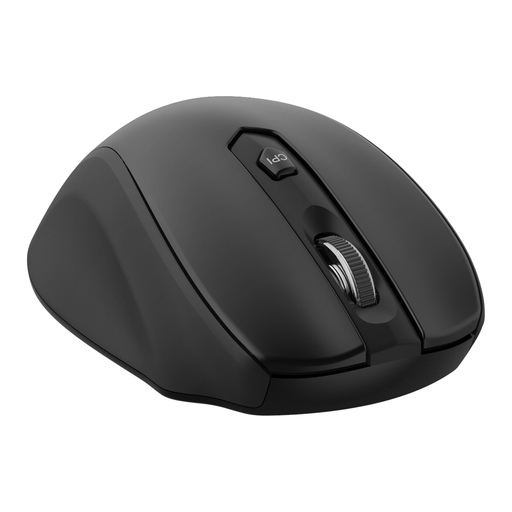
ET 2.4G Wireless Mouse, Black (Single)
A portable conventional mouse to consider if a USB-receiver connection suits your computer. The name specifies a USB receiver, five adjustable DPI levels and six buttons. Check hand fit for longer sessions and confirm any other connection or scrolling feature your workflow requires.
View on Joybuy
Common questions
Will a different mouse make the pointer cross two screens correctly?
A different mouse will not correct a mismatched display arrangement. Microsoft Support advises positioning the display icons in Windows to match the physical screens and testing pointer movement; if you use a Mac as an extended desktop, check its display arrangement there too.
Is a vertical mouse automatically more comfortable for long calendar sessions?
No mouse shape is a universal fit. Check handedness and how the model feels in your hand; the Health and Safety Executive also advises positioning the mouse within easy reach so you can use it with a straight wrist.
What should I check before choosing a compact multi-device mouse?
Check its connection method, operating-system support and how many devices it can pair with, then consider whether the shape suits your session length. Logitech says MX Anywhere 3S can connect with up to three devices by Bluetooth on Windows, macOS, ChromeOS and Linux.


