What matters when choosing
For checking accessible colours across two screens, decide whether quicker tool navigation, hand position or controls for professional software is your main priority. Then check the grip and software requirements of the particular mouse.
| Concern |
What to check |
Who this matters to |
| Movement and shortcuts |
Check adjustable pointer speed, the controls you would assign to repeated tools and horizontal scrolling if you use wide canvases. Confirm that the configuration software works on your system. |
If I move repeatedly between a page, checker and notes, I want to reach those tools without unnecessary pointer travel. Around 42% of consumers would put this workflow need first. |
| Hand and wrist comfort |
Check handedness, hand-size guidance, grip shape and button placement; assess the desk setup as well as the mouse. |
During long review sessions, I need a grip I can use comfortably without giving up the navigation buttons I rely on. Hand position would come first for roughly 33% of consumers. |
| Professional-tool controls |
Identify the commands you use in design or CAD software, then check whether the mouse controls can be assigned to them. |
If my reviews involve command-heavy design software, I want dedicated controls for actions I use repeatedly. For about 25% of consumers, that application-specific need would lead the choice. |
Joybuy product choices
These mice offer different approaches to two-screen review work, including configurable navigation, vertical grips and an ambidextrous design. Match the grip and controls to the tools you use; none replaces contrast checking.
 No image available
RAPOO MT760L-LG mouse
Consider this model if your review work involves switching between computers as well as screens. Its described cross-computer controls require a driver and a shared network; confirm the mouse shape before choosing it for a particular grip.
View on Joybuy
 No image available
HP 920 Ergonomic Wireless Mouse, black, with detachable wrist rest
Consider the detachable wrist rest if hand position is a priority during extended review sessions. If you need configurable shortcuts, check that HP Accessory Center supports your operating system and applications.
View on Joybuy
 No image available
AJAZZ AJ200 AI MC wireless mouse with charging dock
Consider it if you want to configure controls for repeated review actions. The named variant has a PAW3311 sensor, a stated maximum of 24000 DPI and Bluetooth, 2.4G and USB-C connection modes; button remapping requires driver software, so check support for your system and tools. Confirm the exact variant weight if it affects your choice.
View on Joybuy
 No image available
V7 MW500BT vertical ergonomic mouse
Consider this vertical-grip option when hand position and ordinary browser navigation take priority over software-assigned commands. Its name specifies 2.4GHz connectivity, six buttons and adjustable tracking up to 1600 DPI; check that the grip and button positions suit your hand. For operating systems other than Windows 10/11 or macOS 13.6 and later, confirm compatibility.
View on Joybuy
 No image available
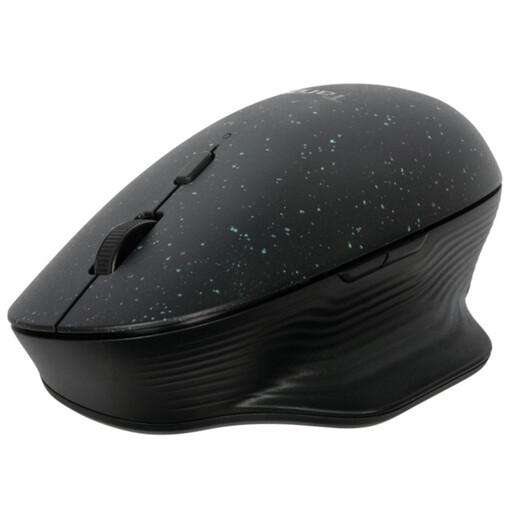
Targus Ergoflip EcoSmart® wireless mouse
Consider its convertible, ambidextrous design if left- and right-handed use both matter at your desk. Check the surface you use: its BlueTrace tracking may not work on some glass or mirrored surfaces. An AA battery is not included.
View on Joybuy
Frequently asked questions
Will a high-DPI mouse make my colour checks more accurate?
No. Pointer-speed adjustment can help you move around a two-screen workspace, but it does not measure colour contrast. Use the actual foreground and background colours in a contrast checker and assess its findings in the interface.
Is an automated contrast checker enough to confirm accessibility?
No. The DWP Accessibility Manual says manual testing is essential, and the Department for Education Accessibility Manual advises verifying issues reported by a contrast checker. Use the tool as part of a broader review, not as the final judgement on its own.
When should I consider a vertical mouse?
Consider one when hand position is your main concern during extended mouse use, provided the grip fits your hand and the controls cover your regular tasks. Review workstation fit and work routines too; the Health and Safety Executive treats display-screen risks as a wider workstation issue.
Does the same accessibility requirement apply to every site I review?
Do not assume so. The GOV.UK Service Manual says government services must meet WCAG 2.2 level AA as part of government accessibility requirements; check which requirements apply to the particular organisation and service you are reviewing.


