For wide rotas, start by considering a mouse with a thumb wheel, adjustable tracking and reachable controls, provided your rota application supports the actions you want to use. If hand fit matters more than shortcuts, consider a vertical mouse; if reaching beside the keyboard is the main difficulty, assess a centred pointing device. Whichever you choose, the mouse is only one part of a comfortable workstation.
Who each option suits
Two-screen rota coordinators
If you move through wide schedules and repeatedly switch between tasks, horizontal navigation and reachable controls may matter more to you than a particular mouse shape. Check how your rota application responds to the controls before relying on them.
Comfort-first desk workers
If rota planning occupies long stretches of desk work, prioritise a shape that lets your fingers and thumb reach the controls comfortably. The Health and Safety Executive treats the input device as part of the wider display-screen-equipment workstation.
Keyboard-heavy users concerned about side reach
If you alternate between typing notes and changing shifts, a centred device is worth assessing when reaching beside the keyboard is your main concern. Contour Design’s RollerMouse range places cursor control in front of the keyboard.
What to check before choosing
Productivity mouse
Consider when: Your rota work involves frequent movement across wide grids and you would use a thumb wheel or assigned controls.
Bear in mind: Shortcut behaviour depends on the application and, for software-configured controls, workplace installation permissions.
Vertical mouse
Consider when: Hand position and control reach take priority over having many navigation controls.
Bear in mind: Shape alone cannot establish personal comfort; check hand-size guidance and handedness for the exact model.
Centred rollerbar
Consider when: You type frequently and want to assess cursor control positioned in front of the keyboard.
Bear in mind: This different input method needs space in front of the keyboard and time to become familiar.
| Concern |
What to check |
Who this matters to |
| Navigating wide rotas |
Check for a suitable horizontal-navigation control and adjustable cursor speed. Confirm that your rota application responds to the control you intend to use. |
When dates and staff lists stretch across both displays, I want to move through the rota without repeatedly finding an on-screen scroll bar; around 50% of consumers would put navigation first. |
| Hand fit during desk work |
Check handedness, hand-size guidance and whether your fingers and thumb reach the buttons and wheel without stretching. |
If I spend long periods editing shifts, I care most about how the mouse fits my hand rather than how many shortcuts it offers; roughly 30% of consumers would prioritise fit and comfort. |
| Connection and setup |
Confirm the computer’s connection options, available ports and workplace permissions for receivers or configuration software. |
On a managed work computer, I need a connection and any necessary software that I am allowed to use; about 20% of consumers would make workable setup their primary concern. |
Buying pitfalls
-
Assuming a higher DPI setting is automatically easier to use
Very fast pointer movement can make small rota cells harder to target, while a setting that feels too slow can require more hand movement. Logitech lists adjustable tracking on its MX Master 3S for Business, but its highest setting is not a target everyone needs.
Choose adjustable tracking and tune the cursor after both displays are connected.
-
Choosing a vertical shape without checking fit
A vertical mouse still needs controls you can reach comfortably. Logitech describes Lift as suited to small-to-medium hands and offers a left-handed version; those details should not be assumed for other vertical models.
Check the exact model’s dimensions, handedness and controls, and review the seller’s return terms before ordering.
-
Treating the mouse as the whole workstation solution
The Health and Safety Executive includes the input device, display, keyboard, desk and chair in the workstation. Changing the mouse alone does not address the rest of that setup or the work routine.
Review display placement, desk layout, breaks and the workstation assessment alongside the mouse choice.
-
Assuming every connection and shortcut will work at work
A receiver needs a suitable port and workplace approval; optional configuration software may also be restricted on a managed computer. Two screens connected to one computer do not, by themselves, require multi-device pairing.
Ask which peripherals and software your workplace permits, then check the connection method and application behaviour you intend to use.
Brands to consider
Logitech
Its productivity and vertical mouse ranges offer different approaches to desk work; choose by the controls and fit of the particular model, not by brand alone.
- Logitech lists a thumb wheel and configurable controls for MX Master 3S for Business, while its Lift range includes a left-handed option for small-to-medium hands.
- Check hand fit, operating-system support and whether your workplace allows optional Logi Options+ configuration.
Contour Design
Its RollerMouse range is relevant when keyboard-heavy work makes a centred pointing position worth considering.
- Contour Design describes RollerMouse Red as using a rollerbar positioned in front of the keyboard.
- Allow for the required desk space and a different way of controlling the pointer; the brand’s comfort claims do not establish how it will feel for every user.
Joybuy mice for rota-planning desks
These mice offer different starting points for two-screen rota work: one MX Master 3S listing, two vertical designs and two other wireless desk mice. Compare the exact controls, hand fit and work-computer setup you need; inclusion here does not mean that every model has a dedicated horizontal-navigation control.
 Image unavailable
Logitech MX Master 3S Ergonomic Mouse, Black
Consider this model if reachable controls are a priority when working through rota grids. Check how its controls behave in your rota application and whether your workplace permits any configuration software you plan to use.
Confirm the package contents if you need a Logi Bolt receiver.
View on Joybuy
 Image unavailable
HP 920 Ergonomic Wireless Mouse, Black, with Detachable Wrist Rest
Consider the HP 920 if a vertical shape and detachable wrist rest appeal more than a dedicated rota-navigation control. Check that the shape fits your hand and that the controls meet your needs in a wide schedule.
View on Joybuy
 Image unavailable
V7 MW500BT Bluetooth Vertical Mouse, 2.4GHz, 6 Buttons, 1600 DPI
Consider this vertical mouse if its grip and controls suit your hand and desk setup. The product name specifies Bluetooth and 2.4GHz wireless modes; confirm which connection your work computer permits and whether its controls suit your rota application.
View on Joybuy
 Image unavailable
HOFOTEK M311 2.4G+BT Silent Office Mouse, White-Grey, 1xAA
Consider this office mouse if its listed wireless modes fit your work-computer setup. If horizontal movement through rota columns or configurable shortcuts matter, check those functions before choosing it.
View on Joybuy
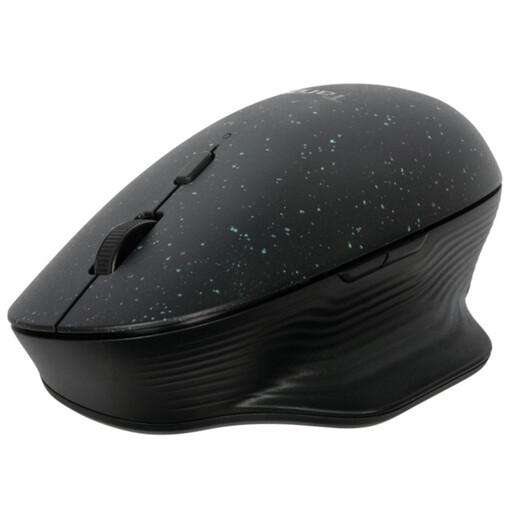 Image unavailable
Targus Ergoflip EcoSmart® Ergonomic Wireless Mouse
Consider this mouse if switching its shape for left- or right-handed use is relevant to your desk. Check your own control reach and whether it provides the navigation actions your rota work requires.
Check the package contents before use; the listing states that an AA battery is not included.
View on Joybuy
Common questions
Do two monitors mean I need a multi-device mouse?
No. Two displays connected to one computer do not themselves require multi-device pairing; that feature matters if you also switch between separate computers. For rota work, assess pointer control and navigation on the computer you actually use.
Is a thumb wheel useful for planning staff rotas?
It can be useful if your rota regularly extends across date, role or site columns and your application responds to horizontal scrolling. Logitech lists a thumb wheel on MX Master 3S for Business; check the controls and application behaviour of the exact mouse you intend to buy.
When should I consider a vertical mouse?
Consider one when hand fit and control reach matter more to you than a dense set of navigation shortcuts. Logitech describes Lift as suited to small-to-medium hands and offers a left-handed version, but you should check the fit of whichever model you choose.
What else should I check if rota planning takes up much of my workday?
Review the whole workstation as well as the mouse. The Health and Safety Executive includes the display, keyboard, input device, desk and chair in its workstation guidance and advises assessment and breaks from display-screen-equipment work.
Do I need mouse customisation software on my work computer?
Only if the functions you want depend on it and your workplace permits its use. Logitech describes button and tracking-speed customisation through Logi Options+ on Windows and macOS; check your organisation’s software policy before making configured shortcuts central to your choice.


