Two-screen training planners
If you build agendas, slides and handouts while keeping reference material open on another display, focus on pointer control, scrolling and shortcuts before paying attention to multi-device features.


For two screens connected to one computer, choose a mouse that fits your hand and makes scrolling through training materials and using frequent shortcuts straightforward. Consider a vertical mouse for a more upright grip or a trackball if you want the device to stay in place. Multi-device controls matter when you switch between separate computers, not simply because you have two displays.
If you build agendas, slides and handouts while keeping reference material open on another display, focus on pointer control, scrolling and shortcuts before paying attention to multi-device features.
If you spend extended periods revising training content, compare conventional, vertical and trackball shapes for hand fit. Assess the rest of your workstation too: the Health and Safety Executive includes mouse and trackball use within its wider display-screen-equipment checklist.
If you prepare on one computer and present or test material on another, check device switching and the software needed for cross-computer control. Those features serve a different need from moving the pointer between two displays attached to one computer.
For a two-screen planning desk, start with navigation and hand fit; assess stationary control or computer switching according to how you actually work.
| Concern | What to check | Who this matters to |
|---|---|---|
| Document navigation | Try the scroll wheel for long documents and check whether the available shortcut buttons suit your repeated actions. | If I regularly move between long agendas, slides and reference documents, I want scrolling and shortcuts that suit those tasks. Around 31% of consumers put navigation first. |
| Comfort over long sessions | Check hand size, handedness and grip, then assess the mouse alongside your desk, displays and working pattern. | During extended content editing, I need a shape I can use comfortably at my workstation. Comfort is the primary concern for around 31% of consumers. |
| Stationary pointer control | For a trackball, check ball-control method, hand fit and where it can sit beside the keyboard. | With notes and training materials taking up desk space, I would rather control the pointer without moving the whole device. Around 23% of consumers prioritise stationary control. |
| Separate computers | Confirm supported connections, operating systems and any software needed on each computer. | If I prepare on one computer and present from another, I need to know how the mouse switches between them. Around 15% of consumers put multi-computer use first. |
Two displays attached to one computer do not, by themselves, call for cross-computer control. For that setup, scrolling, pointer control and shortcuts may be more relevant.
Check whether your workflow actually moves between computers before comparing features such as Logitech Flow or other device-switching options.
The Health and Safety Executive considers mouse and trackball factors alongside screens, software, furniture and the work environment in its display-screen-equipment checklist.
Assess the device with your desk, displays and working pattern. For a work setup, follow the relevant workplace assessment process.
Logitech describes Lift as suited to small-to-medium hands and offers a left-handed option; its MX Ergo S trackball is described for medium-to-large hands. Those model-specific descriptions do not establish how either will fit you.
Check the exact variant, sizing guidance and return terms before choosing a vertical mouse or trackball.
Availability and delivery options can change between viewing a mouse and placing an order.
Check the current availability, delivery to your address and included accessories at checkout, particularly if your connection requires a USB receiver.
Its range includes conventional productivity mice, vertical mice and trackballs relevant to different training-planning desks.
Precision Mouse provides a reference point for people comparing controls across separate computers.
The 64327EU is a conventional stationary trackball to consider if you prefer a wired connection.
These mice cover document-navigation, multi-computer and upright-grip considerations for training preparation. Compare each model with your desk setup rather than assuming that every listed feature is needed for two screens.
 No image available
For work involving long agendas and slide decks, consider its customisable side controls. Cross-computer control is relevant only if you use separate computers; check the connection options and whether your chosen package includes a receiver.
 No image available
If training work spans separate computers, check whether its M+ control suits your setup: it requires a driver and computers on the same Wi-Fi or Ethernet network. Confirm the physical shape before choosing it for an upright grip.
 No image available
For longer planning sessions, assess whether its shape and detachable wrist rest suit your hand and desk position. If button customisation matters, check whether HP Accessory Center supports your operating system.
 No image available
For an upright grip during desk work, check how the shape fits your hand and handedness. The product name specifies Bluetooth and 2.4 GHz modes, six buttons and a 1600 DPI adjustable sensor; confirm whether a USB receiver is included if you need that connection.
 No image available
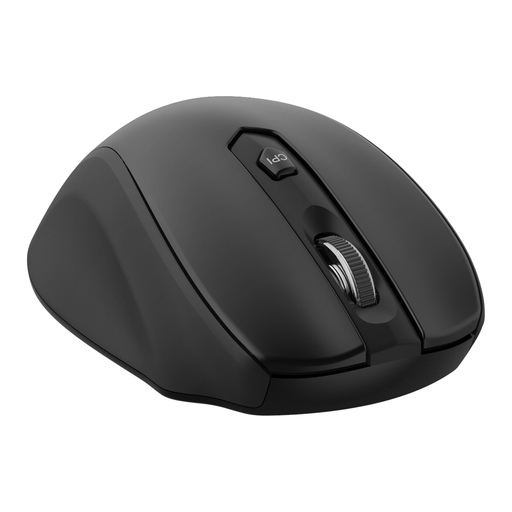
For everyday navigation while preparing documents, check whether the six-button layout suits your repeated actions. The product name specifies a USB receiver and five adjustable DPI levels; assess the scroll wheel if you frequently work through long material.
No: two displays on one computer do not themselves require computer-switching features. Choose for fit, pointer control, scrolling and useful shortcuts; consider multi-device pairing if you also move between separate computers.
Try a vertical mouse if you want a more upright grip and its shape suits your hand; consider a trackball if keeping the device stationary matters more. Logitech specifies Lift for small-to-medium hands and MX Ergo S for medium-to-large hands, so check the exact model and allow for a different control feel. Neither shape guarantees relief from discomfort.
Check that your computer supports the mouse's connection method and whether a USB receiver is needed and included. For custom buttons or use across separate computers, confirm the relevant software, operating-system support and setup requirements on each machine.
Assess the mouse as part of the complete workstation rather than choosing by an ergonomic label alone. The Health and Safety Executive's display-screen-equipment checklist covers mouse and trackball factors alongside screens, software, furniture and the work environment; use the relevant workplace assessment process for your setup.