If both screens are connected to one computer, you do not need a multi-device mouse just to move the pointer between them: focus on a comfortable shape, useful scrolling and controls you will use for notes. Choose device switching when your work spans separate computers; consider a vertical mouse or trackball if its shape or stationary control suits you, while allowing for a different feel.
Who is this for?
Two-monitor note organisers
If your notes, PDFs and browser are open on two displays attached to one computer, look closely at scrolling, button placement and mouse fit. Microsoft Support also recommends arranging Windows displays to match their physical positions so the pointer crosses between them naturally.
People switching between computers
If a laptop and desktop each have their own screen, check how many devices a mouse can pair with and how you switch between them. Logitech distinguishes button-based Easy-Switch from Flow, which has software and network requirements for cross-computer cursor movement.
Long-session comfort seekers
If mouse shape or desk movement is your main concern, a vertical mouse or stationary trackball offers a different way to control the pointer. Check handedness, dimensions and return terms rather than treating an ergonomic description as a promise of personal comfort.
What matters when choosing?
Start by establishing whether the two screens share one computer. That determines whether device switching belongs on your checklist at all.
| Concern |
What to check |
Who this matters to |
| Navigating notes on one computer |
Check wheel behaviour and button placement; for wide tables, consider horizontal scrolling. Arrange the displays in your operating system. |
If I keep notes on one display and reading material on the other, I want to move through both without losing my place. Around 40% of consumers put one-computer navigation first. |
| Switching between computers |
Confirm the supported device count and whether switching uses a button or requires software, compatible systems and a shared network. |
When my notes are split between a laptop and desktop, I need to know how one mouse changes machines. For around 30% of consumers, separate-device switching is the primary need. |
| Shape and desk movement |
Check handedness, dimensions and control layout; assess whether a vertical mouse or trackball suits the way you work. |
During long reading and sorting sessions, I may care more about how the device fits my hand or stays on my desk than about extra shortcuts. Roughly 30% of consumers place that consideration first. |
Buying pitfalls
-
Buying device switching solely for two monitors
Two displays connected to one computer do not require the mouse to switch devices. In Windows, display arrangement governs how the pointer crosses between monitors.
Identify what each screen is connected to before choosing a mouse. For one computer, assess fit, scrolling and buttons against your notes workflow.
-
Assuming multi-device means automatic cursor transfer
Pairing a mouse with several computers is different from moving its pointer between them at a screen edge. According to Logitech, Flow needs a supported mouse, Logi Options+ on both computers, separate mouse channels and the same Wi-Fi or Ethernet network.
Check the exact model and switching method if uninterrupted movement between separate computers matters to you.
-
Taking ergonomic wording as a comfort guarantee
A vertical mouse changes hand position, while a trackball changes how you steer the pointer. Neither design establishes how a particular hand will feel during study.
Check handedness, dimensions, button positions and the applicable return terms before choosing a different control style.
-
Overlooking ports and connection requirements
A Bluetooth connection, USB-A receiver and model-specific Bluetooth requirement are not interchangeable. Microsoft says its Bluetooth Ergonomic Mouse requires Bluetooth 4.0 or later.
Compare each computer’s ports and Bluetooth support with the exact mouse and receiver you intend to use.
A computer without a suitable port may also require an adapter for a USB receiver.
Brands to consider
Logitech
Relevant if you are weighing document-navigation controls against switching between separate computers.
- Logitech specifies dual-mode scrolling, horizontal tilt-wheel scrolling and side controls for the M720.
- Flow is a separate, model-dependent route requiring Logi Options+ on both computers, separate channels and the same Wi-Fi or Ethernet network.
HP
Its cited UK models illustrate a choice between conventional multi-device controls and a vertical shape.
- HP specifies up to two connected devices for the 430 and a vertical design with removable wrist rest for the 920.
- The 920’s shape and wrist rest are design features, not evidence that it will suit every hand or relieve discomfort.
Kensington
Relevant if you would consider a stationary trackball for reading and sorting documents.
- Kensington specifies a scroll ring, customisable buttons and Bluetooth or 2.4 GHz connectivity for its Orbit Wireless Trackball.
- Moving the pointer with a ball differs from moving a conventional mouse; assess whether that control method suits you.
Microsoft
Relevant to Windows users considering one mouse for several PCs.
- Microsoft says its Bluetooth Ergonomic Mouse can pair with up to three PCs.
- Smart Switch setup requires Microsoft Mouse and Keyboard Center on each paired PC; the mouse also requires Bluetooth 4.0 or later.
Joybuy product choices
These mice cover conventional one-computer note navigation, switching between separate devices and vertical designs. Choose the route that matches your screen setup before comparing individual models.
 No image available
Logitech MX Master 3S Ergonomic Black Mouse
Consider this model if you want one mouse for study work across separate computers as well as document navigation. Confirm its switching method and exact software compatibility before relying on cross-computer cursor movement; check the shape and button placement for your hand.
View on Joybuy
 No image available
HP 920 Ergonomic Wireless Mouse, Black, with Detachable Wrist Rest
Consider the HP 920 if you want a right-handed vertical mouse for long note-review sessions and are comfortable trying a different grip. HP specifies a detachable wrist rest, five programmable buttons and connection to up to three devices; assess hand fit rather than assuming a comfort benefit.
View on Joybuy
 No image available
V7 MW500BT Bluetooth Vertical Mouse, 2.4 GHz, 6 Buttons
Consider this vertical design if a different hand position appeals during study. Its product name specifies Bluetooth and 2.4 GHz connection options, six buttons and an adjustable sensor rated at 1600 DPI; check dimensions, hand fit and device-switching behaviour for your setup.
View on Joybuy
 No image available
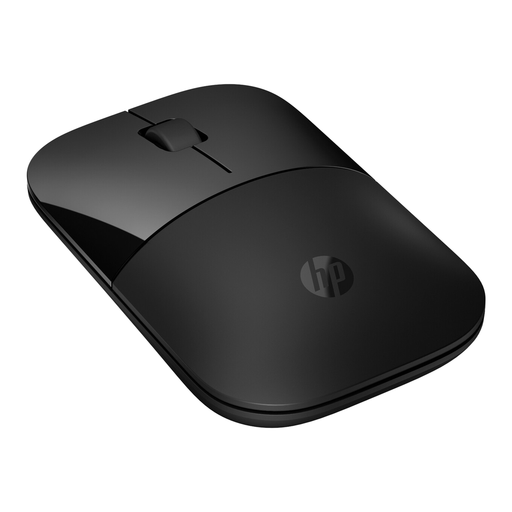
HP Z3700 Dual Black Mouse
For two monitors attached to one computer, assess this conventional mouse against the scrolling and controls your notes require. If you also plan to use it with another computer, confirm the connection and switching details for this exact model.
View on Joybuy
 No image available
HOFOTEK M311 2.4G+BT Office Mouse, White-Grey
Consider the M311 if you need to assess a mouse for work across separate devices. Its name specifies 2.4G+BT connectivity, adjustable DPI and one AA battery; confirm how it switches devices and how its wheel behaves before choosing it for lengthy notes or PDFs.
View on Joybuy
Frequently asked questions
Do two monitors require a multi-device mouse?
No, if both monitors are connected to the same computer. The operating system manages pointer movement between those displays; multi-device pairing matters when you want one mouse to work with separate computers or devices.
Why does the pointer cross between my screens awkwardly?
If you use Windows, check whether the display icons in Display settings match the monitors’ physical positions. Microsoft Support identifies display arrangement as the setting that helps the pointer move smoothly between displays.
What does Logitech Flow need to work between two computers?
Logitech Flow needs a supported mouse, Logi Options+ on both computers, the mouse paired on separate channels and both computers on the same Wi-Fi or Ethernet network. Check support for your exact mouse and computers before choosing it for this purpose.
What if my computer lacks suitable Bluetooth support?
Check the exact mouse’s connection requirements before buying. Microsoft says its Bluetooth Ergonomic Mouse needs Bluetooth 4.0 or later; a different model may offer a USB receiver, but you must also confirm that the receiver suits an available port.


