Spreadsheet and chart users
If you move repeatedly between observation tables, plotted charts and dashboards, consider how easily you can control pointer speed, navigate wide sheets and use buttons in your plotting software.


For frequent movement through weather-data tables and charts, choose a productivity mouse if scrolling and configurable controls are your priorities. Consider a vertical mouse when hand fit and posture matter more, or a trackball when a stationary device suits your desk and you are willing to adapt to a different pointing method. For long work sessions, assess the whole workstation too: the Health and Safety Executive advises keeping the mouse in line with the elbow.
If you move repeatedly between observation tables, plotted charts and dashboards, consider how easily you can control pointer speed, navigate wide sheets and use buttons in your plotting software.
If weather logging or analysis keeps you at a workstation for extended periods, assess mouse shape and hand fit alongside your desk setup. The Health and Safety Executive advises positioning the mouse in line with the elbow.
Limited space or a workstation used by either hand can make a stationary, ambidextrous trackball worth considering. If you prefer a vertical mouse, check its hand-size guidance and whether the required handed version is available.
Decide whether navigation, long-session fit or workspace constraints would determine your choice first. Then check the controls and connections against the computer and software you use for plotting.
| Concern | What to check | Who this matters to |
|---|---|---|
| Table and chart navigation | Adjustable pointer sensitivity and a practical way to navigate wide worksheets; confirm that any custom buttons work in your applications. | When I move between long observation tables and charts, I want navigation that does not interrupt my plotting work. Around 42% of consumers put navigation and control first. |
| Comfort and posture | Mouse shape, hand-size guidance and whether the device can sit in line with your elbow without reaching. | During extended desk sessions, I need a shape that fits my hand and a position I can maintain comfortably. For around 33% of consumers, comfort and posture are the primary concern. |
| Workspace and connection fit | Desk footprint, handedness and whether your computer has the required USB port or Bluetooth connection. | At a cramped or shared workstation, I need a device that fits the available space and the hand using it. Workspace and connection fit come first for around 25% of consumers. |
A high sensor setting does not tell you whether scrolling, button placement or mouse shape will suit your worksheets and charts.
Look for sensitivity you can adjust to your screen and task, then check whether the navigation controls work in your plotting software.
A vertical shape may change how you hold the mouse, but a poor hand fit or an awkward position beside the keyboard can still make long sessions uncomfortable.
Check the model's hand-size guidance and place the mouse in line with your elbow. Review the screen, keyboard, chair and work routine as well, in line with Health and Safety Executive guidance.
A mouse may be awkward to use if its shape favours the wrong hand, it needs more movement space than the desk allows, or its receiver has no suitable port.
Check handedness, footprint and USB or Bluetooth requirements before choosing. A stationary trackball is another option for limited desk space, provided its different pointing method suits you.
If a receiver needs a port your computer lacks, using that model may also require an adapter.
Relevant to productivity mice and vertical models with different approaches to hand fit.
Relevant when comparing a vertical mouse with a stationary, ambidextrous trackball.
A further work-oriented and vertical-mouse line to consider when comparing shapes.
These options include a productivity mouse, vertical-grip choices and wireless mice for everyday spreadsheet navigation. Choose according to hand fit, connection requirements and the controls your plotting software can use.
 No image available
Consider this productivity mouse if frequent scrolling through weather records and configurable navigation matter to your work.
Logitech specifies adjustable 8,000 DPI tracking and MagSpeed scrolling for the MX Master 3S. Check hand fit and whether its custom controls work with your operating system and plotting software.
 No image available
Consider this vertical-mouse option if hand position is central to your choice for desk-based plotting.
The named variant has a detachable wrist rest. Check that its shape fits your hand and that you can position it comfortably beside your keyboard.
 No image available
This vertical option may suit desk plotting if you want a choice between Bluetooth and 2.4 GHz connections.
Its named configuration has six buttons and adjustable sensitivity up to 1600 DPI. Check hand fit and operating-system compatibility before choosing it.
 No image available
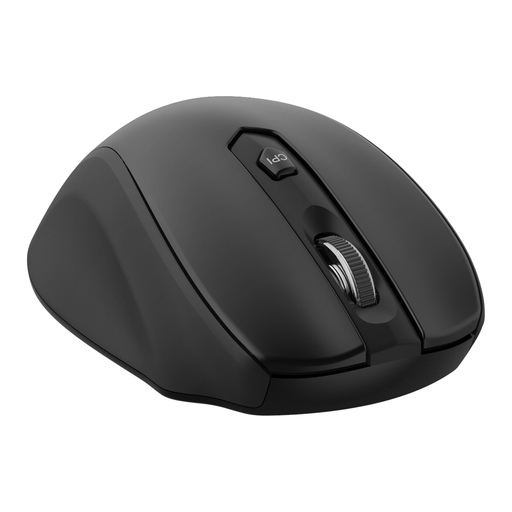
Consider this wireless mouse for everyday table navigation if a receiver-based connection suits your computer.
The named variant has five adjustable DPI levels and six buttons. Check for a suitable USB port or adapter, and assess its hand fit.
 No image available
This office mouse is an option if you want wireless connection choices while working with weather-data tables.
Its named variant offers 2.4G+BT connectivity and adjustable DPI and uses one AA battery. Check hand fit and whether its controls meet your needs for navigating wide worksheets.
No particular maximum DPI is required for the spreadsheet and chart tasks described here. Prioritise sensitivity you can adjust, usable scrolling and a shape that fits your hand; Logitech specifies adjustable sensitivity for the MX Master 3S, while Joybuy Insights cautions against choosing gaming-oriented sensor figures solely for spreadsheet work.
Keep the mouse in line with your elbow so you do not have to reach for it, as the Health and Safety Executive advises. Consider the screen, keyboard and chair as part of the same workstation; for prolonged laptop use, a separate keyboard and mouse allow the screen to be positioned independently.
Choose by hand fit and how you use your desk rather than assuming either device will resolve discomfort. A vertical mouse changes hand orientation, while a stationary trackball uses a different pointing technique and may suit limited movement space; assess your overall workstation and work routine if discomfort persists.
Check the exact mouse's battery and receiver requirements, along with the seller's returns terms and the applicable warranty. Kensington specifies one AA battery and a low-battery indicator for its Pro Fit Ergo Vertical Wireless Mouse; other models can have different requirements.
No particular mouse model is prescribed by the Health and Safety Executive's display-screen guidance. The HSE says the Display Screen Equipment Regulations apply to workers who use display-screen equipment daily for continuous periods of an hour or more; its guidance addresses workstation assessment, risk reduction, breaks or changes of activity, and training and information.