For frequent scrolling and repeatable calendar actions, consider a full-size mouse with reachable shortcut controls and a wheel suited to long schedules. If hand position matters more, consider a vertical mouse only after checking its size, handedness and button reach. Whichever shape you choose, the Health and Safety Executive advises placing the mouse in line with your elbow as part of a suitable workstation setup.
Who is this for?
Calendar-heavy desk planners
If you repeatedly scroll schedules, move events and switch planning tools at a fixed desk, accessible controls may matter more than portability. Logitech describes configurable controls on its MX Master productivity mice, though the available shortcuts depend on the model and software.
Comfort-first long-session users
If hand position is your main concern during extended computer work, check mouse fit and placement together. The Health and Safety Executive advises keeping the mouse in line with your elbow; a different mouse shape does not replace attention to the workstation.
Compact or multi-device home workers
If desk space is limited or you move between compatible devices, a compact mouse may suit the way you work. Logitech says its MX Anywhere 3S connects to up to three devices; check whether its size also suits your grip.
What matters when choosing?
Start with the action that interrupts your calendar work most often, then check hand fit and compatibility before choosing a connection method or smaller shape.
| Concern |
What to check |
Who this matters to |
| Scrolling and shortcuts |
Check the exact wheel modes, button positions and whether your software can use the shortcuts. |
If I move through long schedules and repeat the same actions, I want controls I can reach without interrupting my work. Roughly 33% of consumers put navigation and shortcuts first. |
| Hand fit and comfort |
Check hand-size guidance, handedness and button reach; make sure the mouse can sit in line with your elbow. |
For long desk sessions, I would choose a shape my hand can control comfortably rather than assume an upright grip suits everyone. Comfort and fit come first for around 25% of consumers. |
| Device and desk setup |
Confirm operating-system and software support, Bluetooth or receiver needs, and room beside the keyboard. |
When I use a work computer with restricted software or limited ports, the mouse needs to fit that setup. Approximately 25% of consumers prioritise compatibility and workstation layout. |
| Size and device switching |
Check dimensions, grip fit, connection options and the number of supported devices. |
On a shared desk or when moving between rooms, I want a mouse that is easy to place and use with my devices. For about 17% of consumers, compactness and device switching are the primary concern. |
Buying pitfalls
-
Choosing by maximum DPI alone
A maximum sensor setting does not establish how easy it will be to move and place calendar items with your preferred hand movement.
Check whether pointer sensitivity is adjustable and whether the controls are comfortable to reach.
-
Expecting the mouse to fix the whole workstation
The Health and Safety Executive treats equipment, furniture, working conditions and the task as parts of a workstation assessment. Mouse shape alone cannot address poor placement.
Keep the mouse in line with your elbow and review the keyboard, screen, chair and desk arrangement together.
-
Overlooking hand size or handedness
Useful controls are less helpful if reaching them means stretching your fingers or thumb. Logitech describes its Lift vertical mouse as suited to small to medium hands and offers a left-handed version.
Check the particular model’s dimensions, handed version and reach to its frequently used buttons.
-
Assuming the preferred connection needs no accessories
Bluetooth and USB-receiver connections have different compatibility and port requirements; multi-device support does not settle which connection you can use.
Check your computer’s connections and whether the specific mouse includes the receiver you intend to use.
If a compatible receiver is not supplied, using that connection may require a separate accessory.
Brands to consider
These brands offer different approaches to calendar work; compare individual models rather than treating a brand name as a guarantee of fit.
Logitech
Its researched range includes full-size productivity, compact multi-device and vertical mice.
- Logitech lists configurable controls on MX Master models, a 57° upright shape on Lift and connection to up to three devices on MX Anywhere 3S.
- Fit varies by model, and some control customisation requires compatible software or hardware.
Razer
Its Pro Click V2 models provide conventional and vertical shapes for productivity use.
- Razer describes customisable shortcuts on Pro Click V2 and a six-button vertical design with base support on the Vertical Edition.
- Check the particular model’s grip, control placement and software requirements rather than assuming the two shapes work alike.
Apple
Magic Mouse is a gesture-focused option for a compatible Apple setup.
- Apple describes Multi-Touch swiping and scrolling on Magic Mouse (USB-C).
- If physical shortcut buttons or a fuller palm grip are priorities, check whether its controls and shape meet those needs.
Joybuy mouse choices
These mice offer different starting points for calendar work: reachable controls at a desk, an upright grip, or flexible connections. Check each model’s fit and software requirements before relying on a particular feature.
 No image available
Logitech MX Master 3S Black mouse
Consider this desk mouse if repeatable calendar actions make custom controls useful. Joybuy describes seven programmable buttons customised through Logi Options+.
Before relying on shortcuts, check software compatibility with your computer and planning tools, and make sure the controls fit your hand.
View on Joybuy
 No image available
V7 MW500BT Bluetooth vertical mouse
Consider its upright shape if grip position matters more to you than a familiar conventional shape. The product name specifies Bluetooth and 2.4GHz connections, six buttons and an adjustable sensor rated up to 1600 DPI.
Check handedness, hand fit and button reach; if you regularly scroll long schedules, confirm the wheel’s modes too.
View on Joybuy
 No image available
AJAZZ AJ200 AI MC tri-mode wireless mouse
Consider this gaming-oriented mouse for calendar work only if its controls and connection options suit your computer. Its product name specifies a PAW3311 sensor, a stated 24000 DPI maximum and Bluetooth, 2.4G and USB-C modes.
Confirm the exact variant and dock contents, along with any software needed for your intended shortcuts; check the wheel if fast scrolling is important.
View on Joybuy
 No image available
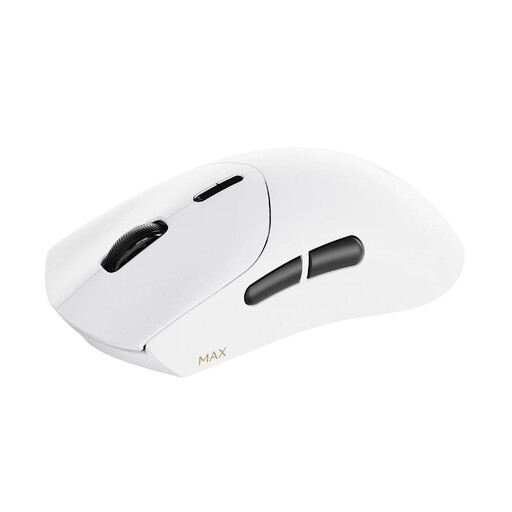
Rapoo VT7 MAX wireless mouse, white
Its stated ten programmable buttons make this a model to examine if you want controls for repeated actions. The product name also identifies macro support; check whether its driver works on your computer and whether the buttons are easy to reach.
For long calendar views, confirm the wheel’s scrolling behaviour rather than judging it by gaming specifications.
View on Joybuy
 No image available
HOFOTEK M311 2.4G+BT office mouse, white-grey
Consider this connection-focused option if you use a shared desk or move between computers. Its product name specifies 2.4G+BT connectivity, adjustable DPI and operation with one AA battery.
Check its dimensions against your grip and confirm the device-switching and scrolling controls you need for calendar work.
View on Joybuy
Frequently asked questions
Do I need a vertical mouse to design calendars at home?
No: a vertical mouse is a choice to consider when its grip and fit suit you, not a requirement for calendar work. If scrolling and shortcut access matter more, compare conventional productivity mice as well; neither shape replaces a suitable workstation setup.
Where should my mouse sit on a home-office desk?
Place the mouse in line with your elbow. The Health and Safety Executive also advises positioning the keyboard and screen centrally so you do not need to twist.
How can I tell whether a mouse will fit my hand?
Check that your fingers reach the main buttons and wheel comfortably, then assess any thumb controls you expect to use often. Logitech’s hand-fit guidance recommends comfortable reach to buttons and the scroll wheel; also check dimensions and the correct handed version for the particular model.
Does UK workstation guidance apply when I work from home?
Yes, the Health and Safety Executive says its display-screen-equipment guidance applies to home workers. It states that employers must assess workstations where workers use display screen equipment daily as a normal part of work for continuous periods of an hour or more; the assessment covers more than the mouse alone.
Should I take breaks during long calendar-planning sessions?
Build breaks into prolonged screen work rather than relying on a different mouse to address the whole routine. The Health and Safety Executive advises taking short breaks often instead of longer breaks less frequently.


