Two-computer timetable cross-checkers
You compare transport sites, booking tools or work accounts on separate computers and want to move between them without repeatedly changing mice or inputs.


If both screens connect to one computer, choose a mouse for comfortable fit, dependable pointer control and the scrolling you need; cross-computer software is not necessary just because you have two displays. If each screen belongs to a separate computer, check whether a mouse supports switching between them and what software, network or operating-system conditions apply. For longer sessions, assess hand fit and your workstation as well as the mouse’s shape.
You compare transport sites, booking tools or work accounts on separate computers and want to move between them without repeatedly changing mice or inputs.
You compare routes, fares and departure times on two displays connected to one computer. Scrolling, mouse fit and workstation layout matter more to you than controlling another computer.
You spend extended periods navigating dense timetable pages and want to check whether a conventional or vertical shape suits your hand size, handedness and usual pointer movements.
Establish whether the displays share one computer before assessing switching features; then consider fit and everyday navigation.
| Concern | What to check | Who this matters to |
|---|---|---|
| One computer or two | Identify which computer drives each display. For separate computers, check device switching, operating-system support and any software or network requirements. | If my timetable tools run on separate computers, I want to move between them without repeatedly changing inputs. Roughly 46% of consumers would put that cross-computer workflow first. |
| Comfort and fit | Check hand-size guidance, handedness and button reach. Consider the mouse alongside your display and desk arrangement. | During a long session of checking routes and departure times, I need a shape that suits my hand and normal movements. Around 36% of consumers would prioritise that fit. |
| Everyday navigation | Assess the scroll wheel, button layout and tracking surface; check stated surface conditions if you use a glass desk. | With both displays on one computer, I mainly need straightforward scrolling and pointer control. Approximately 18% of consumers would make that simple navigation their primary concern. |
Two displays connected to one computer form a different setup from two computers. Cross-computer features do not add cursor control that an ordinary mouse lacks on a single extended desktop.
Check which computer drives each screen before choosing a multi-device model.
A mouse that pairs with several devices may still require manual switching. Moving a cursor between computers can involve additional software and network conditions.
Check the exact workflow: Logitech specifies compatible hardware, Logi Options+ on both computers and a shared Wi-Fi or Ethernet network for Flow; Microsoft specifies Mouse and Keyboard Center on each PC for Smart Switch.
A different grip does not suit every hand or every pattern of pointer movement.
Check the manufacturer’s hand-size guidance and the exact handed version. Logitech positions Lift for small to medium hands and offers a left-handed option.
The Health and Safety Executive considers the mouse alongside displays, furniture and the work environment in its display screen equipment checklist.
For regular work use, review display position, desk space and chair setup together with the mouse, using your employer’s workstation assessment process where applicable.
Its MX Master 3S and Lift illustrate different choices: conventional productivity controls and a vertical shape intended for small to medium hands, respectively.
The HP 430 is a conventional multi-device option for someone comparing work across two devices.
The Microsoft Bluetooth Ergonomic Mouse is relevant to a Windows-focused setup involving several PCs.
These mice cover choices for cross-computer workflows, a vertical grip and routine navigation when one computer drives both screens. Match the mouse to your computer arrangement before relying on its switching features.
 No image available
Consider this model if you want to compare timetables across separate computers and can meet the conditions for Logitech Flow.
Logitech specifies an 8,000 DPI sensor and MagSpeed scrolling for MX Master 3S. Flow requires compatible hardware, Logi Options+ on both computers, separate device channels and a shared Wi-Fi or Ethernet network.
 No image available
For timetable work across separate computers, check whether its M+ switching workflow suits the computers you use.
Using that workflow requires a mouse driver and a shared Wi-Fi or Ethernet network. If wireless charging matters to you, check the separate P3 charging-module requirement.
 No image available
Consider the vertical shape if hand fit is a priority during longer timetable-checking sessions.
The named variant has Bluetooth and 2.4GHz wireless modes, six buttons and an adjustable sensor rated up to 1600 DPI. Check button reach and handedness; if you use separate computers, also check its device-switching capabilities.
 No image available
This is a routine-navigation choice when both timetable displays connect to one computer.
The named variant has adjustable DPI and uses one AA battery. If you intend to work across separate computers, check whether its device switching provides the cursor workflow you need.
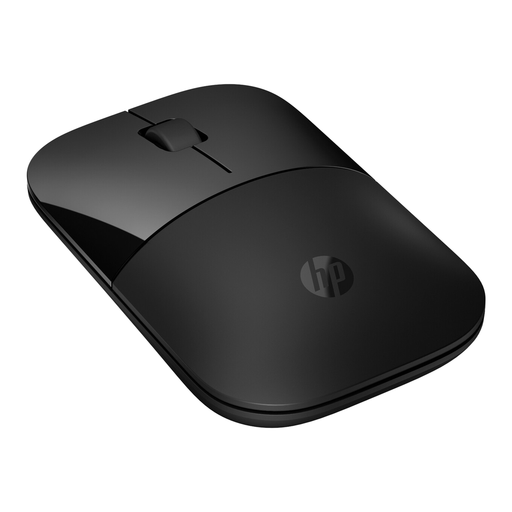 No image available
Consider this mouse for ordinary timetable navigation when one computer drives both screens.
Do not treat its dual wireless modes as confirmation of cross-computer cursor control; check device switching separately if each screen has its own computer.
No. An ordinary mouse can navigate an extended desktop when both screens connect to one computer. Multi-device or cross-computer features become relevant when you need to control separate computers.
It depends on the specific mouse system, not just its ability to pair with two devices. Logitech says Flow requires supported hardware, Logi Options+ on both computers, separate device channels and a shared Wi-Fi or Ethernet network; Microsoft says Smart Switch requires Mouse and Keyboard Center on each PC.
Not necessarily. Check the exact mouse’s Bluetooth requirement, operating-system support and device limit. For its Bluetooth Ergonomic Mouse, Microsoft specifies Bluetooth 4.0 or later and says the model is designed to work best with Windows 10 or Windows 11.
A vertical mouse is worth considering if its shape, size and handed version suit your normal movements, but shape alone is not a complete workstation solution. Logitech positions Lift for small to medium hands and offers a left-handed option; the Health and Safety Executive’s workstation checklist also covers displays, furniture and the work environment.