Keep a separate copy of the archive before changing a drive’s format, and export unmodified originals if the photos are held in Apple Photos. For a one-off Mac-to-PC move, an exFAT transfer drive or a local SMB network copy can work; choose between a portable SSD and HDD according to the archive’s size, your connections and how often you will transfer files. If both computers need continuing access, consider a shared network drive or cloud route, but do not treat synchronisation as a separate backup.
Who this is for
Family-archive preservers
If the older Mac holds photos you cannot replace, decide whether you need original files, edited versions and separately exported metadata before copying. Apple Photos offers an unmodified-original export and an option for IPTC information in XMP sidecars; the National Cyber Security Centre advises keeping a separate backup.
Large-library direct-transfer buyers
If you want to copy a substantial library through a portable drive, check its capacity, file system and the ports on both computers. Apple identifies exFAT as Windows-compatible, while Seagate notes that macOS cannot natively write to an NTFS volume.
Households needing continuing access
If the Mac and Windows PC will both use the archive after the move, shared storage may matter more than a one-time transfer drive. Apple documents SMB sharing with Windows, and Synology documents SMB access to files on its NAS devices; either route needs appropriate network access and permissions.
What matters when choosing a transfer route
Protect the source archive first, then decide whether you need a one-off copy or continuing shared access. Measure the library and check both computers’ connections before choosing storage; if the source device is showing errors or you cannot identify the originals, seek suitable transfer support rather than experimenting with the only copy.
| Concern |
What to check |
Who this matters to |
| Originals and metadata |
Decide whether you need unmodified originals, edited versions and IPTC XMP sidecars. Keep a separate copy before changing storage. |
If the family archive cannot be recreated, I want to inspect a test export before moving the whole library; around 31% of consumers put preservation first. |
| Mac and Windows write access |
Check the drive’s actual file system and test writing from both computers. Prepare an exFAT drive only after safeguarding anything already on it. |
I need the Mac to write to the transfer drive and the PC to read the copied files without a format mismatch; around 31% of consumers make cross-platform access their primary concern. |
| Capacity and transfer time |
Measure the archive, allow space for the intended copies and check ports and cables. Treat advertised SSD speeds as conditional on compatible hardware. |
With thousands of photos or videos to move, I need the full export to fit and the copy to be manageable; around 25% of consumers prioritise capacity and transfer time. |
| Access after the move |
For SMB or NAS, check network access, permissions and a separate backup plan. For cloud transfer, check that originals are downloaded and account storage is sufficient. |
If both computers will keep using the archive, I would rather plan shared access than leave it on one PC; around 13% of consumers put continuing access first. |
Mistakes to avoid
-
Reformatting a drive that holds the only copy
Apple warns that erasing and reformatting a storage device deletes its contents. A Mac that cannot write to a Windows-formatted drive is a reason to check the format, not to erase files you still need.
Keep another usable copy first. Check the file system and, if you need a shared exFAT transfer drive, prepare an empty drive or one whose contents are safely backed up.
-
Assuming every Apple Photos export contains the same files
Apple distinguishes ordinary exports from unmodified-original exports and offers a separate XMP option for IPTC information. The choice affects which versions and accompanying metadata files you take to Windows.
Choose whether you need originals, edited versions or both. Export a small sample, including any needed sidecars, and inspect it on the PC before exporting the full library.
-
Choosing an SSD by its maximum speed alone
Samsung conditions the T7 Shield’s rated speed on a compatible USB 3.2 Gen 2 host, cable and UASP support; SanDisk’s Extreme PRO specification is tied to USB 3.2 Gen 2x2. Neither figure establishes the speed of a copy from an older Mac.
Check the ports, cable or adapter and archive size before deciding whether a faster-rated interface is useful for your computers.
-
Confusing a synced library with a separate backup
Changes to iCloud Photos can appear across connected devices. The National Cyber Security Centre also advises keeping a backup disconnected from live systems when it is not needed.
Retain a separately stored copy. Before retiring the Mac source, compare the copied library and open a sample of photos and videos on Windows.
Relevant brands for reference
Samsung
The portable T7 Shield SSD line is relevant to repeated local transfers when the computers and cable support its USB interface.
- Samsung rates the named 2TB T7 Shield at up to 1,050 MB/s read and 1,000 MB/s write with a USB 3.2 Gen 2 and UASP-capable connection.
- Those rated figures do not predict copy speed from an older Mac. Samsung’s stated resistance features also depend on conditions and do not make the drive a substitute for another archive copy.
Seagate
The Backup Plus Portable HDD line is a reference point when a large archive calls for portable capacity; Seagate lists versions up to 5 TB.
- Seagate documents Backup Plus Portable as preformatted exFAT for Mac and Windows compatibility.
- Check the format of the drive you receive. Seagate notes that macOS cannot natively write to NTFS, so an existing Windows-formatted volume may not serve as a shared-write drive.
SanDisk
The Extreme PRO portable SSD line is worth considering for frequent transfers when the available computers support its interface.
- SanDisk specifies USB 3.2 Gen 2x2 and rated sequential read performance of 2,000 MB/s for the named Extreme PRO model.
- That specification is conditional on the connection; it does not show that an older Mac will reach the stated speed or that the drive preserves an archive without a separate backup.
Synology
A Synology NAS is a route to consider when household devices need to keep accessing the archive, rather than copying it once.
- Synology documents SMB access to files on its NAS from Windows and Mac clients.
- A NAS requires storage drives, configuration, permissions and its own backup plan; network access alone is not a separate backup.
Portable drives for a local transfer
These portable SSDs and HDDs are options for copying an archive directly between the Mac and Windows PC. Choose sufficient capacity, then check the connection and whether the drive can be written to by both systems; the HFS+ model below has a different Windows-use requirement.
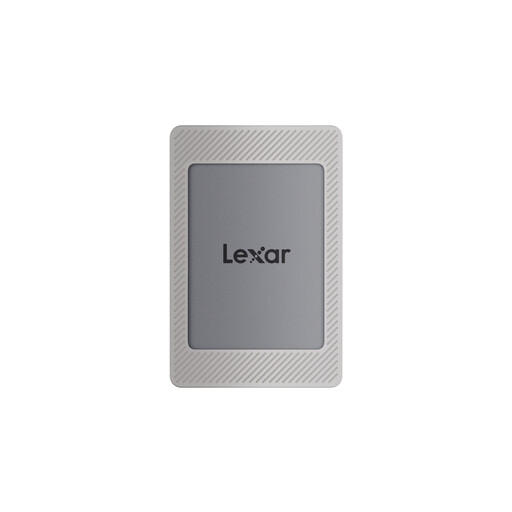 Image unavailable
Lexar ES4 Portable SSD Magnetic Set 2TB
A portable SSD to consider for a direct copy when 2TB fits the archive and intended extra copies.
The listing specifies USB 3.2 Gen 2, up to 1,050 MB/s read and 1,000 MB/s write, and USB-C and USB-A cable options; actual copy speed depends on the computers and connection.
Its instructions describe exFAT for Mac and Windows use. Check the delivered format before copying, and do not reformat a drive holding the only archive copy.
View on Joybuy
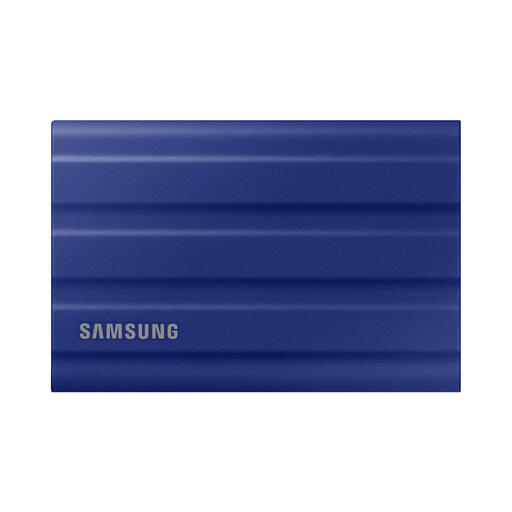 Image unavailable
Samsung T7 Shield Portable SSD 1 TB, blue
A portable SSD for local transfers when the full archive and intended copies fit within 1 TB.
The listing specifies USB 3.2 Gen 2 and rated speeds up to 1,050 MB/s read and 1,000 MB/s write; compatible host hardware and cables matter to the speed achieved.
Check the delivered file system for read and write access on both computers before moving the library.
View on Joybuy
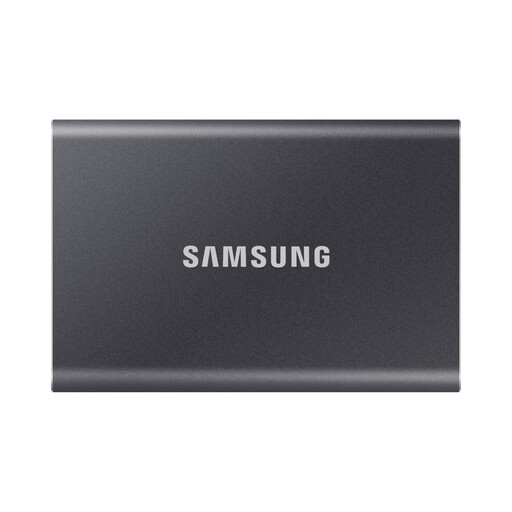 Image unavailable
Samsung Portable SSD T7 4 TB, grey
A 4 TB portable SSD to consider when the measured archive and intended extra copies call for more capacity.
The listing specifies USB 3.2 Gen 2, rated speeds up to 1,050 MB/s read and 1,000 MB/s write, and USB-C-to-C and USB-C-to-A cables. Maximum rated speed depends on a suitable host and connection.
Confirm the drive’s format permits the read and write access you need on both computers before copying.
View on Joybuy
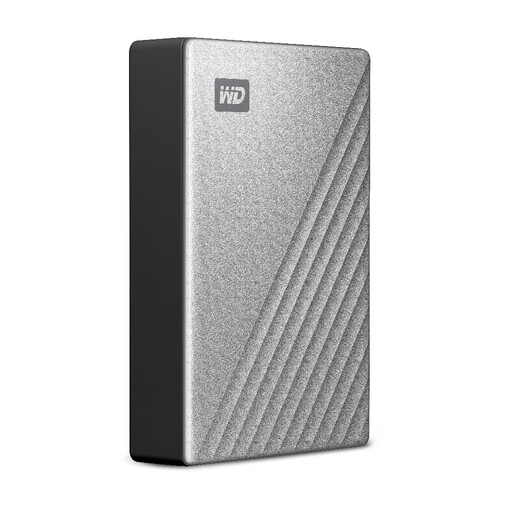 Image unavailable
Western Digital My Passport Ultra for Mac 5TB, silver
A 5TB portable hard drive to consider when capacity matters and its Windows-use requirement fits your setup.
The listing describes an HFS+ format with Windows access through a downloadable driver, plus a USB-C cable and USB-C-to-USB-A adapter. Confirm that the driver works with your Windows version before relying on this transfer route.
Measure the archive and any intended extra copies to check that 5TB is sufficient.
View on Joybuy
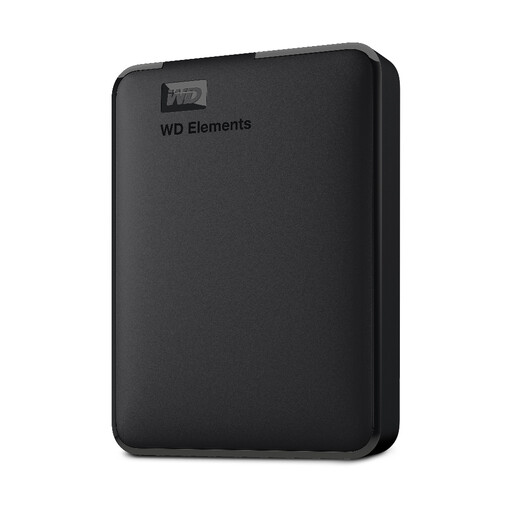 Image unavailable
Western Digital Elements Port. 4TB Black USB 3.0
A 4TB portable hard drive for a local copy if its capacity fits the complete archive and intended extra copies.
The listing specifies USB 3.2 Gen 1 and a USB-A cable. It says reformatting may be needed for Mac use, so check the delivered file system before copying and preserve any existing files before a format change.
View on Joybuy
Common questions
Which drive format lets both the Mac and PC read and write files?
ExFAT is a shared-transfer choice documented as compatible with Mac and Windows by Apple and Seagate. Check the actual drive format before use, and copy off anything you need before formatting; Seagate notes that macOS cannot natively write to NTFS.
Will reformatting an external drive erase my photos?
Yes. Apple states that erasing and reformatting a storage device deletes its contents. Make another usable copy of files you need to retain before changing the format.
How do I take original files and metadata out of Apple Photos?
In Photos on Mac, Apple provides File > Export > Export Unmodified Original for selected items. If IPTC information and keywords matter, check the option to export them as XMP sidecars, then inspect a sample of the exported files on Windows.
Can I transfer the archive over my home network instead?
Yes, if both computers can use the same trusted local network and the Windows PC has space for the copy. Apple documents enabling SMB file sharing on the Mac and connecting through Network in Windows File Explorer; review account permissions and turn off sharing you no longer need.
Can iCloud Photos or OneDrive replace a separate archive copy?
They can help move or access files, but do not assume a synced library is an independent backup. Apple documents access to iCloud Photos through iCloud for Windows, while Microsoft says OneDrive cannot upload photos optimised for iCloud; confirm that originals are downloaded and that the account has sufficient storage before using a cloud transfer.


