Detail-focused cockpit builders
If charts, radar and control windows need to remain visible across several screens, prioritise readable resolution, consistent screen sizes and positioning you can adjust.


For a multi-screen virtual cargo-ship bridge, start with monitors you can position consistently. Choose QHD if chart and instrument detail matters and your PC can drive every planned screen; Full HD remains an option if the simulator interface is readable at your viewing distance. Consider daisy chaining only after checking the computer, graphics hardware and monitor ports: HDMI alone cannot form a monitor-to-monitor chain.
If charts, radar and control windows need to remain visible across several screens, prioritise readable resolution, consistent screen sizes and positioning you can adjust.
If fewer cables need to run back to your computer, investigate compatible USB-C or DisplayPort connections. Dell and BenQ both advise checking the host and display connection path before planning a chain.
If you want several matching panels without increasing the graphics workload unnecessarily, consider Full HD only after checking that your simulator's controls remain readable at the planned size and distance.
Decide how much detail each bridge view needs, check that your computer can drive the full array, then plan how the screens will connect and fit on the desk.
| Concern | What to check | Who this matters to |
|---|---|---|
| Readable detail and workspace | Compare native resolution at the intended screen size and viewing distance; check the GPU's supported display count and resolutions. | If I keep charts and small controls open on separate screens, I need enough room to read them without crowding each view. Around 42% of consumers put that detail-and-workspace need first. |
| Independent displays and cabling | Confirm the host and dock display limits, plus the input and output ports required for the intended connection path. | When I want different bridge views on each panel without cables running from every screen to the PC, connection compatibility becomes my priority. Roughly 33% of consumers prioritise independent displays with manageable cabling. |
| A manageable repeated setup | Check whether Full HD remains readable in your layout and whether the stands or VESA mounts suit the available desk space. | I would rather repeat a screen configuration I can position and run comfortably than add resolution I cannot use. Around 25% of consumers place that straightforward setup need first. |
Dell and BenQ explain that HDMI does not support monitor daisy chaining. A USB-C connector alone does not establish video support or the ability to run several independent screens.
Check the exact computer, GPU, dock and monitor ports against the number of displays you plan to extend, rather than mirror.
A compatible dock, display adapter or different cabling may be needed for the intended connection path.
A monitor's resolution and refresh specification does not establish what the connected computer can run across the entire array.
Check the GPU's supported display count, resolutions and available outputs before committing to multiple QHD screens.
Different heights, mounting options or screen dimensions can make a repeated bridge layout harder to align.
Measure the desk and viewing position, and check VESA compatibility and arm load ratings if you plan to mount the monitors.
Monitor arms and additional cables may be needed to complete the layout.
Dell's P2425HE is relevant if connection options and physical adjustment matter in a multi-screen workspace.
BenQ offers distinct options for a directly connected Full HD array and a QHD USB-C workflow.
The ProLite XUB2792QSU is relevant to a matching, directly connected QHD arrangement where screen positioning matters.
These monitors offer QHD or WQHD options for positioning chart, control and other simulator views across several screens. Decide how each will connect to your computer before planning the full array.
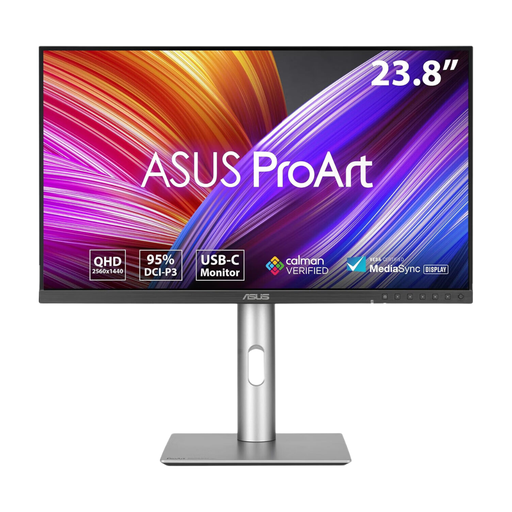 Image unavailable
Consider this model when you want a compact, adjustable screen for a repeated cockpit layout.
IPS QHD display. Confirm the intended connection path and your computer's multi-display limits before ordering several.
 Image unavailable
Consider this model if a larger QHD view and adjustable placement suit your planned bridge layout.
IPS QHD display with a listed 100Hz refresh rate. Confirm the exact variant's USB-C ports if your connection plan depends on them.
 Image unavailable
This model is worth considering when chart space and flexible screen placement are priorities.
IPS WQHD display. Check whether your computer can drive the planned number of screens and how each monitor will connect.
 Image unavailable
Consider this model if you want a QHD gaming display within the cockpit arrangement and have room for the planned screen count.
27-inch QHD OLED display with a listed 240Hz refresh rate. Check the host's multi-display capability rather than assuming the monitor's refresh rate will apply across the array.
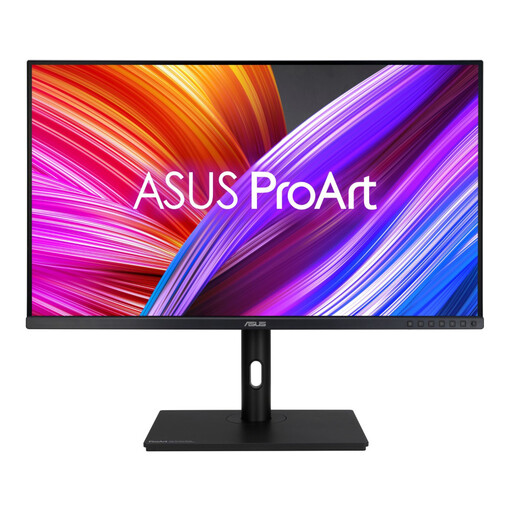 Image unavailable
Consider this model for a larger chart view, provided it fits alongside the other planned screens.
IPS WQHD display. Measure the desk and confirm the computer's supported display count and connection path.
No. Dell and BenQ state that HDMI does not support monitor daisy chaining. For a chain, check the computer's supported DisplayPort, USB-C video or Thunderbolt path and the required inputs and outputs on the monitors.
No. BenQ advises confirming that the device, GPU and any dock support the intended number of external monitors. Check the operating system and the exact ports as well as the monitor specifications.
After connecting monitors through a compatible chain or direct connections, choose an extended desktop rather than mirroring in the computer's display settings. Arrange the on-screen positions to match the physical layout.
Check the retailer's electrical-waste take-back arrangements before replacing old monitors. GOV.UK provides guidance on same-type equipment take-back; ask the retailer whether it accepts your monitors and how its collection or drop-off service works.