What matters when choosing?
Choose the shape of the cockpit view before comparing headline monitor specifications: spanning one game image across matching screens calls for different checks from using a higher-resolution main display with separate side screens.
Matched QHD IPS screens
Choose when: You want three similarly sized screens for a continuous landscape cockpit view.
Allow for: Matching models cannot overcome a graphics card’s display limit or a connection that cannot deliver your chosen mode.
QHD OLED screens
Choose when: OLED panel characteristics on the main view, or across the array, matter more to you than keeping to an IPS route.
Allow for: Manufacturer response-time and HDR specifications are not independent comparisons of how these models will look in your game.
4K main display
Choose when: Higher resolution in the forward view takes priority over using the same resolution on every screen.
Allow for: A mode available on one 4K display does not establish that your PC can run it alongside the planned side displays.
| Concern |
What to check |
Who this matters to |
| Cockpit continuity |
Compare native resolution, usable refresh settings and physical alignment. For one spanned image, check your planned topology and bezel handling. |
If I want the game view to run across three screens, mismatched edges or display settings could interrupt the cockpit layout I am trying to build. Around 42% of consumers put that continuity first. |
| PC and connection compatibility |
Check the exact graphics card’s display limit and outputs, then the supported mode through each monitor input and cable. |
With an existing PC, I need to know it can connect and arrange all the screens at my intended settings before I order them. For around 33% of consumers, compatibility is the primary concern. |
| Image and motion specifications |
Compare panel type, resolution, HDR and adaptive-sync specifications for the exact models; read quoted response times as manufacturer specifications. |
For dark space scenes and fast movement, I would prioritise what the main display is specified to show, even if the side screens differ. That image-led choice comes first for around 25% of consumers. |
Joybuy monitor choices
These monitors cover QHD OLED choices, a 27-inch QHD IPS option for a matched array, and a 4K option for the main view. Choose the arrangement first, then check each model’s connection modes against your PC and the other screens.
 No image available
Samsung Odyssey G6 S27DG612 27-inch QHD OLED
Consider this for a QHD OLED main screen or a matched OLED array. The product title specifies 240Hz and a quoted 0.03ms response time; confirm the mode available through each planned connection and check your GPU’s display limit.
View on Joybuy
 No image available
Acer Predator X27U W3 26.5-inch QHD QD-OLED
This is a QHD OLED option if a 26.5-inch screen fits your intended layout. Its title specifies 2560 × 1440, 240Hz and HDR10; check the input-specific mode and physical fit before pairing it with other monitors.
View on Joybuy
 No image available
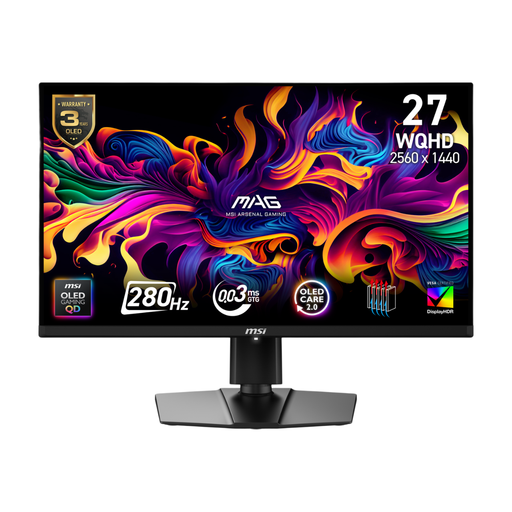
MSI MAG 271QP QD-OLED X28 27-inch QHD
Consider this QHD QD-OLED model when planning an OLED-focused cockpit view. The title specifies 280Hz and a quoted 0.03ms response time; verify the usable mode for your connection and the screen’s fit in the layout.
View on Joybuy
 No image available
HKC G27H2DPro 27-inch QHD Fast IPS, 220Hz
The 27-inch, 2560 × 1440 format makes this a candidate for buying matching QHD screens. Its title specifies 220Hz; check port-specific modes, mounting and bezel dimensions before planning a multi-screen array.
View on Joybuy
 No image available
LG UltraGear G8 27G850A 27-inch 4K Nano IPS
Consider this for a higher-resolution main view rather than assuming it matches QHD side screens. Its title lists dual-mode 240Hz/480Hz operation, DisplayPort 2.1 and HDMI 2.1; check which mode applies at your intended 4K resolution and whether your PC can run the complete display arrangement.
View on Joybuy
Common questions
Do all the monitors need to be identical?
No: Windows can arrange different monitors as an extended desktop. If you want one continuous space-combat game view, identical models give you matching native resolution, dimensions and available modes to plan around; check the settings required by NVIDIA Surround or AMD Eyefinity for your particular arrangement.
Can my graphics card combine the screens into one game display?
It may be able to, depending on the exact card and configuration. NVIDIA describes combining displays with Surround, and AMD Eyefinity can combine two or more into one large desktop; AMD says the graphics card’s specifications determine its supported display count. Check game support as well as the GPU and connection plan.
What should I check before ordering three high-refresh monitors?
Check the GPU’s supported display count, available outputs, cables and the resolution and refresh mode through each monitor input. Dell, for example, lists QHD at 180Hz through DisplayPort 1.4 but up to QHD at 144Hz through HDMI on the Alienware AW2725DM, so the connection choice matters.
How do I position the displays after connecting them?
In Windows Display settings, identify the screens and drag them to match their physical positions, as Microsoft Support describes. For a combined view, AMD says to enable extended multi-display mode before creating an Eyefinity group; NVIDIA Surround provides topology, resolution, refresh-rate and bezel-correction settings.


