For several weak rooms across different floors, try a more open router position first, then consider mesh or Ethernet-backed equipment if coverage remains poor; an extender may suit a single weak room if it can receive a usable signal. Before replacing the provider router, check the connection and any provider-dependent services. Ofcom notes that brick internal walls can make whole-home Wi-Fi more difficult than hollow walls, but this does not establish a universal solution for every home.
Who these options may suit
Households with several weak rooms
If bedrooms and study spaces on different floors need coverage, consider where extra units could connect to the network. Ofcom notes that brick internal walls can make whole-home Wi-Fi more difficult than hollow walls.
Households with an upstairs Ethernet route
If an existing cable run or a permitted route reaches the upper floor, Ethernet can connect fixed devices or wired network equipment without relying on a wireless link between floors. Openreach describes using suitable RJ45 wiring to position a router away from the ONT.
Households with one weak room
If most rooms work well and only one has poor Wi-Fi, an extender may be worth considering if it can be placed where it still receives a usable signal from the router.
What to check before choosing
Compare the connection near the router with the problem rooms before buying. If the issue is limited to distant rooms, choose between repositioning, a wireless extension and a wired route according to the layout and equipment you can use.
Each row describes one main purchasing priority among consumers considering Wi-Fi for a multi-storey shared home.
| Concern |
What to check when buying |
Who this matters to |
| Coverage across rooms and floors |
Note which rooms are weak, where the router sits and whether potential node positions have power and a usable connection. |
If several bedrooms or study spaces are weak, I need coverage beyond the room with the router. Consumers who put multi-room coverage first make up about 36%. |
| A dependable path for simultaneous use |
Compare nearby and distant-room performance; check for usable Ethernet runs, router ports and any access-point power requirements. |
When several people stream, study or use fixed devices, I want to know whether an Ethernet route can avoid a weak wireless hop between floors. Consumers prioritising a wired connection make up about 29%. |
| Fixing one weak room |
Check whether an intermediate socket receives Wi-Fi and confirm the extender’s operating mode and any mesh compatibility requirements. |
If the rest of the home works well, I would rather address one room than add equipment across several floors. Consumers whose main priority is a single-room fix make up about 21%. |
| Provider and installation compatibility |
Check provider requirements, any home-phone dependency, cable permissions and whether fixed fibre equipment must remain in place. |
If I rely on provider-supplied equipment or need permission for cable work, I want to avoid disrupting the connection or choosing an unsuitable installation. Consumers putting compatibility and installation first make up about 14%. |
Common buying pitfalls
-
Buying coverage equipment to fix a broadband-service problem
More Wi-Fi equipment will not resolve a limit in the incoming broadband service. Ofcom advises checking whether the problem affects the service generally or particular rooms.
Compare the connection near the router with the connection in distant rooms before choosing coverage equipment.
-
Placing an extender or mesh node where the signal is already unusable
A wireless unit still needs a usable connection back to the router or another node, so placing it in a dead zone may not address the weak link.
Test an intermediate position; if floors or walls prevent a usable wireless path, consider whether Ethernet backhaul or a wired access point is practical.
You may need to try different positions or plan a cable route before the setup can serve the intended room.
-
Treating an access point as a plug-in extender
Ubiquiti specifies the U6+ as an Ethernet-connected PoE access point, rather than a unit that wirelessly repeats a provider router by itself.
Check the exact package and plan the wired connection, power source and mounting before choosing an access point.
Installation can involve planning a cable route, mounting the unit and arranging compatible PoE equipment.
-
Replacing the provider router without checking dependent services
Ofcom cautions that a third-party router may be harder to set up and may not receive provider troubleshooting support. BT documents a Digital Voice phone port on specific hubs, which may matter to households using that service.
Check your provider’s requirements and any home-phone connections first; adding coverage equipment while retaining the hub may be another route to assess.
Setup may take extra time, and retaining dependent services could require changes to the equipment arrangement.
Relevant brands to consider
TP-Link
Its Deco X50 and RE315 illustrate different mesh and extender routes.
- TP-Link specifies optional Ethernet backhaul for the Deco X50 and access-point mode for the RE315.
- The RE315’s EasyMesh feature requires compatible equipment. Deco access-point mode has some feature limitations compared with router mode.
ASUS
The ZenWiFi XD5 is a mesh option, while the RT-AX57 represents a single-router route.
- ASUS specifies Ethernet backhaul for the XD5 where suitable wall Ethernet ports are available, and AiMesh expansion for the RT-AX57.
- These model-specific features do not establish coverage in a particular home or compatibility with mesh equipment from other brands.
Ubiquiti
The U6+ is a wired access-point option to consider where Ethernet can reach the intended room.
- Ubiquiti specifies GbE and PoE for the U6+.
- Plan power, mounting and configuration; the listed coverage figure is not a measured result through a particular home’s floors.
NETGEAR
The Orbi RBK762S is a tri-band router-and-satellite mesh example.
- It provides another mesh configuration to compare when considering a router and satellite arrangement.
- NETGEAR’s coverage and device-capacity figures are claims for that configuration, not measured results in a particular brick-walled home. Check the exact pack and connection arrangements.
BT
BT hubs may be relevant where a household relies on BT equipment or its home-phone service.
- BT documents Ethernet and Digital Voice phone ports on specific hubs.
- Port details for particular BT hub generations do not establish compatibility requirements for other providers or every BT hub.
Joybuy product options
These Joybuy listings cover multi-unit mesh systems, a Wi-Fi extender and a mesh-router option for improving connectivity across rooms. Check the intended operating mode, router position and provider requirements before choosing.
 No image available
NETGEAR Orbi 370 RBE373 WiFi 7 Mesh System, 3-Pack
Consider this multi-unit mesh option when several rooms need coverage beyond the router’s location; the listing says an existing modem or gateway is required.
Dual-band BE3600; 2.5Gbps Ethernet.
View on Joybuy
 No image available
TP-Link RE220BE BE3600 Wi-Fi 7 Range Extender
Consider an extender for a weak room if it can be placed within range of the existing router; check compatibility before relying on its EasyMesh feature.
The listing identifies range-extender and access-point modes, plus a 1Gbps Ethernet port.
View on Joybuy
 No image available
TP-Link Deco BE22 (3-Pack) BE3600 Whole Home Mesh Wi-Fi 7 System
Consider this three-pack mesh system if you are planning for multiple units in different rooms; check the product’s backhaul and setup details against your available cabling and router arrangement.
Three-pack; BE3600; Wi-Fi 7.
View on Joybuy
 No image available
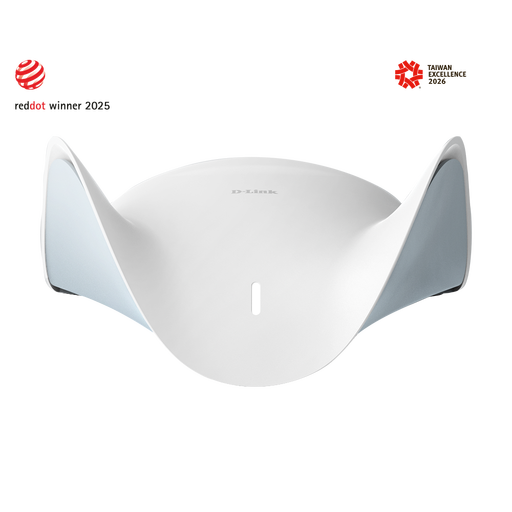
D-Link BE9500 Wi-Fi 7 Smart Mesh Router M95
Consider this router route only after checking whether replacement suits your provider connection and whether one router can serve the rooms that need coverage.
The listing describes mesh expansion with compatible AQUILA PRO AI routers or extenders.
View on Joybuy
 No image available
TP-Link Deco BE65 BE9300 Tri-Band Wi-Fi 7 Whole Home Mesh System (3-Pack)
Consider this three-pack mesh option if multiple units suit the rooms that need coverage; confirm the pack’s setup and connection arrangements for your home.
Tri-band; BE9300; Wi-Fi 7.
View on Joybuy
Frequently asked questions
Should I buy mesh if Wi-Fi is slow even beside the router?
Not on that observation alone. Ofcom advises distinguishing a broadband-service or shared-capacity limit from weak Wi-Fi in particular rooms before buying coverage equipment.
Can I move the full-fibre wall box upstairs?
Do not move an Openreach ONT or its fixed fibre fittings yourself. Openreach describes using suitable installed RJ45 wiring to reposition the router while leaving the ONT in place.
Can mesh work while I keep my provider router?
Check the specific mesh kit and operating mode. TP-Link says Deco access-point mode can extend an existing wired network and supports Ethernet backhaul, but some features available in router mode are unavailable in access-point mode.
What should I check before installing an upstairs access point?
Check its power method, cable route and mounting requirements. Ubiquiti specifies PoE for the U6+ and lists a PoE adapter as a separate accessory, so an Ethernet cable alone may not complete the installation.
Will my provider support a replacement router?
Check your provider’s requirements before replacing its equipment. Ofcom warns that a third-party router may be harder to set up and that the provider may not help troubleshoot it; also account for any home-phone service that depends on the existing hub.


