Frequent black-text schedule printers
Staff producing recurring A4 schedules may value a paper tray that accommodates their usual batches and automatic two-sided printing. Brother UK lists both features for the mono DCP-L2620DW.


For recurring, mainly black-text A4 delivery schedules, start with a mono laser multifunction printer and check its paper tray and automatic two-sided printing against your typical batches. If colour coding is necessary, consider a colour-capable printer instead; whichever route you choose, check scanning needs and the school’s permitted connection methods before buying.
Staff producing recurring A4 schedules may value a paper tray that accommodates their usual batches and automatic two-sided printing. Brother UK lists both features for the mono DCP-L2620DW.
Staff whose schedules or accompanying handouts rely on colour need colour output alongside any copying and scanning they regularly do. Epson lists these functions for the WorkForce WF-2950DWF.
Staff copying or scanning multi-page paperwork should consider an automatic document feeder and a connection method approved by the school. HP and Epson list feeder and connectivity options for their respective multifunction models.
Decide whether the schedule itself needs colour, then match the printer’s paper handling and scanning workflow to the jobs staff actually do.
| Concern | What to check | Who this matters to |
|---|---|---|
| Recurring black-text printing | Compare A4 mono speed, tray capacity and automatic two-sided printing with typical schedule batches. | When I print black-text schedules repeatedly, I want to spend less time replenishing paper or turning pages by hand. Around 50% of consumers put this printing workflow first. |
| Colour-coded schedules | Confirm that colour is necessary for the documents being distributed, then check colour output and ink or toner supply arrangements. | If routes or changes depend on colour coding, monochrome pages will not preserve that distinction. For around 20% of consumers, colour output is the primary need. |
| Copying, scanning and connection | Check feeder capacity and any required single- or double-sided scanning; confirm the connection method with school IT. | I may need to scan a stack of paperwork as well as print schedules, without using an unapproved app or network route. Multi-page handling and an approved connection come first for around 30% of consumers. |
Colour capability is useful when the document format depends on it, but it may add little to a routine of monochrome schedules.
Review a representative month of documents. If colour is necessary, compare colour-capable models and their supply arrangements; otherwise, start with the mono printing workflow.
HP says some functions of the LaserJet MFP M234sdw may require the HP Smart app, internet access and an HP account. Those requirements may affect how the school can set it up.
Ask school IT which USB, Ethernet, managed Wi-Fi or app routes are permitted before choosing the device and its setup method.
For recurring schedules and multi-page paperwork, tray capacity, automatic two-sided printing and a document feeder can matter alongside the stated print speed.
Check the usual batch size, whether pages can be printed on both sides, how often staff scan or copy stacks, and where the printer will fit.
The Information Commissioner’s Office explains that UK GDPR security measures should be appropriate to the circumstances and risks, including physical and technical measures.
Place the printer so authorised staff can collect sensitive pages promptly, and follow the school’s rules for access and digital workflows.
For predominantly black-text A4 schedules, Brother’s DCP-L2620DW illustrates the mono laser multifunction route.
HP’s LaserJet MFP M234sdw is a mono multifunction option for staff who also handle multi-page documents.
Epson’s WorkForce WF-2950DWF illustrates a colour inkjet multifunction route for schedules or related documents that need colour.
These models are choices to assess for classroom schedules, particularly where colour output may be useful. The list includes inkjet and colour LED or laser models; check each model against your paper-handling, scanning, space and school IT requirements.
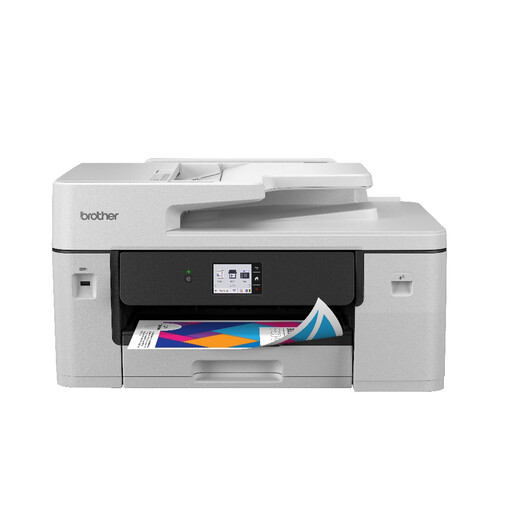 No image available
Consider this inkjet model if the classroom needs colour-coded schedules alongside other document tasks. Check its feeder and two-sided printing against those tasks, and confirm that its footprint and connection method suit the classroom.
 No image available
Consider this model for recurring schedules if its output and paper handling match the documents you distribute. Check feeder and two-sided printing requirements, ink-supply arrangements and the connection route permitted by school IT.
 No image available
Its A4 format makes this a model to assess for the classroom’s schedule workflow. If staff also handle multi-page paperwork, check the feeder and scanning functions; confirm the device dimensions, placement clearance and permitted connection method before buying.
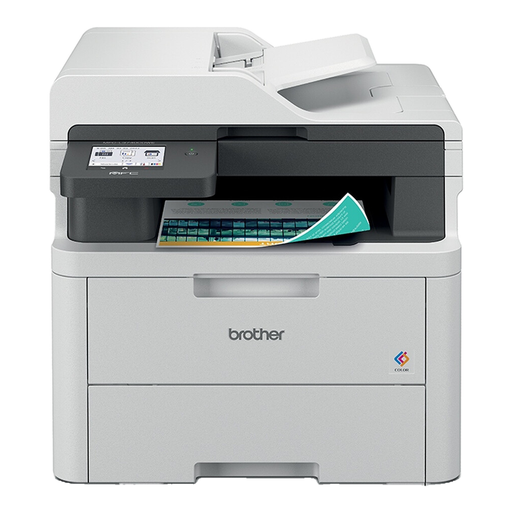 No image available
This colour LED model is worth considering where schedules need colour and staff also want one device for related tasks. Confirm its paper handling and feeder against the workload, allow suitable placement space, and check wireless use with school IT.
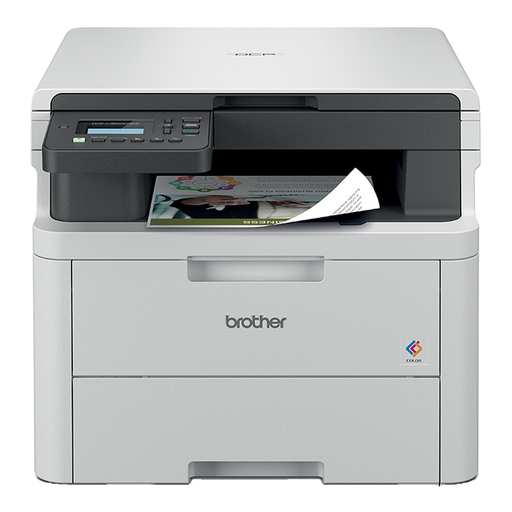 No image available
Consider this colour laser model if colour output is needed for schedules. Check its two-sided printing and paper handling for recurring batches, whether it has the feeder needed for multi-page copying or scanning, and where it can be placed safely.
Choose mono laser as a starting point when schedules are mainly black-text A4 sheets and recurring paper handling is the priority; choose colour inkjet when the schedule format or related documents require colour. Compare tray capacity, automatic two-sided printing and supply arrangements for the models under consideration rather than deciding by printer type alone.
Not for printing schedules alone. A feeder becomes useful when staff regularly copy or scan multi-page source documents; check its capacity and whether the model supports the single- or double-sided scanning your paperwork requires.
Use only a connection and app workflow approved by the school’s IT team. HP lists USB, Ethernet and wireless options for the LaserJet MFP M234sdw and says some functions may require the HP Smart app, internet access and an HP account; Epson lists wireless options for the WorkForce WF-2950DWF. Available features do not, by themselves, establish that a school permits them.
Include printing, page collection and any digital transfer in the school’s data-security arrangements. The Information Commissioner’s Office explains that the UK GDPR security principle calls for technical and organisational measures appropriate to the circumstances and risks; ask the school which controls apply to this workflow.