Shared-office schedule coordinators
If several rooms or teams need revised A4 schedules throughout the day, paper replenishment, two-sided printing and shared connectivity deserve attention.


Choose a multifunction printer around the room-schedule workflow, not just its print, copy and scan functions. For frequent shared A4 printing, compare paper capacity, automatic two-sided printing and document handling; for recurring colour schedules, also consider an office inkjet or refillable-ink model. Confirm the finished paper size, peak workload and any need for two-sided scanning or secure collection before choosing.
If several rooms or teams need revised A4 schedules throughout the day, paper replenishment, two-sided printing and shared connectivity deserve attention.
If colour distinguishes rooms, shifts or booking changes, check that a sample schedule remains legible and compare consumable use with your actual template.
If schedules contain staffing or restricted meeting details, consider how documents are released at a shared printer and how information on the device will be handled when it leaves use.
Start with the finished schedule size and the busiest printing period. Then decide whether colour, copying and scanning, or controlled collection will determine the choice.
Consider when: A shared workplace prints A4 schedules frequently and needs business-oriented paper handling.
Check: Tray capacity and security functions differ by model; an expandable tray does not mean the extra tray is included.
Consider when: Colour A4 schedules and routine copying or scanning are central to the workflow.
Check: Compare the exact model’s paper handling and replacement inks with the work you expect it to do.
Consider when: Colour schedules recur regularly and ink replenishment is a leading consideration.
Check: A manufacturer’s stated yield may differ from output using your own colour-heavy template.
| Concern | What to check | Who this matters to |
|---|---|---|
| Printing without interruptions | Compare stated print speed, standard tray capacity and automatic two-sided printing for the exact model. | When several people need revised schedules at changeover time, I want fewer pauses to refill paper or wait for a batch. Around 33% of consumers put uninterrupted schedule printing first. |
| Copying and scanning updates | Check automatic document feeder capacity and whether it scans both sides of an original automatically. | If I archive amended forms or copy multi-page schedule packs, feeding each sheet by hand would slow the task. For around 25% of consumers, handling those originals is the primary concern. |
| Consumables for colour schedules | Compare stated yield conditions and replacement supplies using the colour coverage of your schedule template. | When room or shift changes are colour-coded, I need to know how the supplies relate to what I actually print. Roughly 25% of consumers place consumable use ahead of the other concerns. |
| Secure shared use | Confirm the exact model’s print-release method, access controls and procedure for clearing stored information. | If a schedule reveals staffing or restricted meetings, I do not want it left in a shared output tray. Around 17% of consumers make controlled handling their foremost need. |
A printer may turn paper over for printing without automatically scanning both sides of an original. That distinction matters when copying or archiving double-sided forms.
Check automatic two-sided printing, copying and document-feeder scanning separately in the exact model’s specifications.
A stated yield is tied to test conditions and may not reflect a schedule with substantial colour coverage.
Use a representative schedule to compare coverage assumptions and compatible replacement supplies across the models you are considering.
The National Cyber Security Centre warns that sensitive documents have been recovered from decommissioned printers. This matters if a shared device has handled restricted schedules.
Before a device is returned, transferred or disposed of, follow its manufacturer’s instructions and your organisation’s approved information-handling procedure.
An A4 printer will not meet a requirement to produce a full-size A3 schedule or floor plan.
Confirm the largest finished sheet and whether it must print at full scale before narrowing the models you consider.
A later need for larger sheets could mean arranging another way to print them.
Brother’s business multifunction range includes A4 devices for shared printing, copying and scanning.
Epson’s WorkForce Pro business inkjet range includes multifunction devices for A4 office documents and shared workflows.
Canon’s MAXIFY range includes refillable-ink multifunction devices aimed at recurring small-office document output.
These multifunction printers offer options to consider for colour-coded schedules and shared-office printing. Match the finished paper size and document-handling functions to your work before choosing a model.
 No image available
For recurring colour schedules, compare its paper handling and ink use with your busiest printing day. If you scan two-sided originals or handle sensitive schedules, confirm those functions on the exact model.
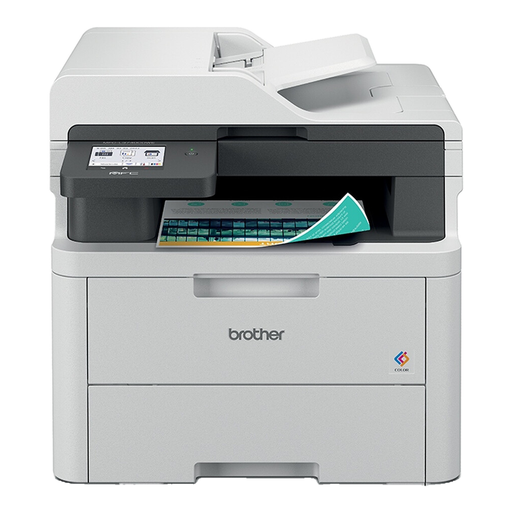 No image available
For shared colour-coded schedules, consider how staff will collect printouts. Confirm the available secure-release method and whether the document feeder handles two-sided originals if either function is essential.
 No image available
For A4 schedules that also need copying or scanning, check whether its document handling suits your originals. Assess ink use against your colour coverage and confirm two-sided scanning separately.
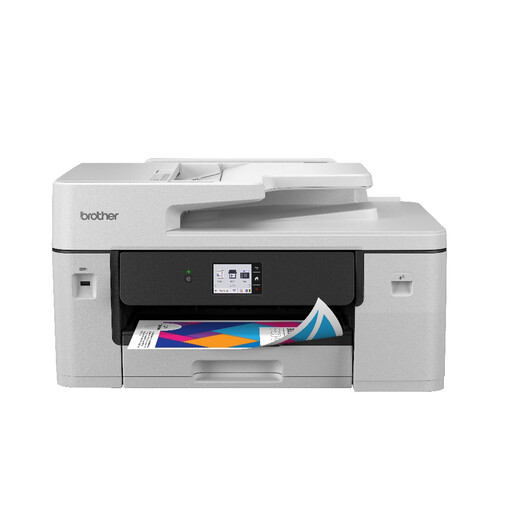 No image available
If some schedules may need A3, check their finished size against this model’s supported media before choosing it. Confirm document-feeder scanning functions if you regularly process multi-page originals.
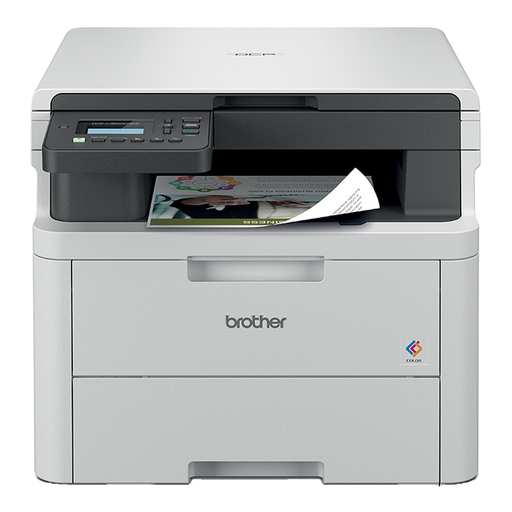 No image available
For colour-coded schedules, compare paper handling with the size of your regular print batches. If you copy multi-page originals or need to collect sensitive jobs securely, confirm feeder and print-release functions before choosing it.
No: automatic two-sided printing is the feature to check if the schedules themselves must print on both sides. A duplex document feeder matters when you also need to scan or copy two-sided originals automatically; check the two functions separately.
Use colour if it helps people distinguish rooms, shifts or booking changes; monochrome may suffice when the same information remains clear without it. Check a sample schedule for legibility and consider how often that template will be printed.
Set up administrator access and network controls according to your organisation’s requirements and the manufacturer’s instructions. If schedules contain sensitive information, check whether the exact model supports holding a job until it is released at the printer.
Not exactly: a manufacturer’s stated yield depends on its test conditions and may differ from printing your schedule template. Compare the stated basis with your document’s colour coverage and expected printing pattern.
Handle both the device and any information it may retain before it leaves your organisation’s control. The National Cyber Security Centre advises sanitising equipment that might contain electronic storage media; follow your organisation’s approved data-handling and disposal procedures.